Get to know upsells
Last updated: October, 2026
Earn more from every customer, every time someone buys. With Upsells, you can offer your audience an additional offer or upgrade, like a bonus course, a 1:1 coaching session, or a premium membership tier
Instead of interrupting the original purchase, the upsell offer appears after the purchase and before the thank-you page, so members can accept it in one step.
❗️Important: For subscriptions that include a trial, a credit card is required upfront for members to see the upsell page.
Upsells can be delivered as add-ons or Upgrades:
Add-on: Offer members an additional item alongside their main purchase. Use this to pair products, such as offering a premium course with a subscription or adding a recurring subscription to a one-time purchase.
Upgrade: Offer members a higher-tier plan or a longer billing cycle. Circle handles the plan swap, the subscription change, and charges the price difference immediately.
Set up an add-on
Click Payments in the left sidebar and then select Paywalls.
Click the More actions (three dots) icon on the paywall you’d like to update and select Edit.
Click the Upsell tab.
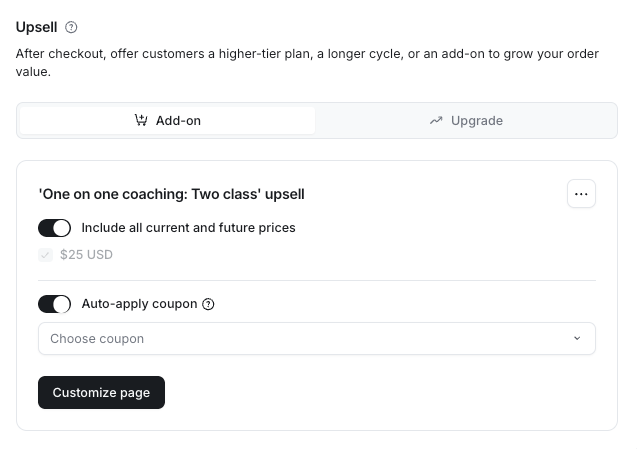
Select Add-on.
-
Select a paywall from the dropdown menu under Add-on upsell.
💡 Tip: Set up or edit the add-on paywall before selecting it. You can’t make changes to the add-on from this page.
-
Select the pricing options you’d like to offer with the add-on or toggle on Include all current and future prices.
(Optional) Turn on Auto-apply coupon and select a coupon from the dropdown menu to automatically apply it to the add-on. This lets you offer discounts that apply only when the add-on is purchased through this upsell.
(Optional) Click Customize page to customize the add-on page with its own cover image, countdown price clock, badges, and more. Similar to the checkout page.
Click Save.
Set up an upgrade
Before you can set up an upgrade, you must first complete the paywall setup. Once done, edit the paywall and add it to a subscription group in the Product tab. Then follow these steps to add an upgrade:
Click Payments in the left sidebar and then select Paywalls.
Click the More actions (three dots) icon on the paywall you’d like to update and select Edit.
Click the Upsell tab.
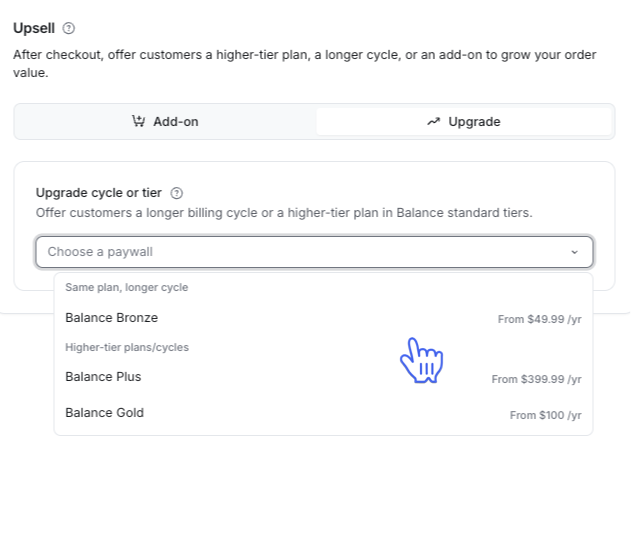
Select Upgrade.
-
Select the paywall you’d like to offer as an upgrade from the dropdown menu under Upgrade cycle or tier.
Select the pricing options you’d like to offer with the add-on or toggle on Include all current and future prices.
(Optional) Turn on Auto-apply coupon and select a coupon from the dropdown menu to automatically apply it to the add-on. This lets you offer discounts that apply only when the add-on is purchased through this upsell.
Click Save.
Remove an upsell
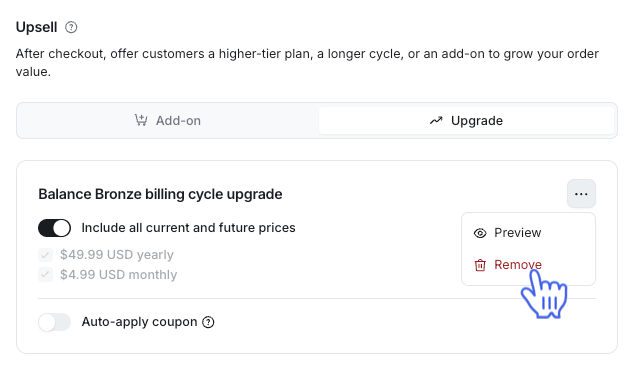
To remove or disable an upsell, click the More actions (three dots) icon on the upsell and select Remove.