Archive or delete a paywall
Last updated: August, 2026
You can archive or delete a paywall if you no longer need one.
To get started, navigate to the paywalls page by clicking Payments in the left sidebar, then selecting Paywalls.
Archive paywall
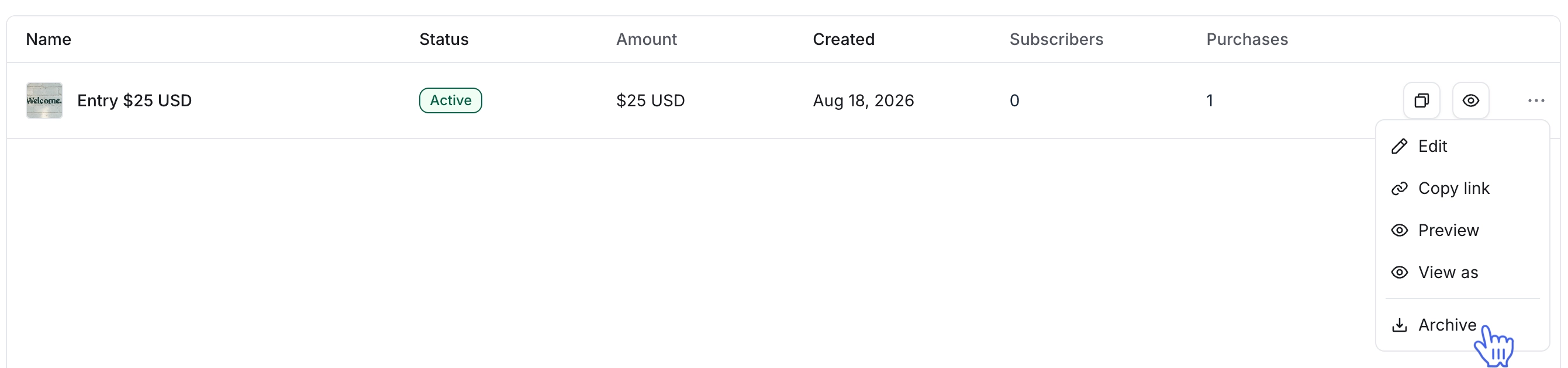
You can archive paywalls that are in Active status.
In the All tab, hover over the paywall and click More actions (three dots) and select Archive.
In the archive paywall dialog, you’ll be prompted to type CONFIRM. Once you type that, then click Confirm.
Once archived, the paywall will be inaccessible going forward for new purchases. However, any existing paywall subscribers will continue to keep access unless they unsubscribe.
💡 Tip: After archiving your first paywall, the Archived tab will appear in the paywalls page, which enables you to manage your archived paywalls in one place.
Unarchive paywall
In the Archived tab, hover over the paywall and click More actions (three dots) and select Unarchive. Once unarchived, the paywall will be reactivated and available for new purchases.
ℹ️ Note: If you archived a paywall that any member hasn’t purchased in the past, you can also delete it directly from the Archived tab.

Delete the paywall
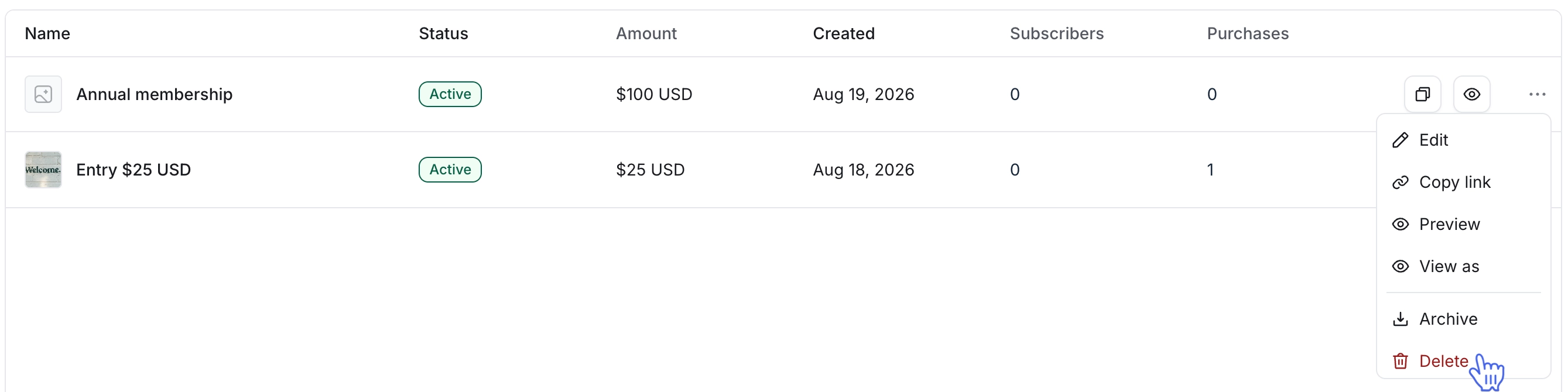
You can permanently delete active or archived paywalls if any member hasn’t purchased them. Additionally, paywalls in draft status can be deleted.
Hover over the paywall and click More actions (three dots) and select Delete.
In the delete paywall dialog, you’ll be prompted to type CONFIRM. Once you type that, then click Confirm.