Add or update a member's payment method
Last updated: August, 2026
As an admin, you can easily add or update payment methods for members directly from their profiles, ensuring a smooth payment experience for members.
Add a payment method
Once your Stripe account is connected with Circle paywalls in your community, you can add a payment method to any member’s account.
We support the same online card brand payment methods as Stripe. You can utilize cards linked to a debit or credit account at a member’s bank or financial institution. For a comprehensive list, see this page.
Key points about adding payment methods
You can add more than one payment method for a member. However, you can only add one payment method per currency.
If a member already has one payment method and you add another one in a different currency, Stripe generates a separate customer for this member with the new payment method in the dashboard.
If a member has multiple saved payment methods, the checkout page will automatically show the relevant method for the currency. For example, if payment methods for USD and CAD are saved, the USD payment method will automatically present during a paywall purchase in USD, eliminating the need to re-enter payment details.
To add a payment method to a member account:
Click Audience in left sidebar, then select Audience.
Locate the member using the available filters, hover over their name, click More actions ( three dots) next to their name, and select Edit.
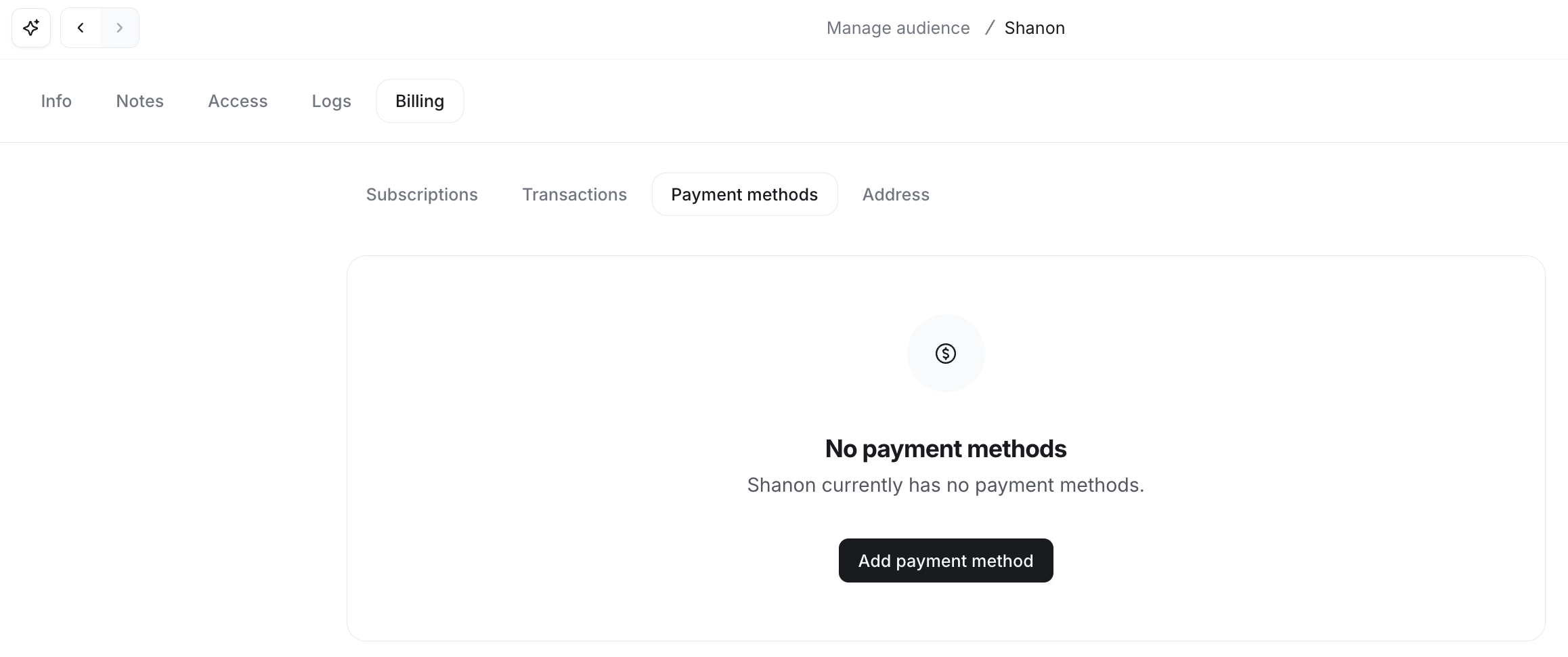
Navigate to the Billing tab and then click the Payment methods tab.
-
Click Add payment method.
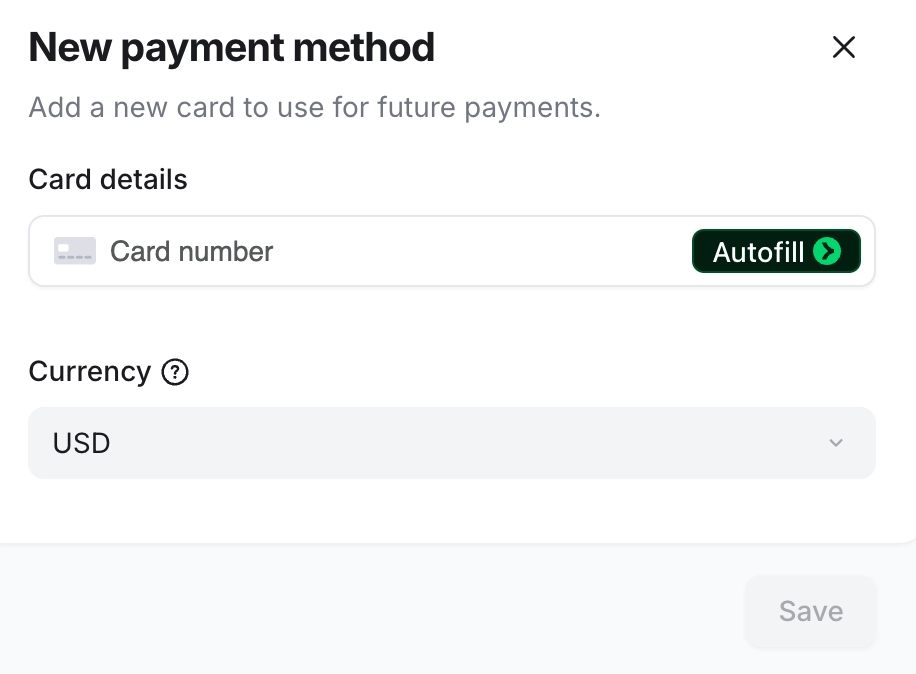
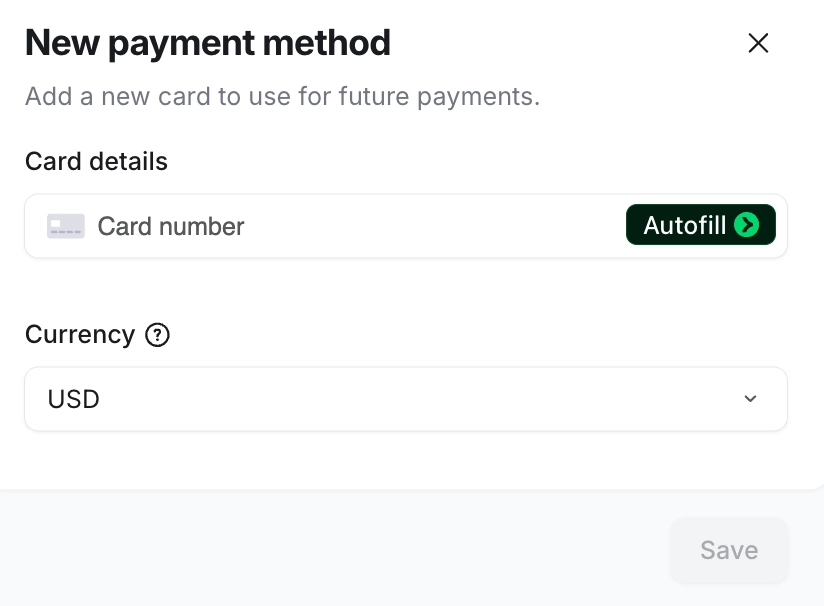
Enter card details and select the currency to use this payment method as a default for all transactions in the currency.
-
Click Save.
💡 Tip: Once you add a payment method to a member’s account, they’ll gain access to the billing page in their community account, where they can update their payment method directly, regardless of whether they’ve purchased a paywall. For more on how members can manage their payment methods, see our guide here.
Update the payment method
If the member already has a payment method added, you can update the card details.
If you want to remove the existing payment method and add a new one for the same currency, we recommend editing the payment method instead. Editing the payment method replaces the old card with the new one and automatically updates the default payment method for that currency in Stripe.
To update the payment method:
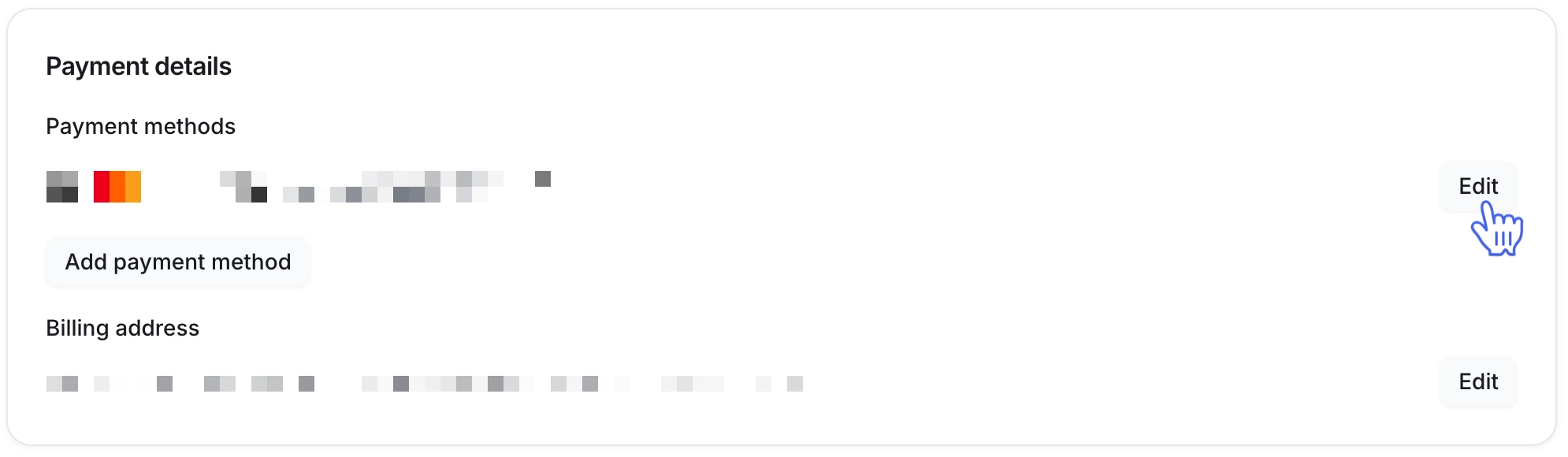
Navigate back to the Billing page and scroll to the Payment details section.
-
Click Edit next to the payment method you want to update.
Enter new card details. The currency will remain the same.
-
Click Save.