Report technical issues in live sessions
Last updated: December 08, 2025
If you experience technical problems in a live room or live stream session, you can use the live report feature to send us details.
About reporting issues
Submitting a report helps our team understand what’s happening and spot patterns across live sessions. The more reports we receive, the better we can track trends and improve the overall experience for everyone.
Who can use this feature
Hosts, co-hosts, and participants (in live rooms) can report technical issues. Participants and visitors in live streams can’t use this option.
The option to report the issues is available on the desktop app, in a browser, and in the mobile apps (including branded apps).
Mic and camera troubleshooting
If your microphone or camera isn’t working, try following our Troubleshoot audio and video issues in live sessions guide for step-by-step checks. In many cases, adjusting your device or browser permissions can quickly solve the issue.
How to report technical problems
When you’re in a live session on desktop or mobile, follow these steps:
-
To access the report option:
-
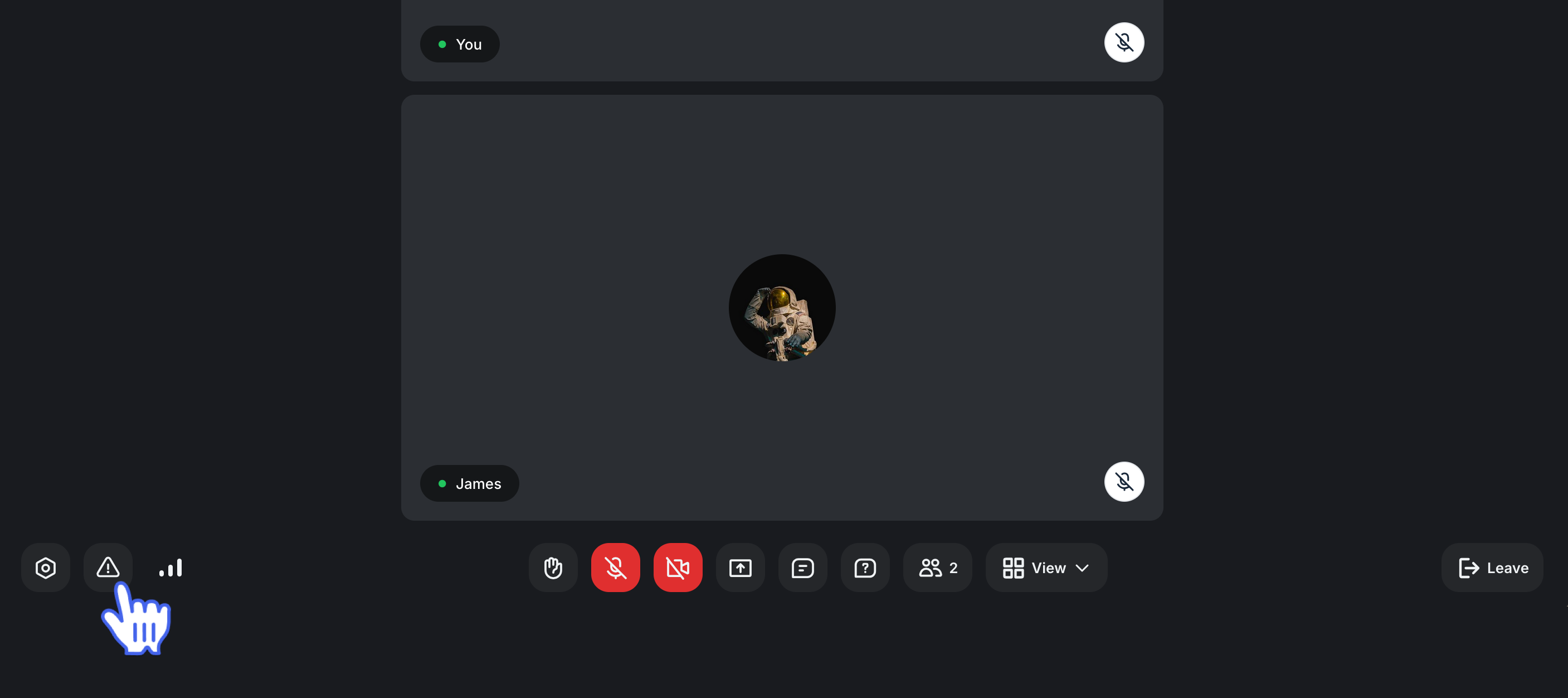
Desktop app or browser: Click Report issue (caution icon) on the control bar at the bottom.
-
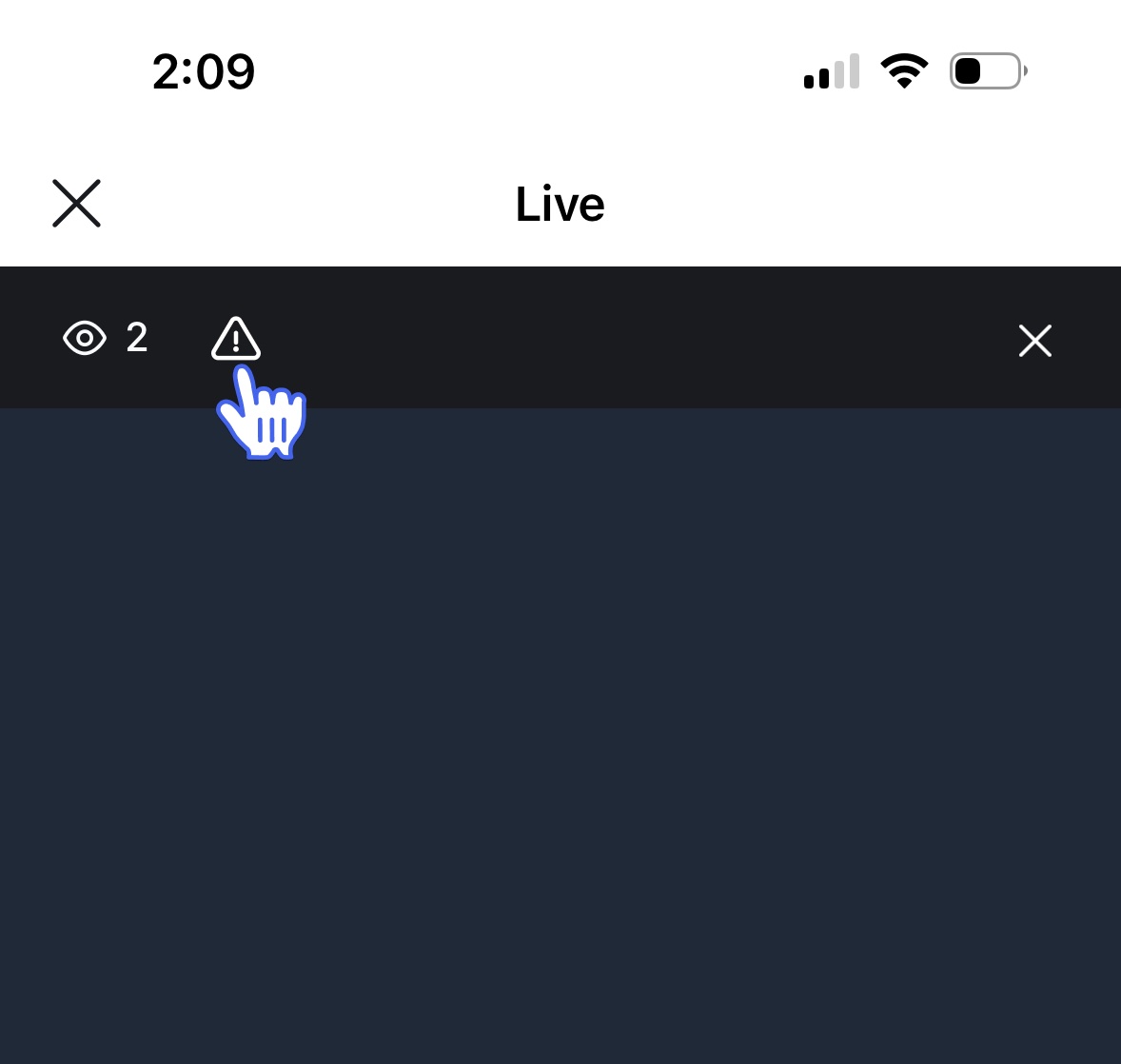
Mobile apps: Tap the Report issue (caution icon) on the top bar.
-
-
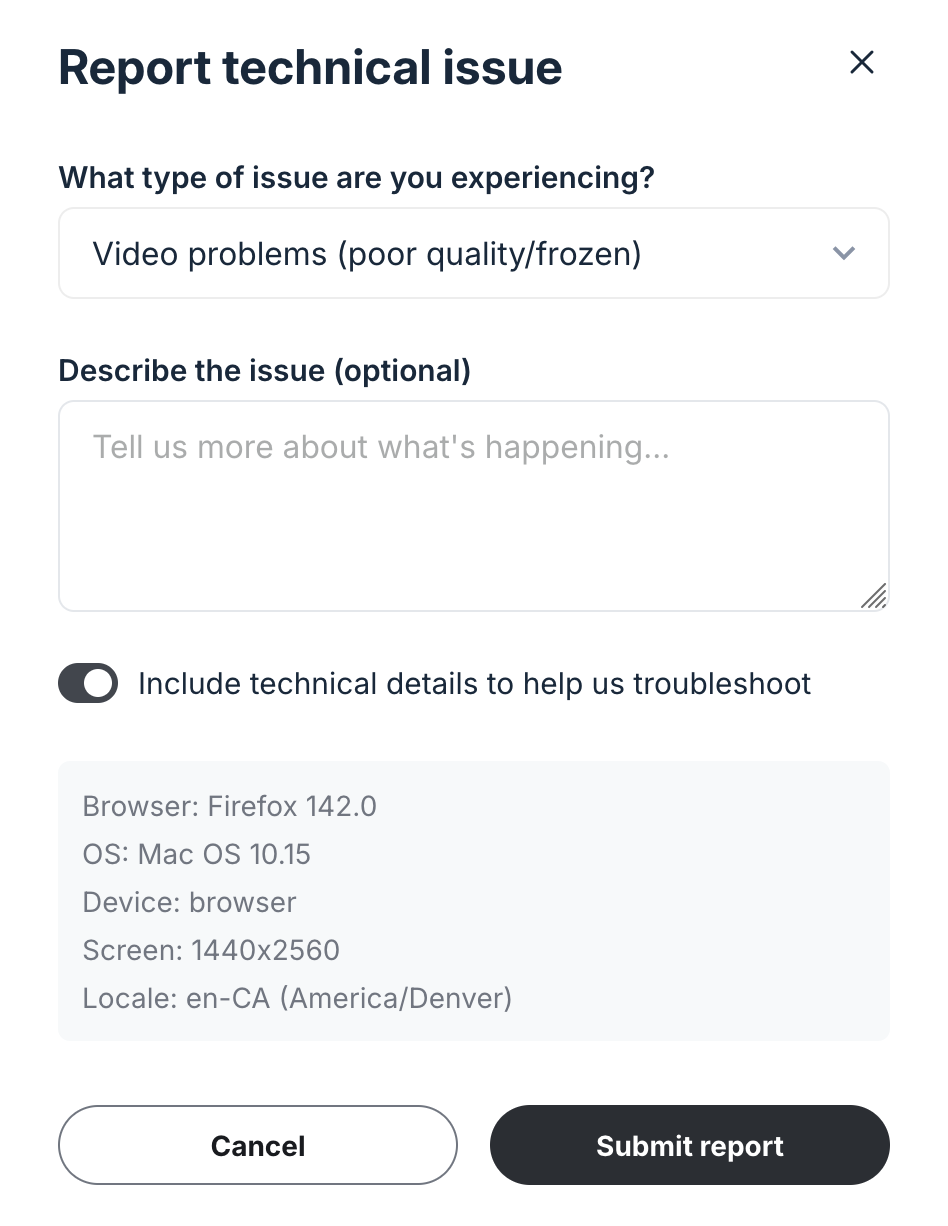
In the dialog, enter the following:
Type of issue: Using the dropdown menu, select the type of issue you are experiencing, such as video issues or screen sharing not working.
Describe the issue: Add any helpful details about what’s happening.
-
Include technical details: Enable the Include technical details to help us troubleshoot toggle to automatically include your browser, operating system, device, and locale information (this does not share your exact physical location).
Click Submit report.
Your report will be sent directly to the Circle team along with any technical details included. If you’ve contacted support, the report you’ve submitted gives them extra context to investigate and assist you.