Pin a speaker in a live session
Last updated: October, 2026
Pinning a speaker allows you to keep one specific speaker in focus during a live session, even when others are speaking.
About pinning a speaker
By default, live sessions automatically highlight whoever is actively talking. Pinning gives you manual control, so the person you want to focus on stays visually prominent for you at all times, overriding the automatic rotation.
This is especially useful during interviews, panels, webinars, or team announcements where one person should remain the main focus.
Pinning is available in both live streams and live rooms, and it works in backstage and live states.
Who can pin speakers
The following roles can pin participants:
Live streams: The host, co-hosts, and moderators.
Live rooms: The host and all participants.
How pinned speakers appear
Once you pin a speaker, they’re prioritized in your layout until you unpin them or pin someone else.
Speaker view: The pinned speaker stays fixed in the main stage view, regardless of who is actively speaking.
Gallery view: The pinned speaker is always shown in the first spot on the first page.
Important things to know
You can only pin one speaker at a time.
Pinning is supported only on the desktop app and web browsers.
Pinning affects only your view. It does not change how speakers appear for anyone else in the session.
When someone starts sharing their screen, the shared content temporarily replaces the pinned view. Once it ends, your pinned speaker automatically returns to their pinned state.
If you are the session host, pinning a speaker in your view won’t affect the live recording.
How to pin a speaker
You can pin a speaker at any time, including while backstage. To do so:
Hover over the speaker tile.
-
Click More actions (three dots) and select Pin.
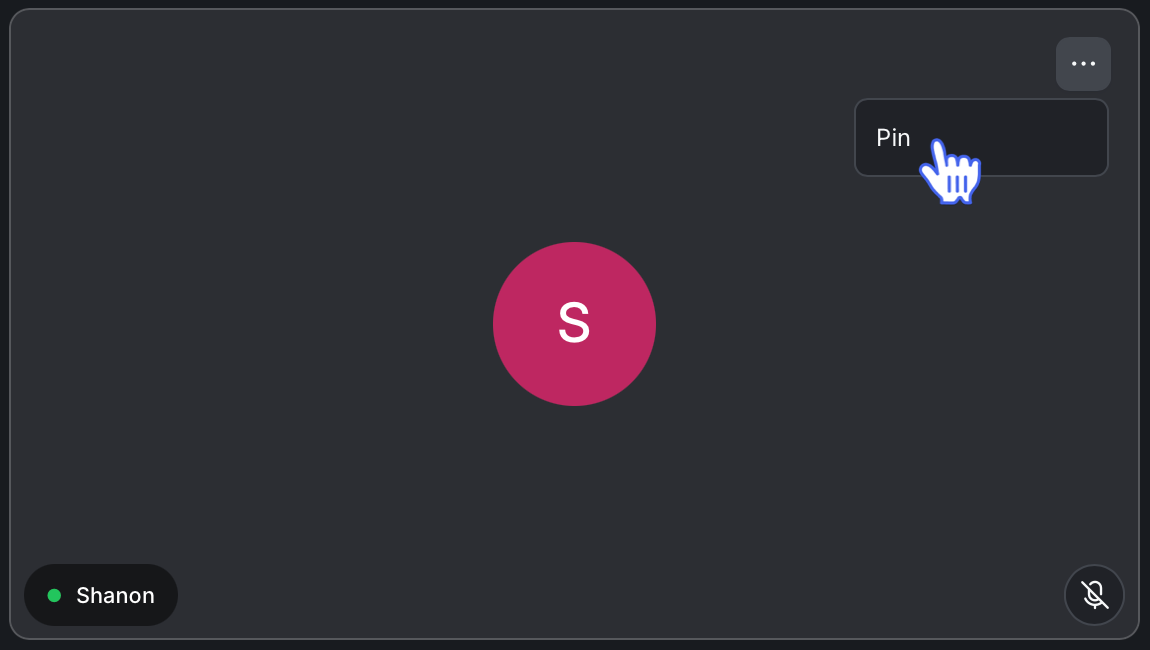
The speaker is now pinned in your view. A Pin icon also appears on their speaker tile, making it easy to identify who is currently pinned.
How to unpin or switch pinned speaker
You have a few options depending on what you want to do:
To unpin a speaker: Follow the same steps and select Unpin from the more actions menu.
To pin a different speaker: Pin another participant using the same steps you used to pin initially. This automatically unpins the previously pinned speaker and pins the new one instead.