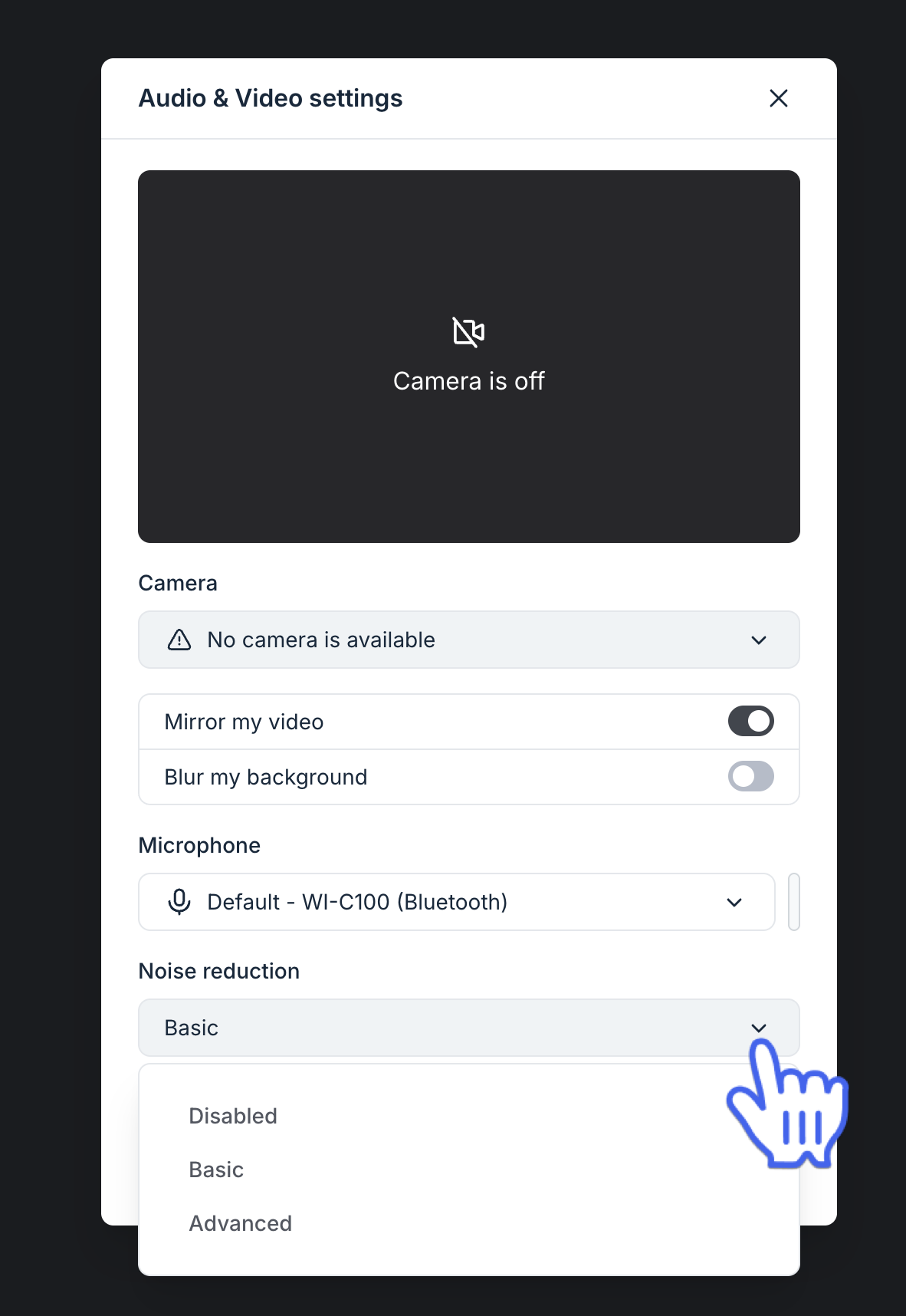
Adjust noise reduction for your microphone
Last updated: October, 2026
You can reduce background noise while using your microphone during a live session to make your voice clearer.
About noise reduction
Noise reduction helps minimize distracting background sounds, such as fans, traffic, or nearby conversations, so your voice remains clear and easy to understand during a live session.
Who can use noise reduction
Noise reduction is available to roles that can use a microphone:
Live streams: Host and co-hosts.
Live rooms: Host and participants.
Where you can use noise reduction
Noise reduction settings are available in live stream and live room sessions when joining from:
Desktop app
Web browsers, including Mozilla Firefox, Google Chrome, and browsers based on the Chromium open-source project, such as Microsoft Edge or Brave.
-
Mobile app (including branded apps)
ℹ️ Note: On mobile apps, device settings, including noise reduction, are only available on the pre-join screen. To adjust noise reduction during a live session, you’ll need to leave the session and update your settings on the pre-join screen before joining again.
Noise reduction options
You can choose one of the following noise reduction options based on your preference.
Disabled: Deactivates the application-level noise reduction capabilities. Your audio is captured as-is from your microphone, without additional processing.
Basic: Applies the standard noise reduction to minimize consistent background sounds and improve voice clarity. Recommended for most users in typical environments.
-
Advanced: Applies the advanced algorithm to suppress complex background sounds, such as chatter, barking, vehicle noise, or other background disturbances.
❗ Important: The Advanced noise reduction option appears only when it is supported on your browser or app. Currently, Safari browsers and iOS apps (including branded iOS apps) do not support advanced noise reduction.
Adjust noise reduction
The steps to adjust noise reduction are the same across desktop, browser, and mobile apps. To check or change your noise reduction setting:
On the pre-join screen or during a live session, click or tap the Device settings icon on the control bar.
-
Open the Noise reduction dropdown and select your preferred option.
Close the settings panel.