Using picture-in-picture during live sessions
Last updated: September, 2026
Picture-in-picture (PiP) allows you to keep your live stream or live room session visible in a small, floating window while you work on your device elsewhere.
When you open your session in PiP, the live video appears in a compact window. You’re free to jump between tabs, take notes, prep content, or browse without losing sight of the conversation.
PiP works everywhere you’d expect: in live rooms, live streams, and backstage.
What you can do inside the PiP window
From the PiP window, you’re able to:
Watch the live video, including any spotlighted questions or chat messages.
Share screen.
View and manage chat.
Monitor and manage live Q&A.
Manage spotlighting directly from the chat or live Q&A panels while highlighting a question or chat message.
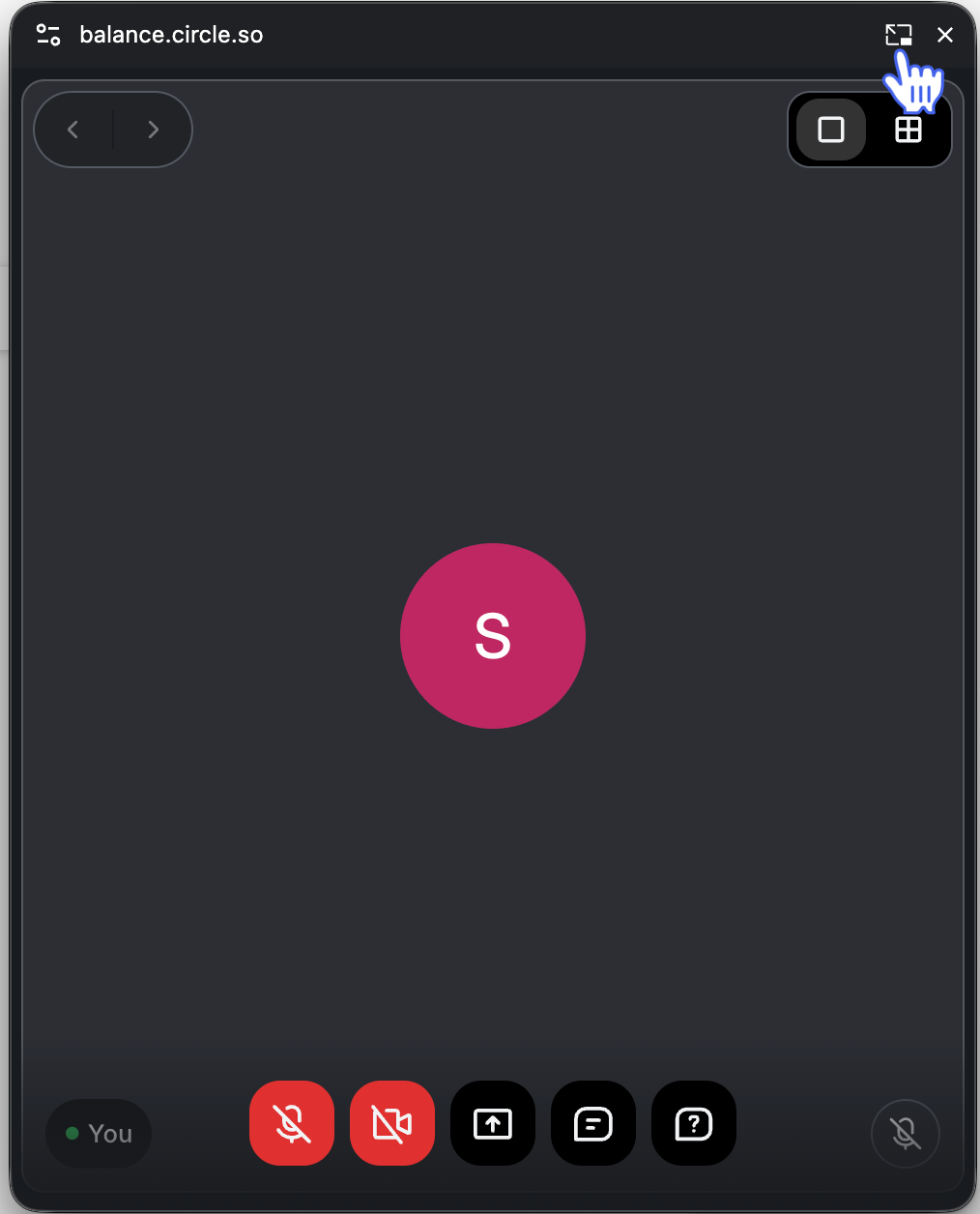
To help you manage your session without returning to the main window, the PiP window displays a set of controls grouped into three areas that appear when you hover over the window:
Top bar
The top of the PiP window shows the following quick actions:
Setup: Lets you manage the browser’s mic, camera, and automatic PiP permissions.
Back to tab: Returns you to the main browser tab hosting your live session.
Close (X): Closes the PiP window without removing you from the session.
Center stage controls
At the top of the live video area, you’ll see:
View toggles: Switch between speaker view and gallery view.
Navigation arrows: Move left or right to cycle through different speakers.
Bottom control bar
A control bar appears at the bottom of the PiP window, giving you access to your essential tools:
Mic
Camera
Screen share
Chat
Q&A
This allows you to actively participate in the session without needing the full browser window.
Availability
Picture-in-picture is available to all community plans using the Circle live feature.
In live streams, only hosts and co-hosts can open PiP.
In live rooms, hosts and participants can open PiP.
Browser compatibility
Picture-in-picture works on most Chromium-based browsers. For the smoothest experience, we recommend using Google Chrome or Microsoft Edge.
Please note that the Circle desktop app, mobile apps (including branded apps), and browsers such as Safari do not support picture-in-picture. If your browser supports it, you will see the options to open it as described in the next section.
Tip for the smoothest experience
If you’re planning to share your screen, consider sharing a browser tab instead of your entire screen. This keeps the PiP window visible only to you, even if you make your shared tab full-screen.
How to open picture-in-picture
If your role and browser support PiP, you can open it at any time using one of the following options.
Use the PiP icon
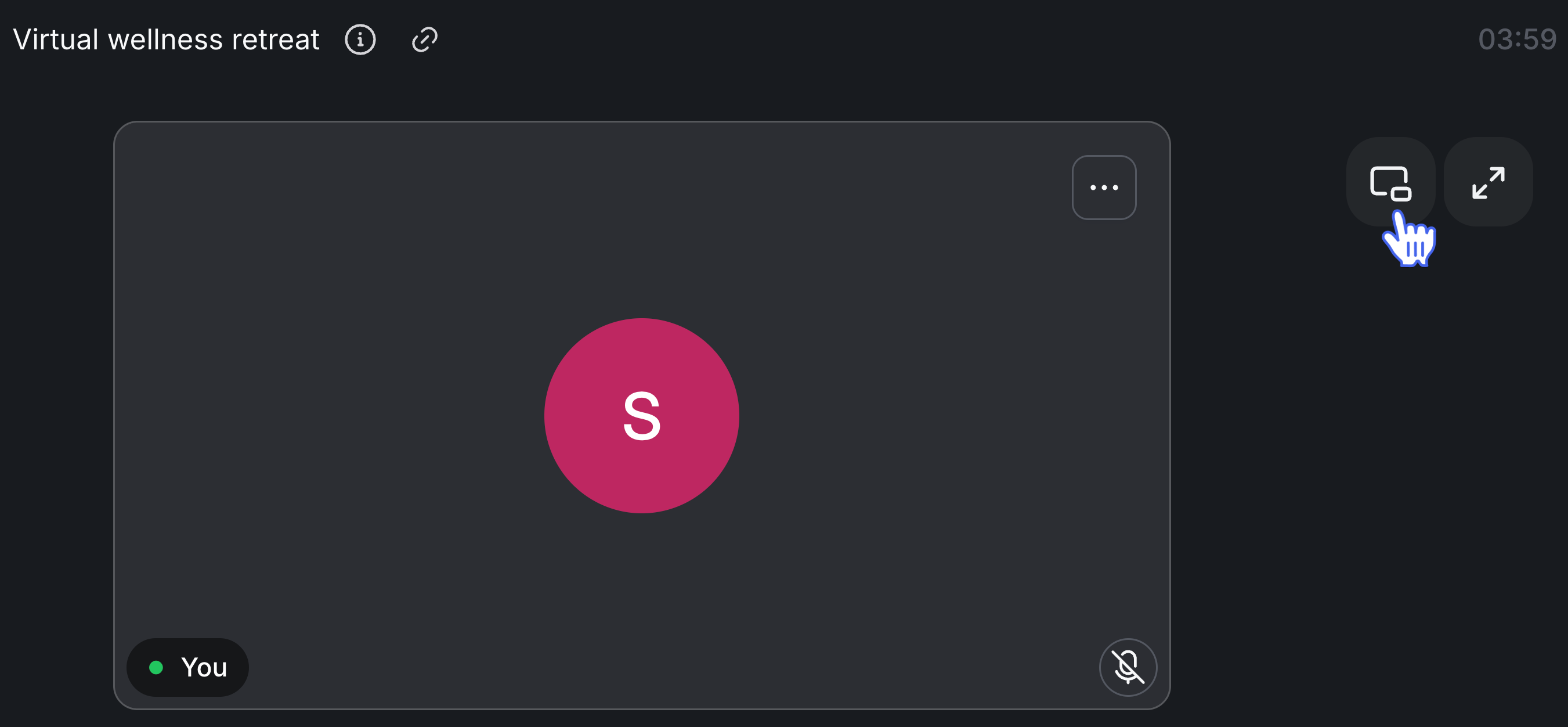
When you are in the live session, hover over the stage and look for the picture-in-picture icon at the top right. Click the icon to open the PiP window.
From the “View” menu
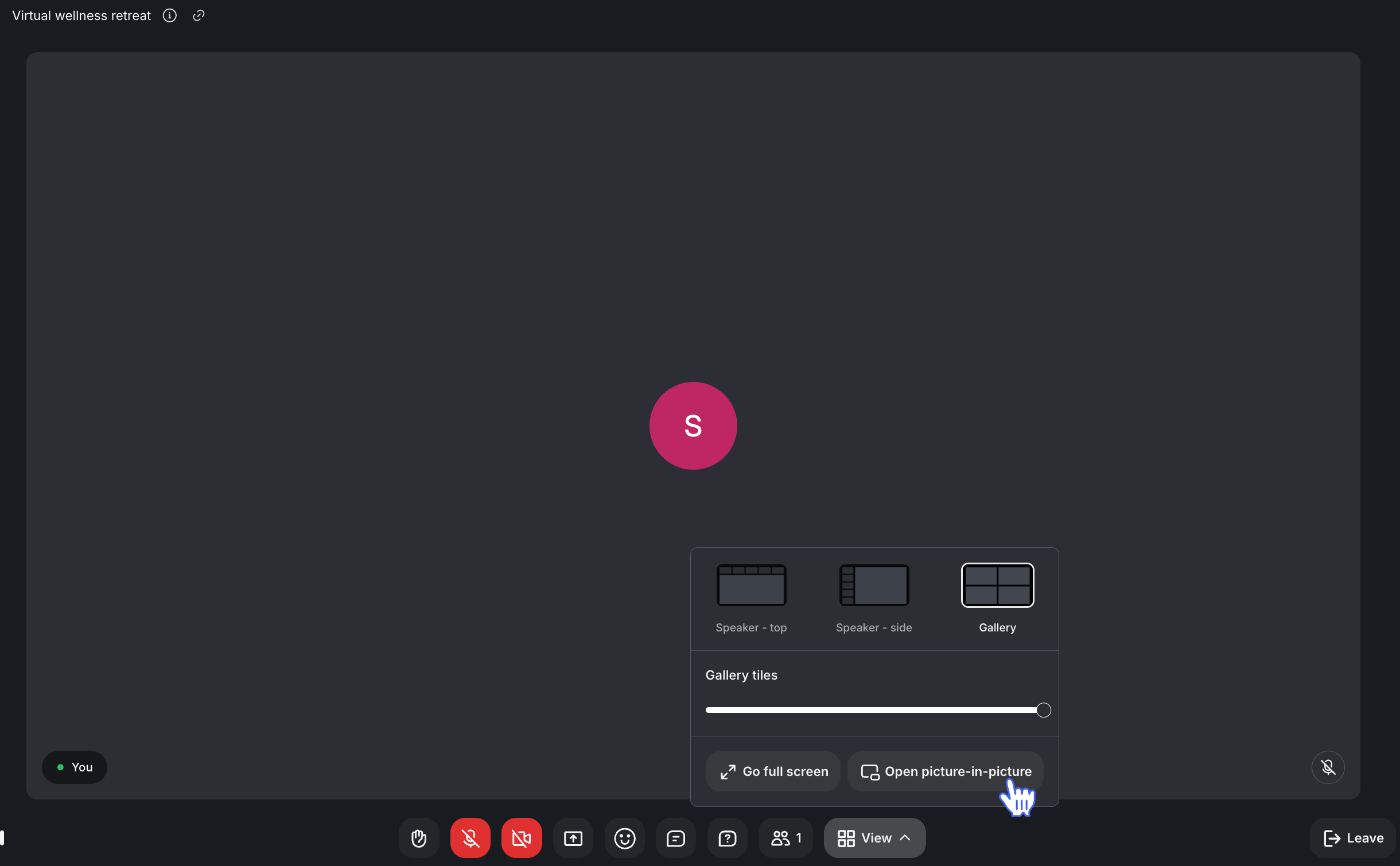
On the bottom toolbar, click the View menu. Then click Open picture-in-picture.
Let the browser open PiP automatically
Some browsers can automatically prompt you to switch to PiP when you navigate to another tab. This automatic prompt appears only when:
You're using Chrome or Edge.
-
You’ve turned on your mic and/or camera at least once during the session. Browsers use those signals to recognize that you’re in a live session and should stay connected.
💡 Tip: In Chrome and Edge browsers, you can manage this automatic PiP setting by clicking the Setup (Chrome) or Lock (Edge) icon next to the address bar. You can also manage the same settings inside the PiP window using the Setup or Lock icon. You will still be able to manually open the PiP window using the options mentioned above.
How to return to the main session
When you're done using picture-in-picture, you can return to the full session window at any time. You can do this in the following ways:
From the PiP window
Click Back to tab in the top-right corner of the PiP window. This will immediately bring you back to the browser tab so you can continue your live session.
💡 Tip: You can also click X at the top right of the PiP window to close the PiP. This does not remove you from the session, but you’ll just need to return to the browser tab manually.
From your browser tab
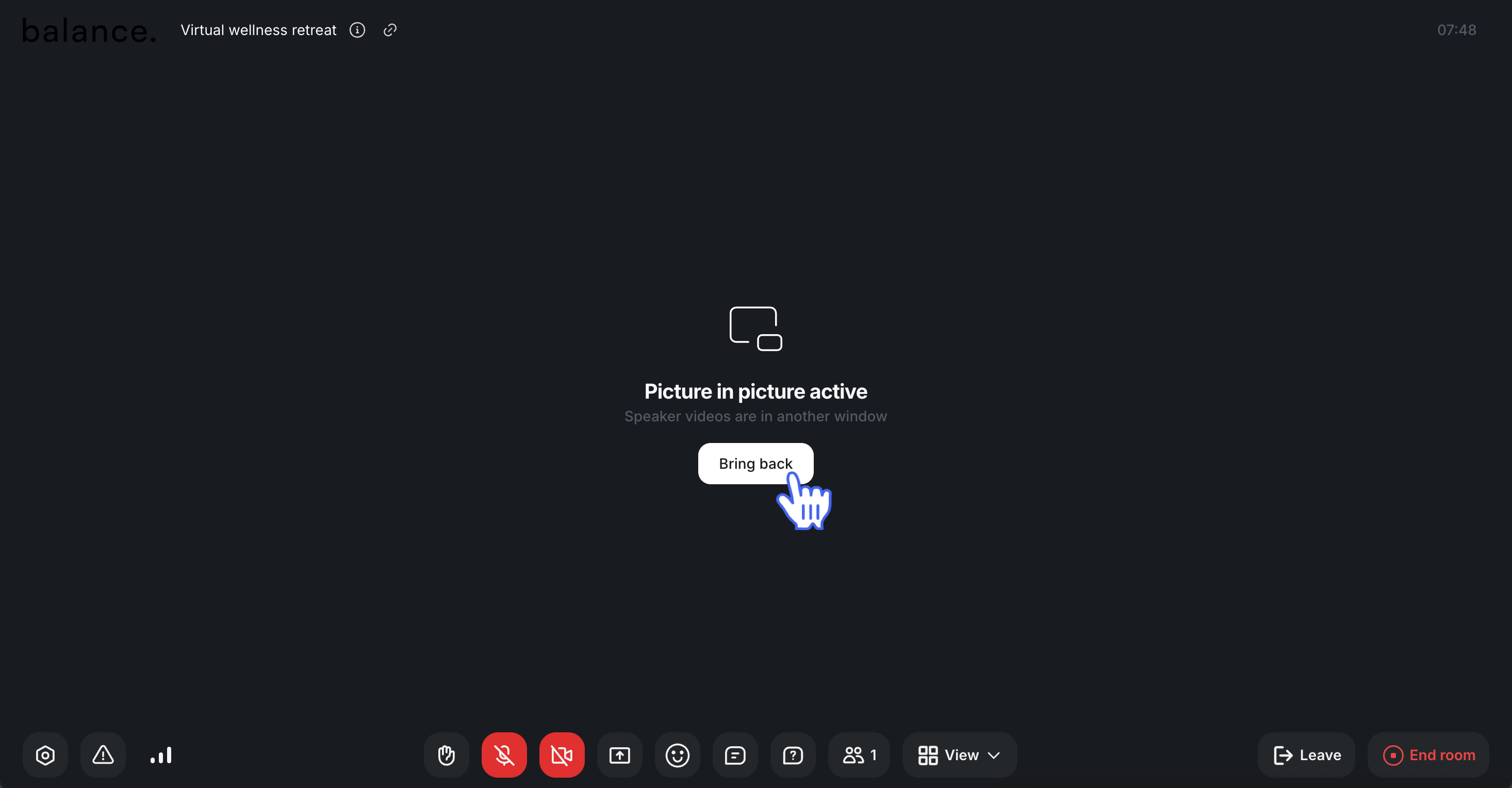
If you go to the browser tab where you originally joined your session, you will see a message saying picture-in-picture is active. Click Bring back to close the PiP window and return the session to the browser tab.