Join a public live stream as a visitor
Last updated: September, 2026
If you've set your live stream visibility to Public, both community members and visitors (non-members) can join from a web browser on desktop or mobile.
There are two ways for visitors to join the public live stream within your community, depending on the community configuration, such as:
Live URL
Live banner
Live URL
Using the live URL you shared is a convenient way for visitors to join the public live stream. This is especially useful when your community is set to private, since visitors won't be able to access it.
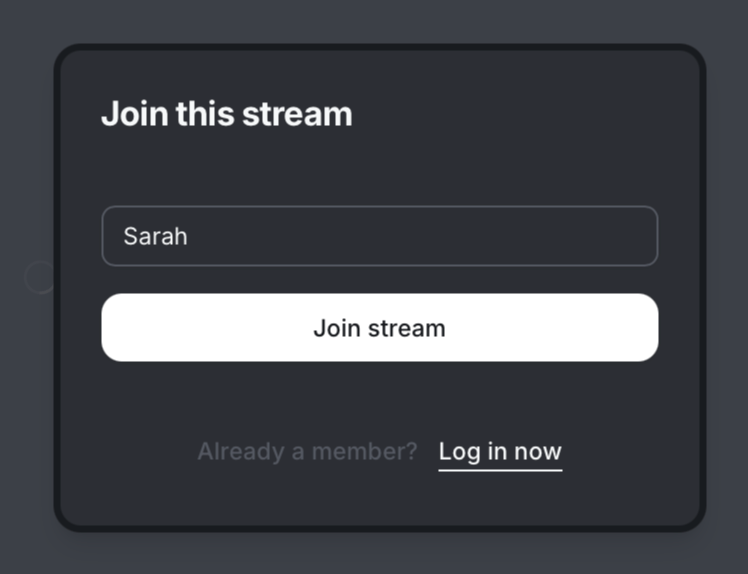
To join the stream using the live URL, visitors can open the URL in their web browser, enter their name, and click Join stream.
Live banner
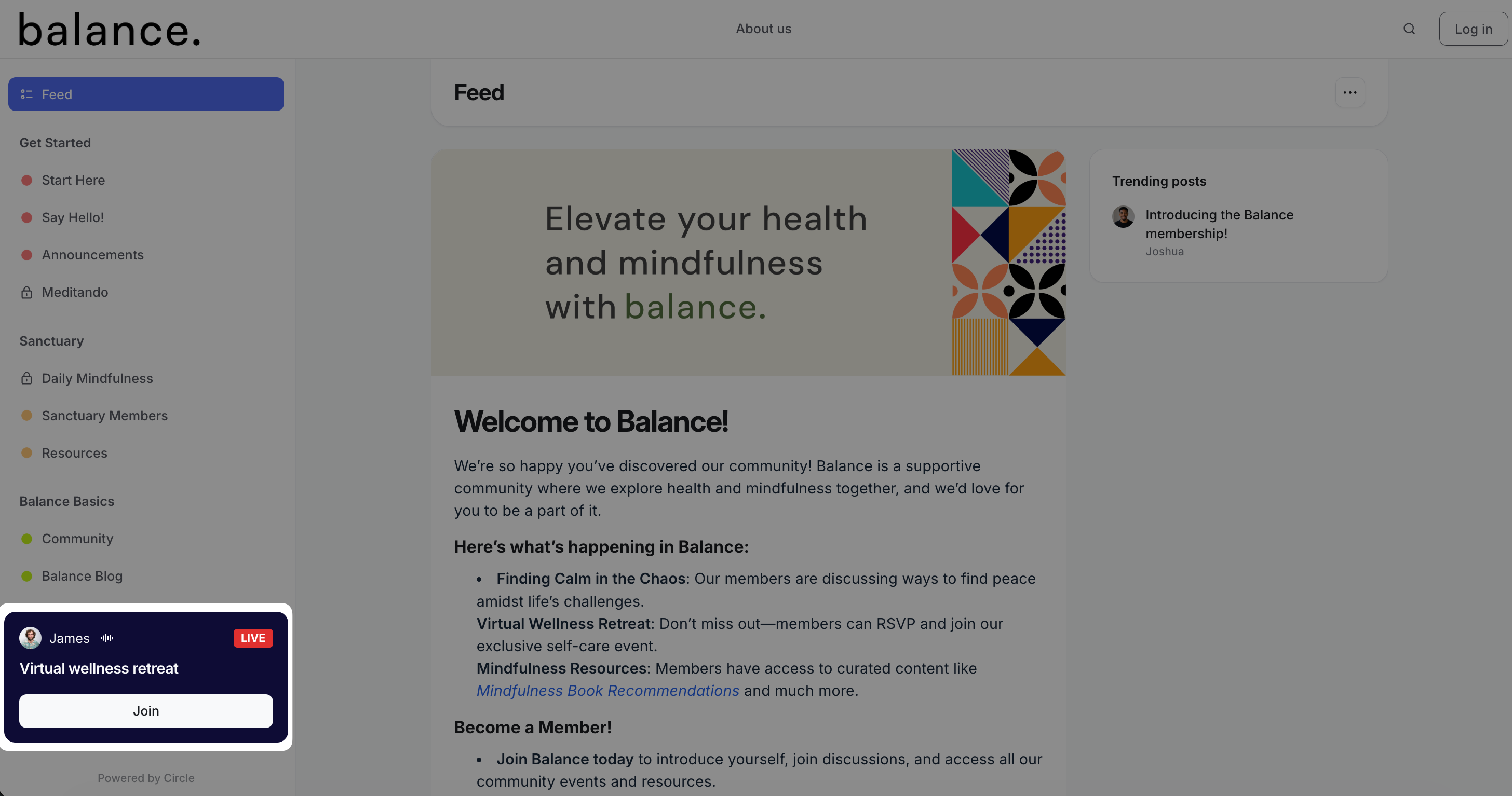
If you've set your community to public, visitors will see a live banner in your community's left sidebar once you start streaming.
To enter the stream, visitors can click the Join button ****in the banner, enter their name, and click Join stream.
📚 For more information about visitor capabilities, see Participate in a public live stream as a visitor.