Set up custom event reminders
Last updated: September, 2026
Keeping attendees informed about the event schedule is crucial, whether it’s a workshop, onboarding session, or social gathering. That’s when reminders come into play. This article will guide you through the steps to set up personalized reminders.
About event email reminders
When configuring an event draft or editing an event, you can set up as many custom email reminders as you like with a personalized subject, body, and schedule to align with your event strategy.
You can target the event audience with the following RSVP status:
Going: Remind attendees who have confirmed by RSVPing to keep their status as going.
Not going: Send a reminder to attendees who have declined by setting up the RSVP status to not going. This can be useful for sending updates or encouraging a change of mind with a custom message.
All invitees: Send reminders to everyone invited, regardless of their RSVP status. This ensures that all invitees receive the necessary information about the event.
How email reminders work for recurring events
Each event in a recurring series has its own reminder schedule. Any email reminder that you add or edit in the Email schedule section applies only to the specific event you’re editing. These email reminder changes do not carry over to other events in the series.
If you want a similar reminder to go out for every event, you’ll need to edit each event and set up the reminder individually.
Set up an email reminder
To set up a reminder:
Click Community in the left sidebar, then select Spaces.
Click the space name to open the event space
Click More actions (three dots) next to the event and select Edit event.
-
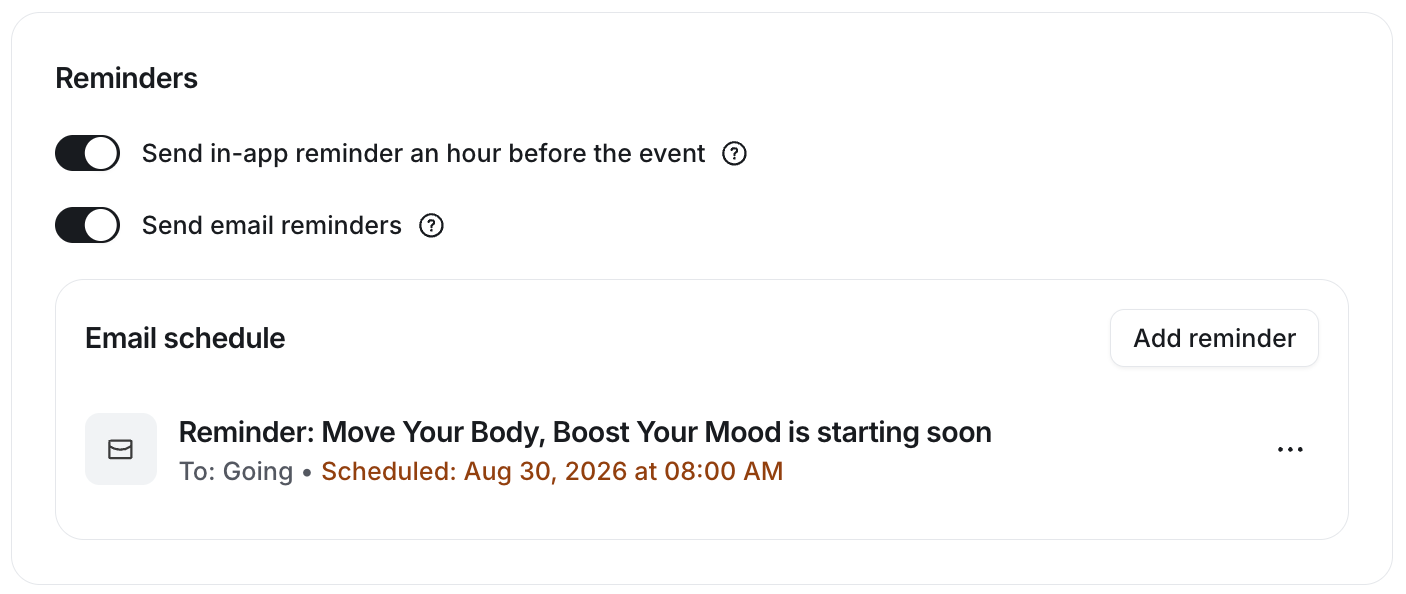
Go to the Reminders tab and enable the Send email reminders toggle if you haven’t already done so.
-
A default email reminder schedule to be sent one hour before the event start time will be created. You have the flexibility to edit or remove this default reminder.
-
Click Add reminder in the Email schedule section and configure the following fields.
Date and time
Select a date and time to send the reminder. The time you select here will be in the time zone set in your account profile.
Send to
Select one of the recipient options for attendees based on their RSVP status, such as Going or Not going, or select All invitees to send it to all attendees regardless of their RSVP status.
Subject
Write a personalized subject line for the email reminder. You can also utilize the dynamic variables available for the message body to insert event details in the subject line automatically.
Message body
Creating an engaging reminder message is essential for capturing your audience’s attention. Let’s look at all the options available to help you write the reminder message.
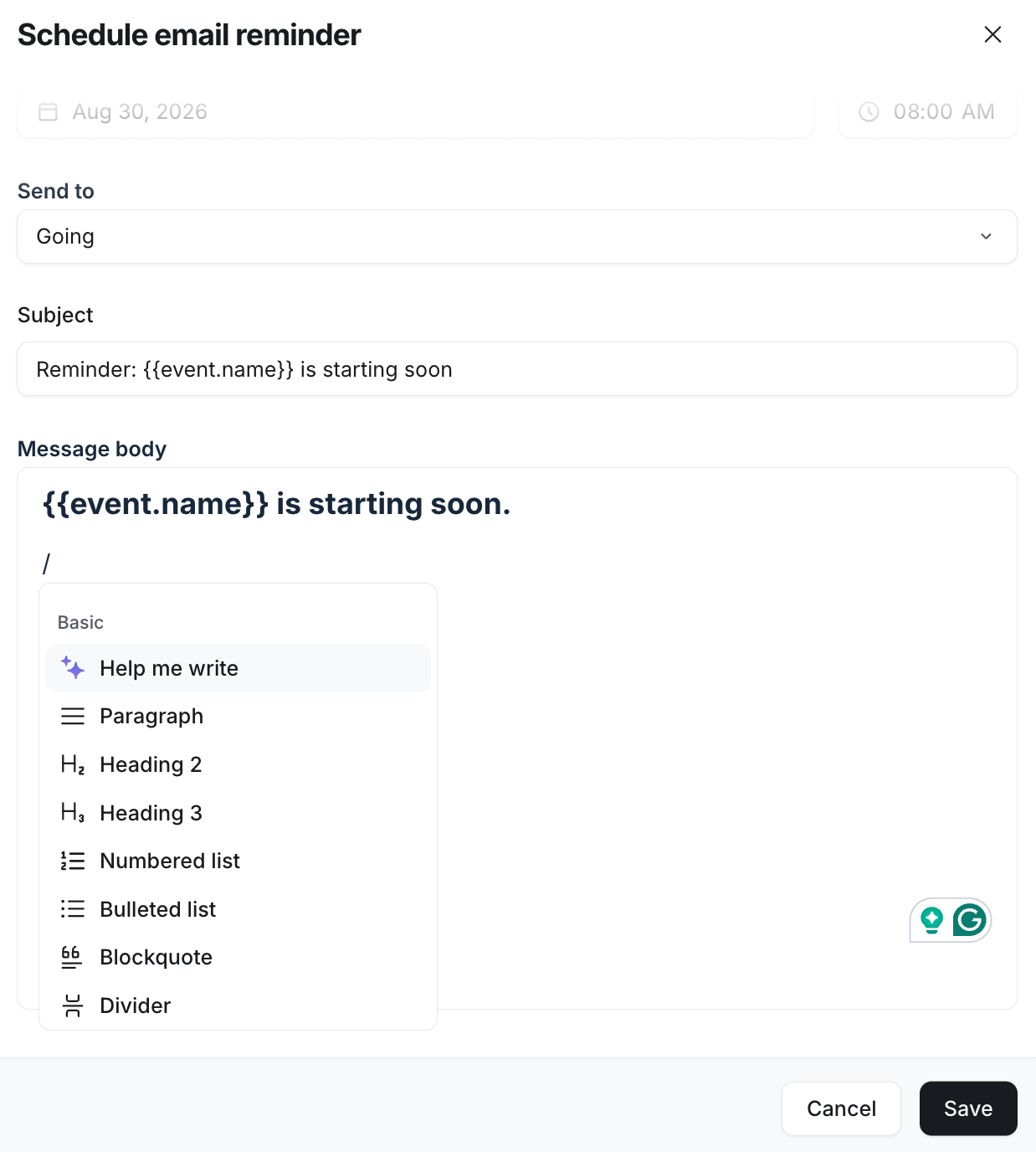
To create a well-structured message, type the forward-slash (/) command in the editor to access various formatting and media upload options.
Basic options
Help me write: Ask the AI content writer to assist you in crafting a clear and friendly message for your event.
Paragraph: Organize your text into paragraphs for clarity.
H2 and H3 headings: Add headings to break up sections.
Numbered and bulleted lists: List items or steps clearly.
Blockquote: Highlight important quotes or information.
Divider: Separate different sections of your message.
Code: Showcase programming or technical content, such as code snippets, in a format more suitable for your audience. Please note that the code block is not designed to insert custom codes (i.e., CSS) into your reminder.
Emoji: Add emojis to make your message more engaging.
Add media
Image: You can insert images in the email body using one of three options: upload from your device, choose an image from the Unsplash library, or embed a link. The supported file formats for image uploads are JPG, PNG, and GIF.
Files and PDFs: You can share various types of files or PDF documents as attachments within your text.
Audio: You can upload the audio file in MP3, WAV, or OGG format as an attachment within your text.
Video: Add video files as attachments. You can upload videos in various formats, including MP4 and MOV.
Giphy: Insert GIF into text powered by Giphy.
For quick formatting of the text, you can use the following keyboard shortcuts:
Bold: CMD/CTRL + B
Italic: CMD/CTRL + I
Underline: CMD/CTRL + U
Hyperlink: Paste the URL directly onto the text using CMD/CTRL + V
Add dynamic variables
In addition to personalized content, you can add dynamic variables to automatically insert information about the event in both the message body and subject. To access a list of dynamic variables, click the Add variable {…} icon located at the bottom of the editor.
The following variables are available for reminder:
{{community.name}}
{{event.name}}
{{event.date}}
{{event.time}} (the event time will display in the time zone set in the member’s account)
{{event.url}}
{{event.location}}
Once you have configured everything, click Save. This reminder will now appear in the email schedule section.
Edit or delete a reminder
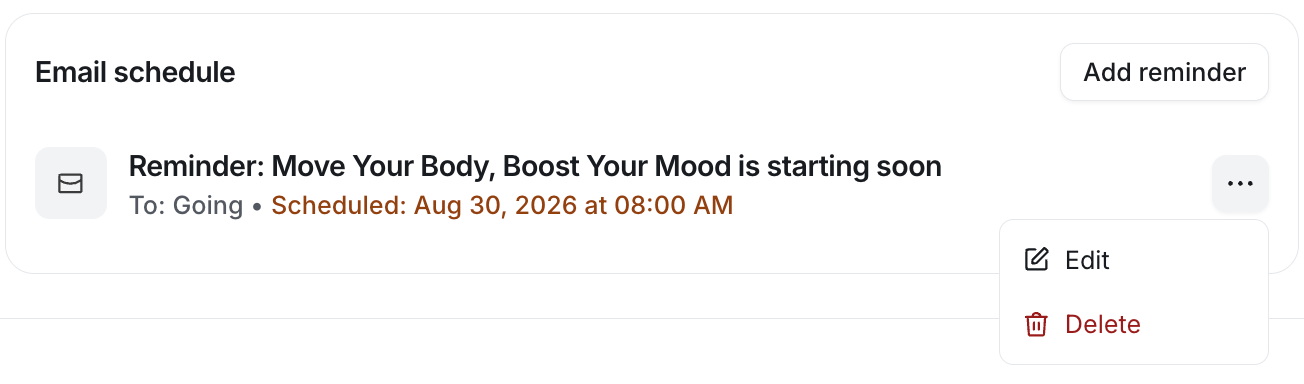
To edit an existing reminder or delete it, click More actions (three dots) next to the reminder.
When editing a reminder, you have the flexibility to customize all aspects of the reminder, including schedule, subject, message body, and target audience.