Set up multiple sender addresses in Email Hub
Last updated: October, 2026
Using multiple sender addresses (from emails) helps you tailor communication to your audience and use case. For example, you may want to send newsletters from communityteam@yourcommunity.com and new course announcements from courses@yourcommunity.com. Additionally, using a specific reply-to email for each sender ensures that responses go directly to the right team.
As an admin, you can add and manage multiple sender addresses for broadcast and workflow emails directly from your Email Hub settings. Each sender address includes a sender name, sender email, and an optional reply-to address, making it easy to separate different types of communication.
Add and manage sender addresses
Before you begin
All additional addresses must use the same branded email domain that you’ve already configured with DNS records. If you haven’t set up a branded email domain yet, please refer to our guide here to set this up first.
Adding a sender address
To add a new sender address:
Click the community name or logo (or the dropdown icon next to it) in the top-left corner and select Settings.
Scroll down to the Marketing section and select Email settings.
-
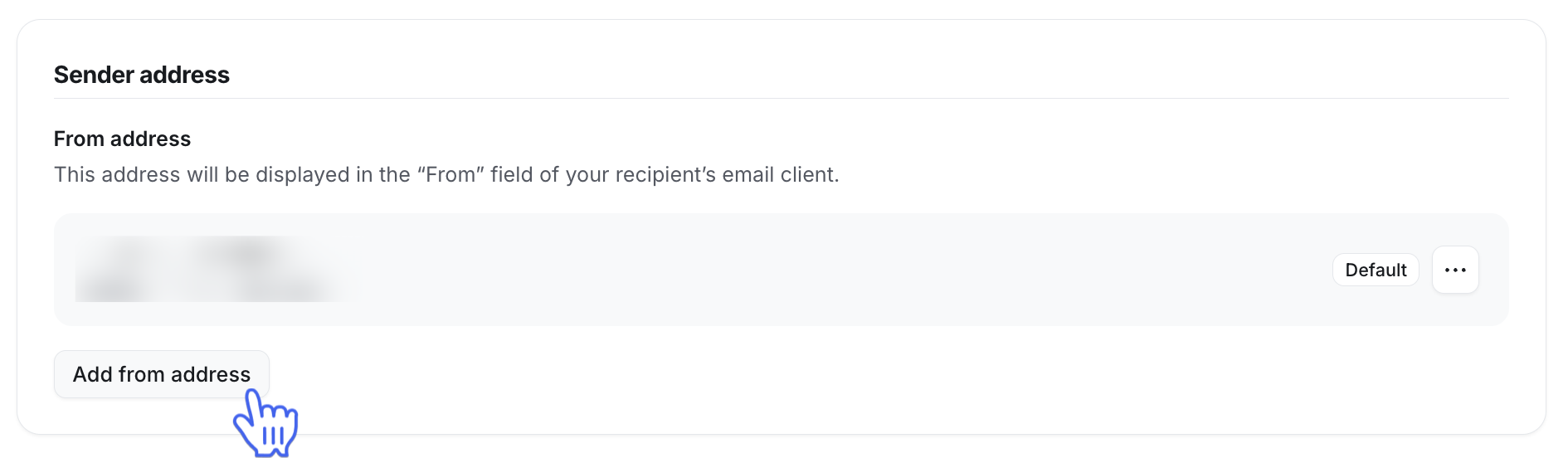
In the From address section, click Add from address.
-
In the Add from address dialog, enter the following:
Sender name: The name that appears on the email in the recipient’s inbox.
Sender email: Enter the email that recipients will receive this email from.
Reply-to email (optional): Enter the email you’d like to receive replies with. If this is left blank, replies will go to the sender email (above) by default.
Click Save.
Manage sender addresses
Manage all your sender addresses in the From address section of the Marketing settings page. Click More actions (three dots) on a sender address to:
Set as default: Set a default sender address, which is automatically selected when creating a new broadcast or workflow email. You can override the default address at any time by selecting another address when configuring a broadcast or workflow email.
Edit: Select Edit to change the sender name, email or reply-to email for any of your From addresses.
Delete: Delete an address you no longer need.
ℹ️ Note: You cannot edit or delete the default sender address. You must set another address as the default to use these options.
Key things to know about sender addresses
Sender addresses are available for Email Hub only (broadcasts and workflows).
Sender addresses do not apply to transactional emails, such as notifications, paywall emails, or weekly digests.
You can only add sender addresses using the domain you’ve already configured (multiple domains are not supported).