Customize email theme in the visual builder
Last updated: October, 2026
Customizing the email's theme allows you to personalize its look and feel. A theme controls the overall style of your email content, such as colors, fonts, buttons, and more, so your brand feels consistent across every message.
Access theme settings
To get started, follow these steps:
Open the visual email builder in a broadcast or workflow.
-
Click Design in the left sidebar and select Change theme.
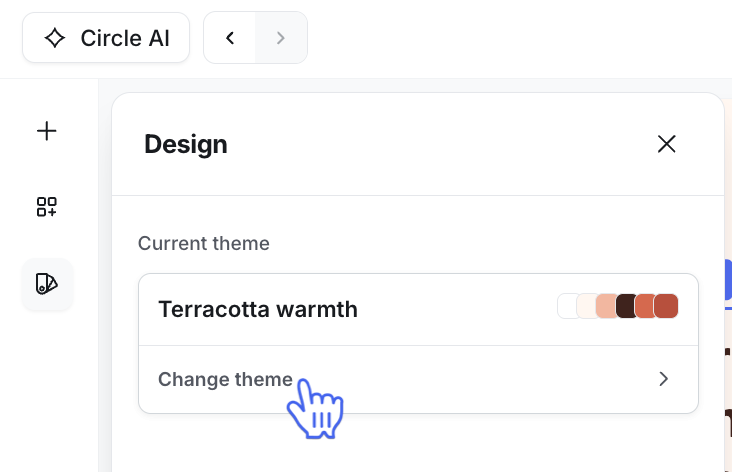
Before you start customizing, here are a few key points:
Predefined vs. custom themes: In the theme selection menu, you’ll see predefined themes to get started quickly. You can then edit any of these to create your own custom theme that matches your brand.
Block-level overrides: Changing a theme updates styles globally across your email. But you can still override design for individual elements (like a header, paragraph, or button) and entire blocks. Once individual elements or block styles are customized, those changes will take priority and won’t be affected by future theme updates.
Switch to a different theme
To change your email’s theme:
-
In the theme settings, open the dropdown menu for the current theme.
Select one of the available themes.
-
You can then:
Click Save changes at the bottom to apply it as-is, or
Customize the theme further using the options below.
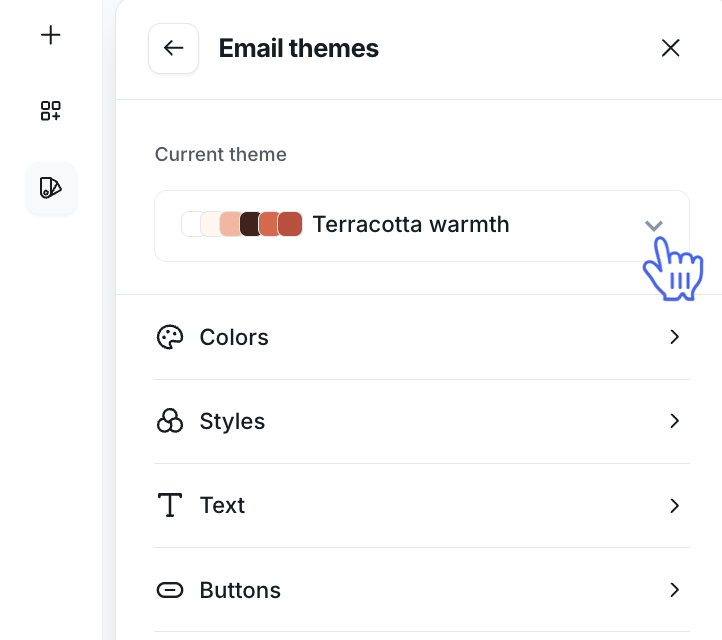
Customize theme
You can fine-tune a theme to better match your brand. This applies whether you’ve just switched to a new theme and want to adjust it before saving, or you’re updating the theme you’re already using.
Just below the theme selection dropdown menu, you’ll find the following theme elements you can customize for the selected theme:
Colors: Set your brand’s reusable color palette (Color 1–6). These act as your saved brand colors, which you can later apply throughout the theme for consistency.
Styles: Assign colors from your palette, or choose a custom color, to specific elements like backgrounds, borders, text, and links. This is where you control how your palette gets used across your email design.
Text: Define how headings and paragraphs should look, choose font family, weight, size, color, line height, and spacing.
Buttons: Adjust primary and secondary button styles such as background, text color, corner radius, borders, and more.
To make changes:
Click into each theme element to access various options.
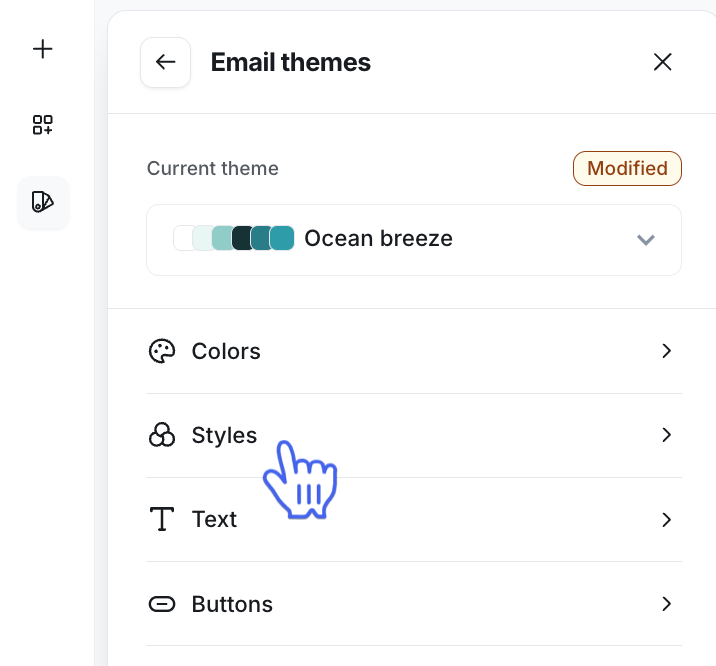
To update a color, click the color swatch. You can select a color from your theme’s palette or add your own.
To add a custom color, click the ➕ icon under My colors, then use the color picker or enter a specific color code. Colors you add under My colors are saved for the email you are working on in the builder, so you can reuse them for other elements and blocks.
Save your theme changes
When you edit:
A Circle default theme, your changes are saved to your community’s custom theme dedicated to emails.
The custom theme, your changes are saved to the same custom theme.
A few key details about the custom theme:
Any time you modify a default Circle theme, your changes are saved to a single custom theme named after your community. You cannot create multiple custom themes.
You can reuse this custom theme in future broadcasts or workflow emails.
How the custom theme change works:
Drafts or scheduled broadcasts and workflows (send an email actions) that already use the same custom theme won’t automatically update when you make theme changes.
To apply the latest theme updates, open the email in the visual builder, and the new theme changes will appear there. Then click Save and exit to ensure the updates are applied.
New emails created using the custom theme will automatically include the latest version of your theme.
If you have any saved visual builder templates that use the custom theme, they’ll also reflect the latest theme changes when you apply them to emails going forward.