Create and manage email templates
Last updated: October, 2026
Email templates help you save time and maintain consistency across your email campaigns. In this article, we’ll cover how to access, create, and manage templates in your community.
About templates
Instead of rebuilding each email from scratch, you can start from a saved layout that already includes your preferred design, formatting, and tone.
Templates are especially useful when sending recurring types of emails, such as announcements, newsletters, or onboarding sequences.
Who can access and manage templates
Email templates are available exclusively to admins of the communities subscribed to Email Hub. As an admin, you can create, edit, and manage them at any time using the desktop app or a web browser.
Access the template library
The template library hosts all templates, both those created by Circle and those saved by your community’s admins.
You can access the template library in two ways:
From a broadcast or workflow action: When creating a new broadcast or setting up the send an email action in workflows, click Start writing in the content section. This will open the template library where you can choose a template to get started.
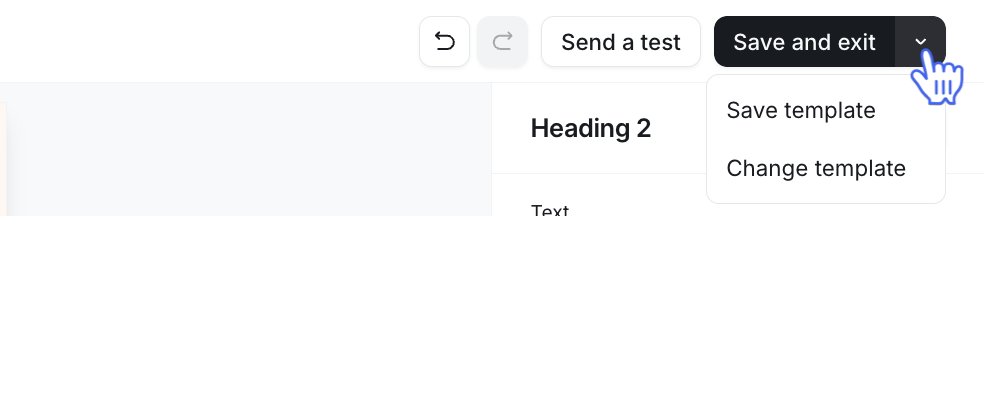
From inside the email builder: When you are in the text or visual builder, click the dropdown icon next to Save and exit at the top right and select Change template. This will open the template library so you can pick a template to load in the builder.
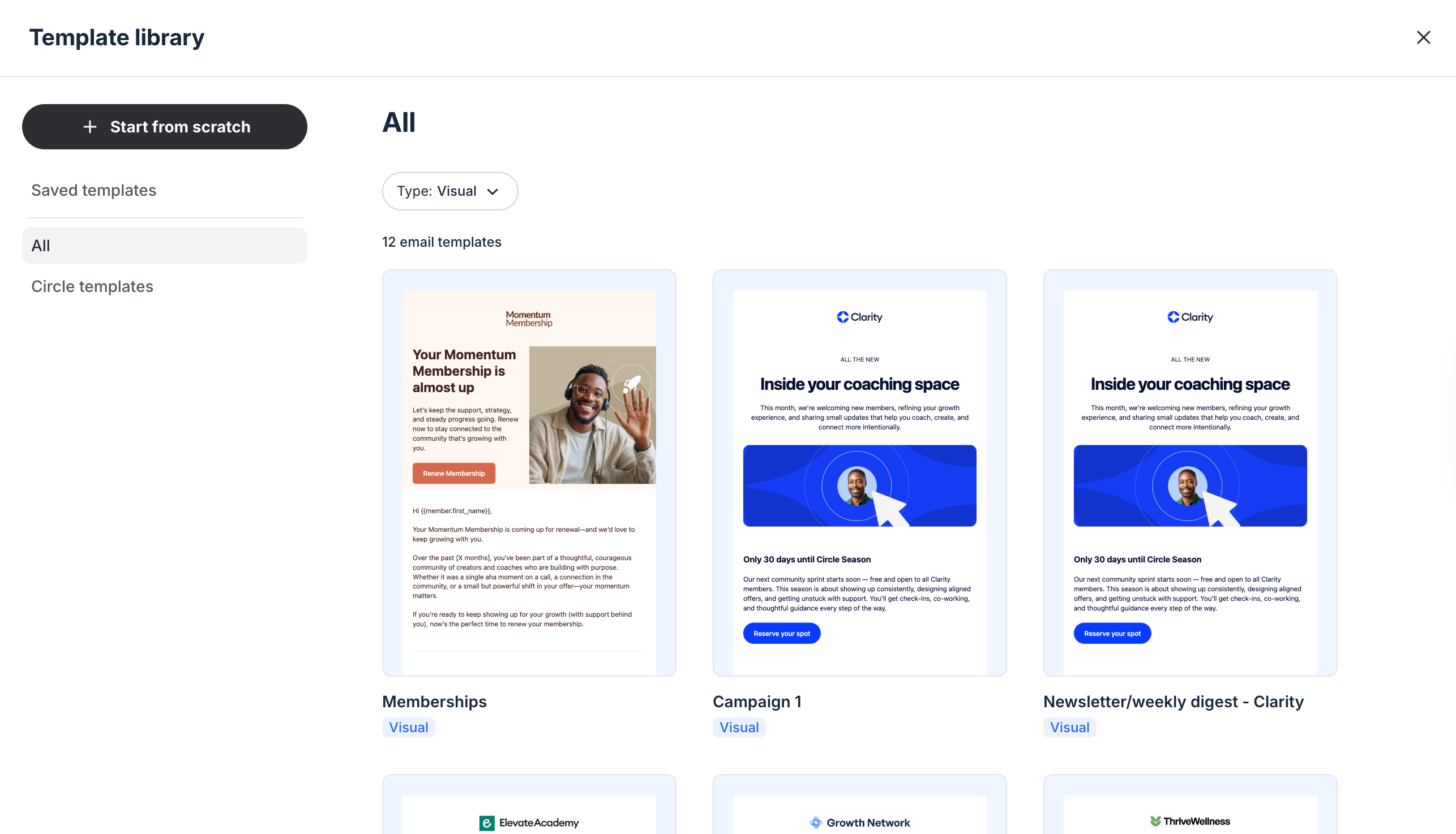
In the library, you’ll see:
-
A sidebar with categories:
Saved templates: Templates created and saved by admins in the text or visual builder.
All: All templates, including Circle templates and your saved ones.
Circle templates: Templates created by Circle to help you get started with campaigns such as newsletters, launches, or event announcements.
A Type filter at the top to switch between All, Visual and Text templates.
A Start from scratch option to create a new email without using a saved template.
Each template card displays a preview thumbnail and a badge showing whether it’s a Visual or Text builder template.
Preview a template
Before applying a template, you can preview it directly in the template library.
Hover over the template you’d like to preview.
-
Select Preview.
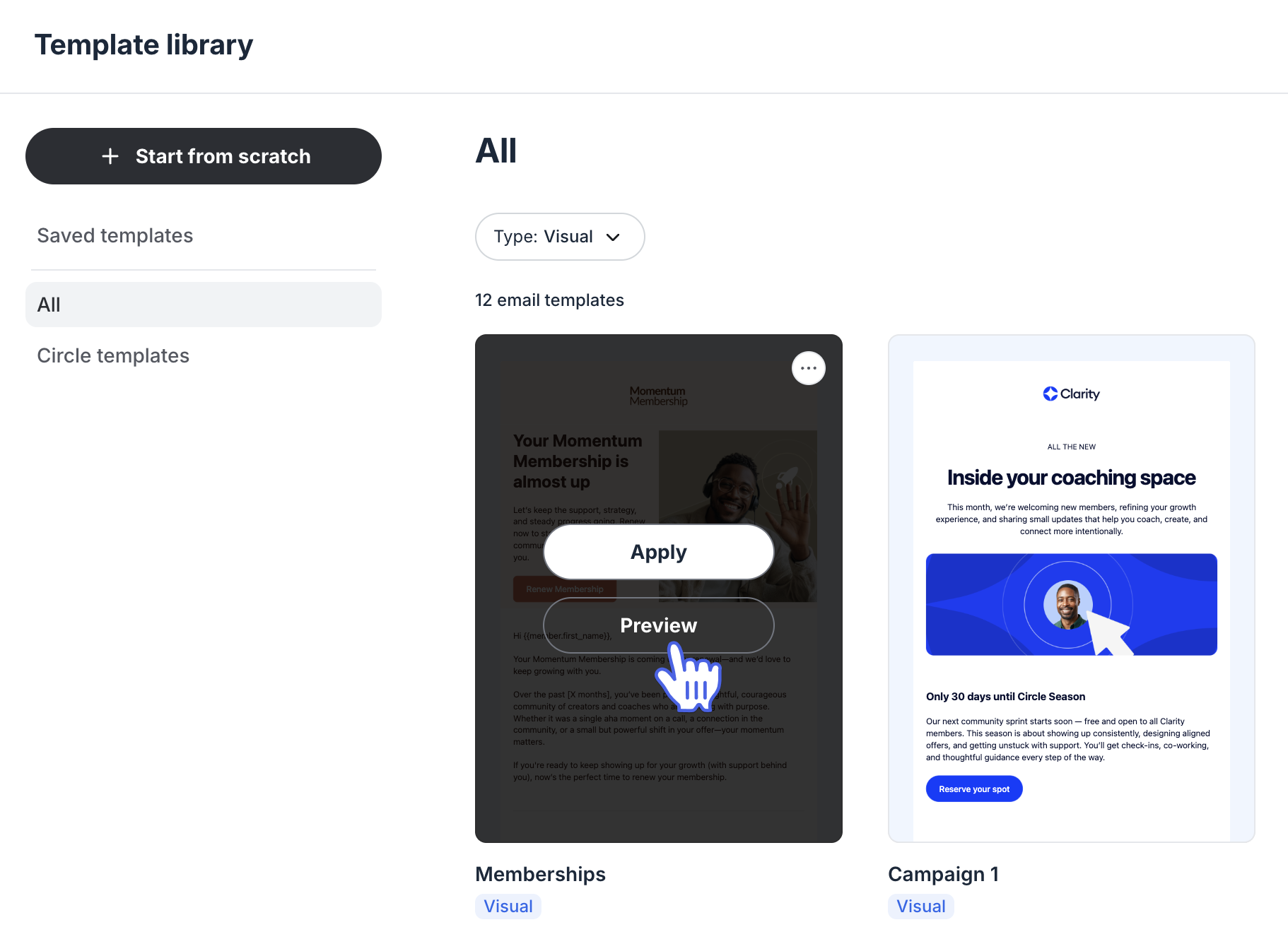
To use it, click Use this template in the bottom-right corner of the preview. To go back to the library, click the Back icon at the top left.
Create a new template
You can save your email content as a reusable template directly from either builder.
After drafting your email in a broadcast or workflow, follow these steps:
-
Click the dropdown icon next to Save and exit at the top right of the builder.
Select Save template.
Enter a name for your template in the dialog box and click Save.
Your new template will now appear under Saved templates in the library, ready to be used in broadcasts and workflows (the “send an email” action).
Manage saved templates
Once templates are saved, you can preview, edit, rename, or delete them from the template library.
Editing a saved template
As your marketing strategy evolves, you can easily update the content of your saved templates.
To edit a template:
Hover over the template you want to update and select Apply to open it in the builder.
Make your desired changes.
Click the dropdown icon next to Save and exit and select Save template.
-
In the dialog box, choose one of the following:
Save changes to template to update the existing template.
Save as new template to create a separate version.
Rename a saved template
You can rename your saved templates from the library. To do so:
In the template library, hover over the template.
-
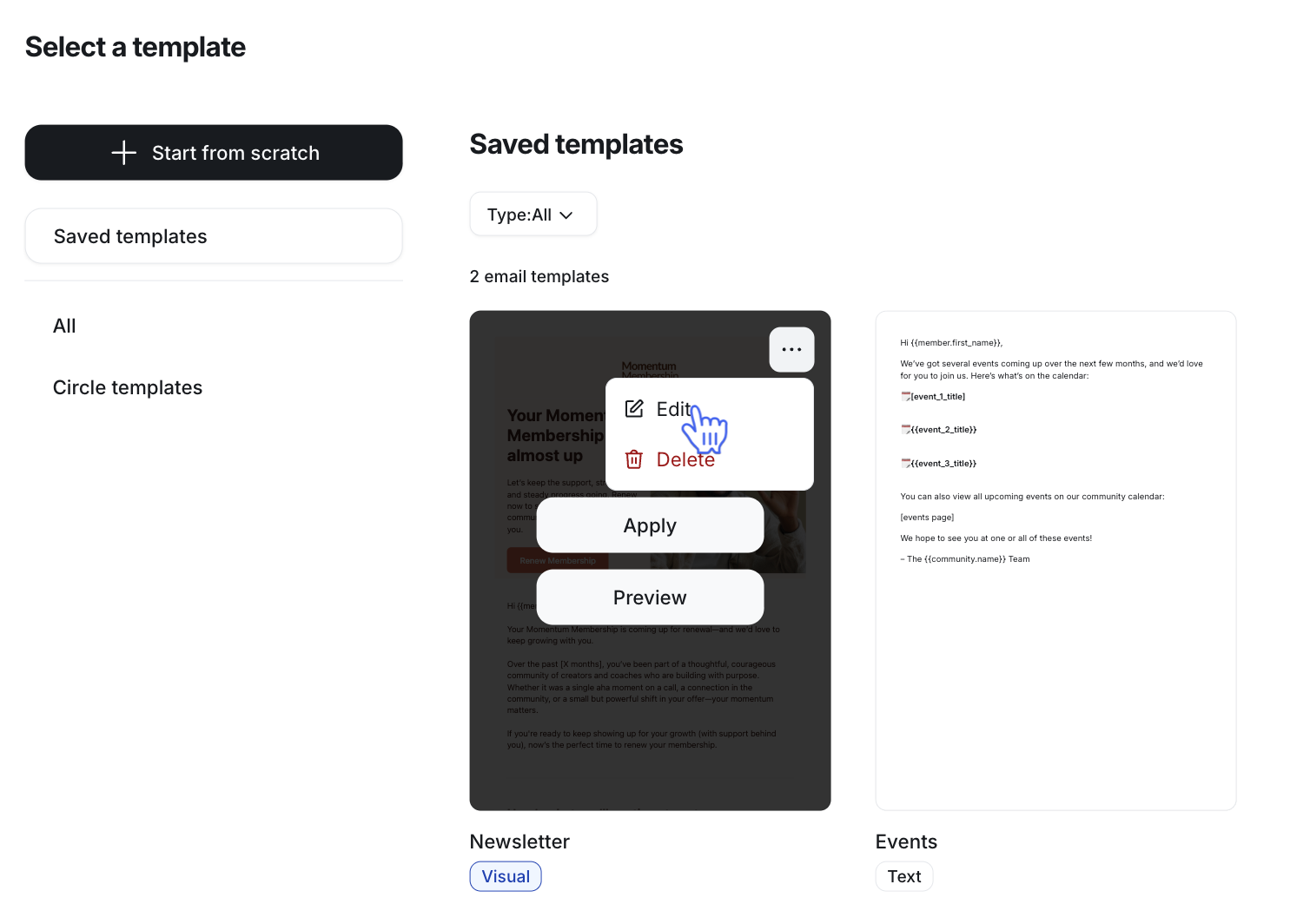
Click More actions (three dots) and select Edit.
In the Edit template dialong, update the Name.
Click Save template.
Delete a template
You can permanently delete any saved templates from the library. To do so:
In the template library, hover over the template.
Click More actions (three dots) and select Delete.