Share lesson comments
Last updated: July, 2026
With the Copy link feature, you can share helpful lesson comments with your community, so members can revisit important points and stay engaged in the conversation.
ℹ️ Availability: The copy link feature is available to all course admins and students. It is currently supported on web browsers and the desktop app.
Copy link
You can share any lesson comment from a course by copying the link and pasting it into the desired conversation, post or comment.
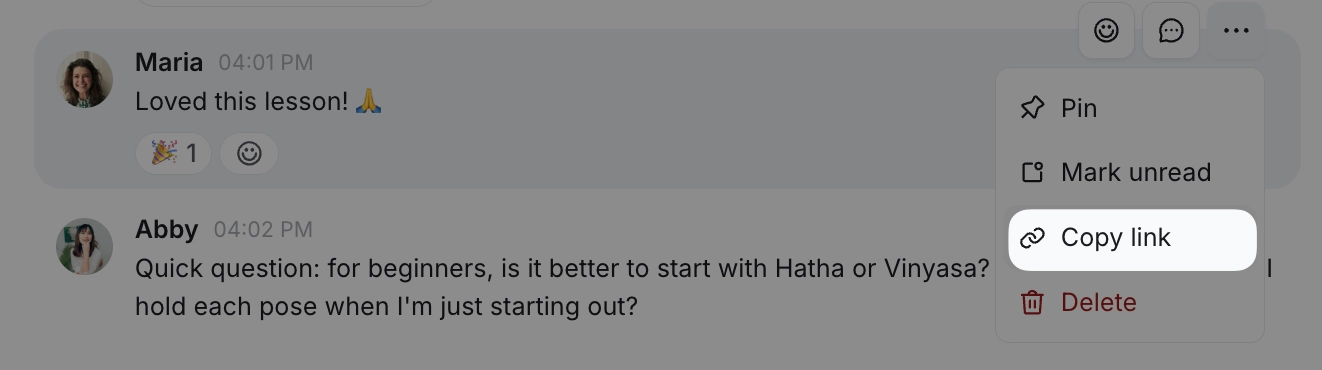
To copy a link, hover over the comment, click the More actions (three dots) icon, and select Copy link.
Share lesson comments
You can share the copied comment in any area within the community such as direct messages and chat spaces.
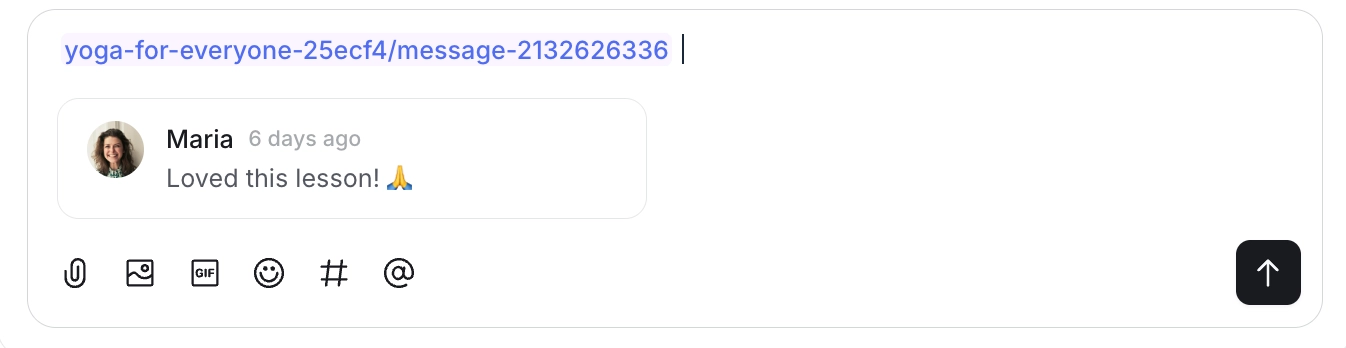
After copying the link, paste it into a conversation using the CMD/CTRL + V keyboard shortcut. Pasting the message link in DMs or chat spaces will unfurl the link and show a preview.
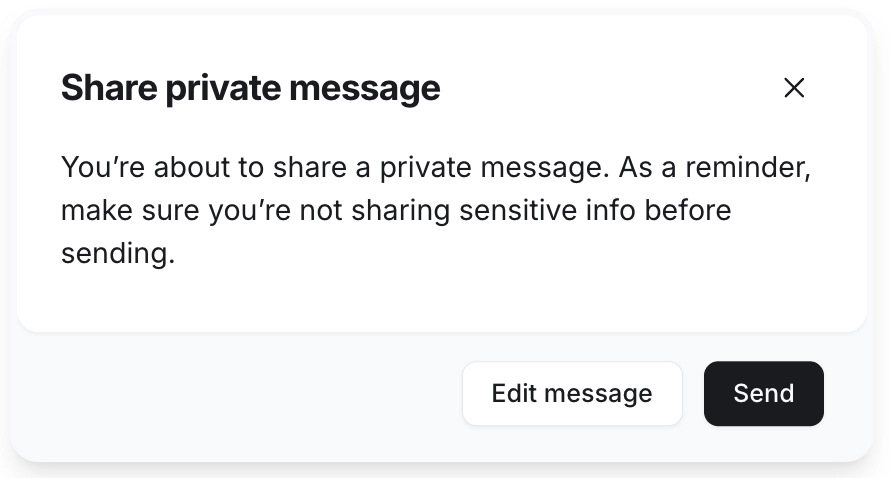
When you share a link to a comment posted by other members from a private or secret course in a chat space or a direct message, you will be prompted to confirm before sending your message. If you would like to proceed, you can click Send to share the message.
If you’re unsure, click Edit message to review and edit your message before sharing.
Access restrictions
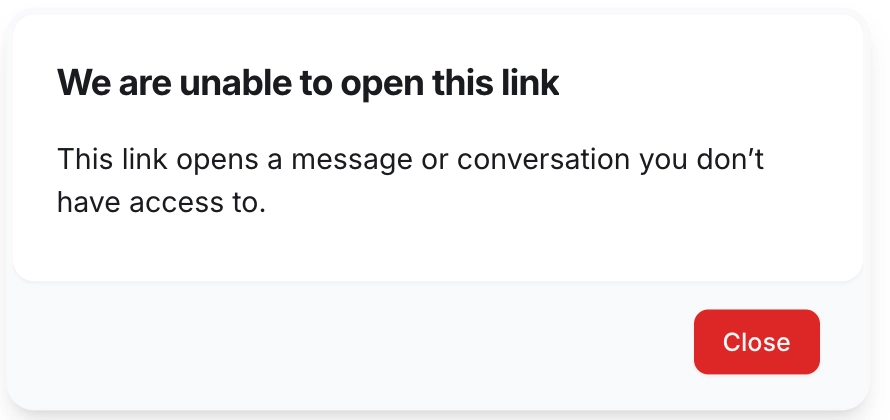
When a comment is shared from a private or secret course space, members who aren't part of that course space can't access it through the link. For example, if you share a comment from a private course in an open chat space or a direct message, anyone without access to that course space will see a message saying they don't have access to the comment.