View and manage all spaces
Last updated: September, 2026
Community admins can easily view and manage all community spaces in one location. In this article, we will walk you through all the options available on your community's exclusive spaces page.
To access your spaces management page, click Community in the left sidebar, then select Spaces. When you land on this page, you’ll see two tabs: Active and Deleted.
The Active tab lists all current spaces, organized by space group. From here, you can manage existing spaces and space groups, including updating settings or deleting them.
View spaces
You can view all your spaces categorized in space groups. The filters bar lets you filter the spaces based on:
Name
Type
Access
Space groups access
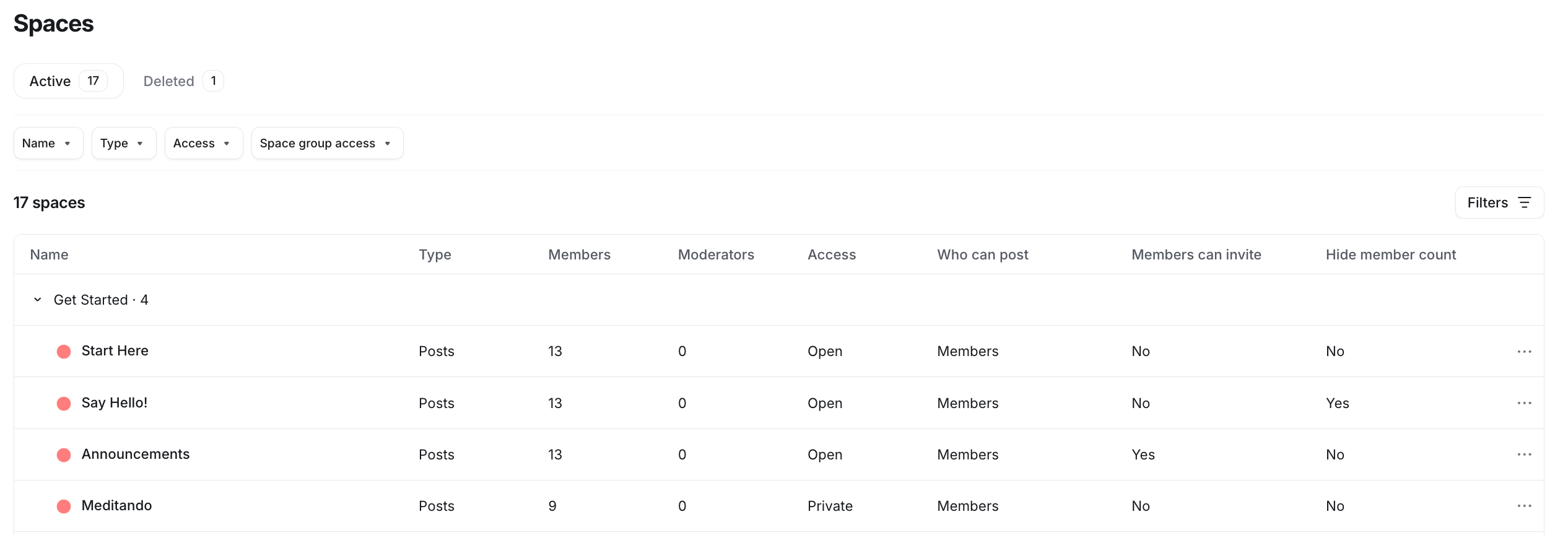
Access space settings
You can access the space settings of any space in your community directly from the dashboard. To edit the space settings, hover over the space, click More options (three dots) next to the space and select Edit space.
Duplicate spaces
Our space duplication feature allows you to replicate any existing spaces within your community. In addition to replicating space settings, the lock screen, and space bookmarks for all space types by default, you can also add the same space members and certain content based on the space type.
To duplicate a space, hover over the space, select More options (three dots) and select Duplicate space.
📚 For detailed steps and more information on our duplication feature, see our guide on Duplicating a space.
Delete spaces
To delete a space, hover over the space, select More actions (three dots) and select Delete space.
Deleted spaces and space groups move to the Deleted tab, where they remain available for 30 days before permanent deletion. From this tab, you can restore them if needed.
Restore a deleted space or space group
As an admin, you can restore a deleted space or space group from the Deleted tab on the Spaces page.
When you delete a space or space group, it enters a soft-deleted state and remains available for 30 days, including its content, members and settings. After 30 days, it’s permanently deleted.
The Deleted tab lists all soft-deleted spaces, organized by space group. Here you will also see when a space was deleted and when it will be permanently deleted.
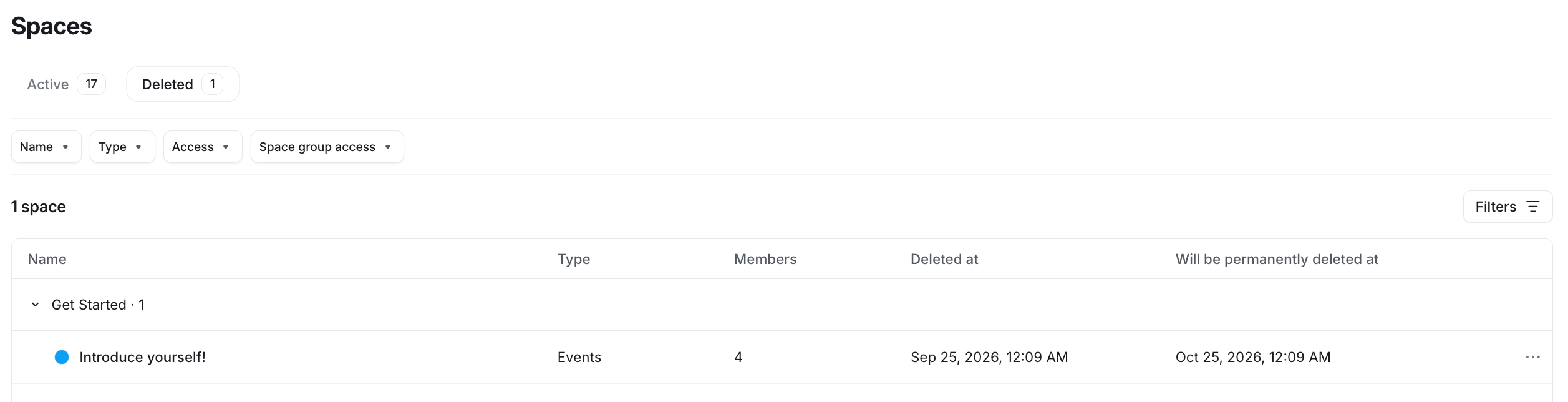
To restore a space or space group:
Navigate to the Deleted tab.
Hover over the space, select More actions (three dots) and select Restore.
In the Restore dialog, click Restore space.
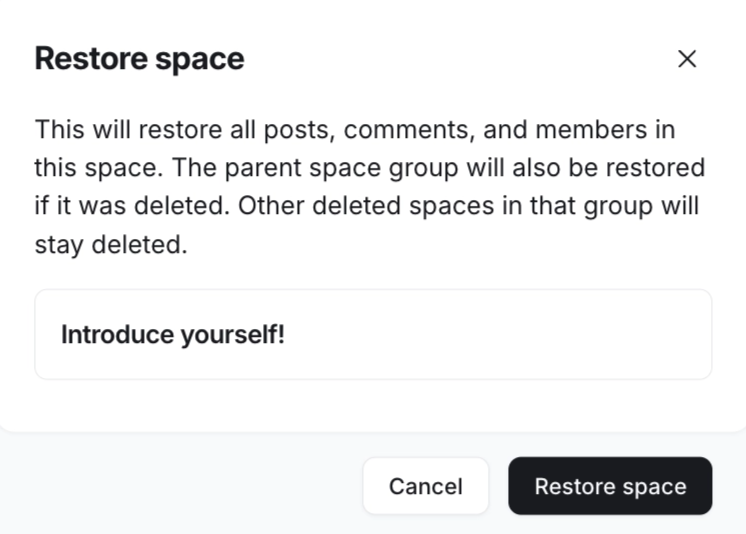
This restores the space and all posts, comments, and space members along with the parent space group (if it was deleted).
ℹ️ Note: If you need help recovering spaces after the 30-day period, please contact our support team. Recovery may be limited (for example, media and reactions may not be included).