Organize spaces and space groups in the sidebar
Last updated: September, 2026
Being able to rearrange the spaces and space groups listed on the left sidebar helps you maintain a well-organized and user-friendly content directory. This simple action ensures a seamless experience for you and your members.
ℹ️ Note: The ability to reorder spaces and space groups in the left sidebar is exclusive to community admins.
Reorder space groups
To rearrange the space groups in a specific order, click the space group you wish to rearrange in the sidebar, then drag and drop it into your desired position.

Reorder spaces
You can easily change the order of spaces within a space group in the sidebar. Click the space you wish to rearrange in the sidebar, then drag and drop the space into your desired position in the space group.

Move a space to a different space group
You can relocate a space to a different space group to ensure it is housed in the most relevant group.
To move a space to a different space group:
Click Community in the left sidebar, then select Spaces.
Hover over the space name and click More actions (three dots) and select Edit space.
Click More actions (three dots) in the top-left corner and select Settings, then Customize.
-
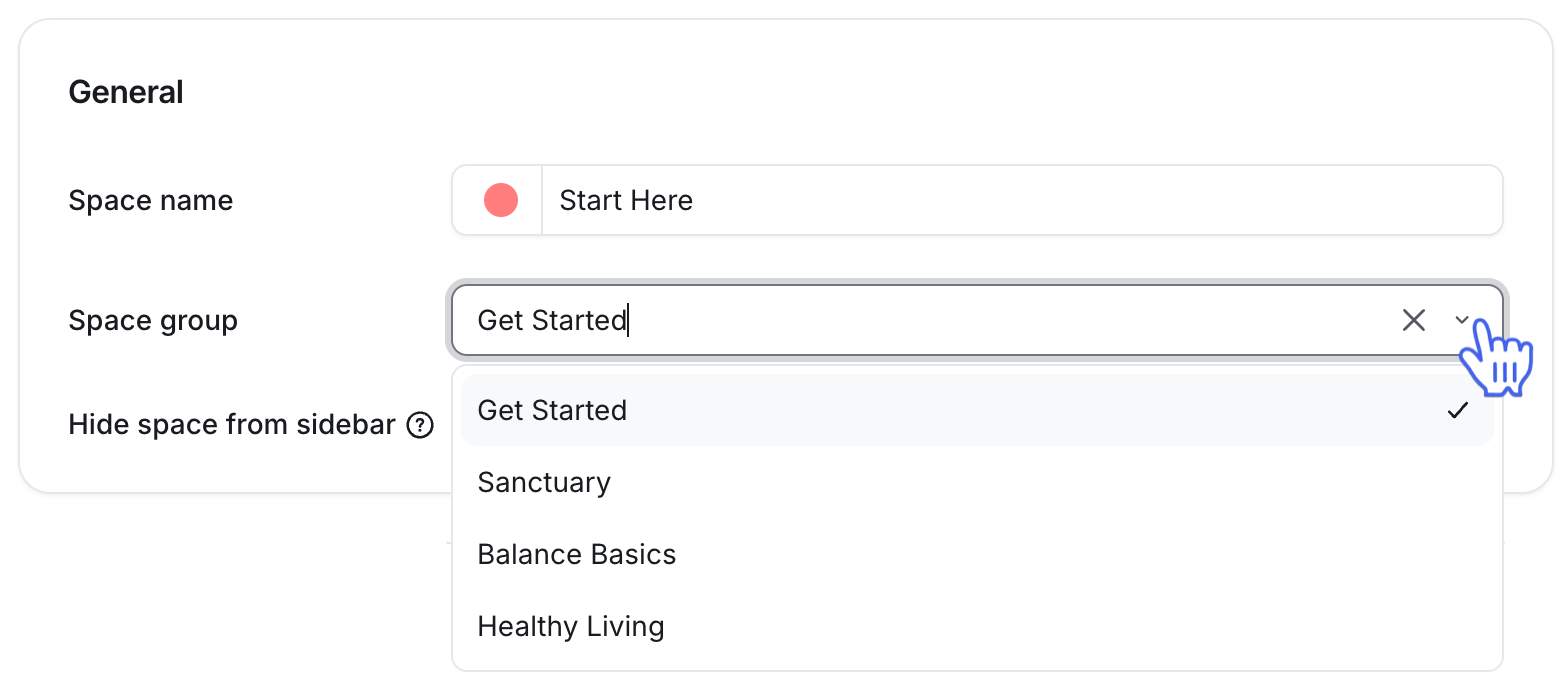
In the General section, click the Space group dropdown menu and select your desired space group.
Click Save changes.
❗Important: When moving a space to a new space group, your space and space group member counts will remain unchanged. However, please be aware that if you have activated one of the following settings for the new space group location, it will be applied to this relocated space going forward:
Automatically add members to new spaces within group.
Automatically add members to this group when they join a space inside it.
📚 To learn more about managing automatic access to spaces and space groups, see Managing space access and visibility.