Keep up with your community content using AI Summaries
Last updated: September, 2026
AI-powered summaries help you and your members stay informed, focus on what matters, and let it handle the heavy lifting.
About AI Summaries
With AI Summaries, you can quickly understand the heart of the discussion, catch up on what’s happening, and join the conversation with confidence.
Whether you’d like to catch up on a lengthy post, a busy comments thread, or an entire community space, AI Summaries capture the essence and deliver clear, concise summaries.
Key things to know
Platform support: AI Summaries are currently available only in web browsers.
-
Post summary eligibility: Summaries are only available for new posts with more than 3,000 characters. If a post includes an uploaded video with a transcript, the transcript text counts toward the eligibility character limit.
For posts created before April 17, 2025, a summary becomes available only after the post is edited and exceeds 3,000 characters.
-
Conversation summary eligibility: Conversation summaries require at least five comments. This can be a parent comment or a threaded reply.
For posts created before April 17, 2025, a new comment will trigger a summary if the conversation reaches a minimum of five comments.
Flagged content: If content, such as a post or comment, is flagged through moderation and hidden from the community members, it will be excluded from summaries.
Data and privacy
Your community data is completely secure and won’t be used by AI/LLM platforms (or by Circle) for training models or for any purpose other than generating summaries.
AI Summaries use a technique called Retrieval Augmented Generation. In simple terms:
To request a summary, we pass the snippets of relevant content, such as posts or comments, to the LLM.
-
The LLM API processes this content to produce a concise summary.
When this happens, note that no data is stored on the LLM platform’s end.
The generated summary is returned to the user in the community.
Availability
The AI Summaries feature is available in beta to communities on the Circle Plus plan, with no usage limits.
Manage access to AI Summaries
AI Summaries are enabled by default on eligible community plans, and everyone who has access to the content can utilize them. However, you can turn it off anytime for your community.
To enable or disable AI Summaries:
Click the community name or logo (or the dropdown icon next to it) in the top-left corner and select Settings.
Scroll down to the Community section and select Community AI.
Switch the AI Summaries toggle to on or off.
Click Save changes to apply changes.
ℹ️ Note: When AI Summaries is turned off, the feature will be unavailable to everyone, including admins, until it is turned back on.
Post summaries
When generated, post summaries appear at the top of the post, allowing members to quickly grasp key points.
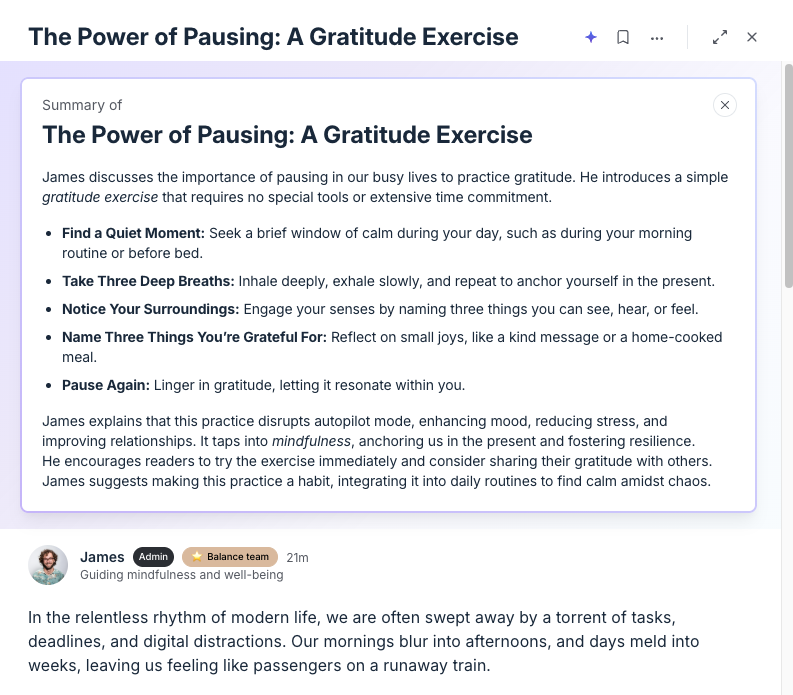
Here’s how to summarize a post:
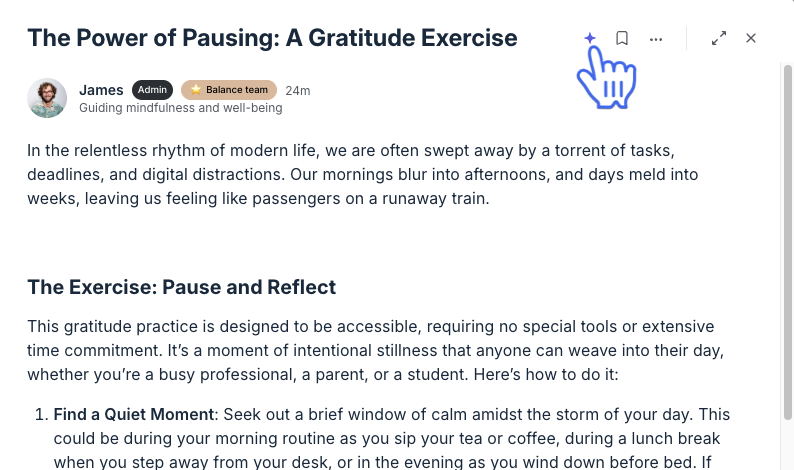
Open the post in a pop-up or full page. For eligible posts, a Summarize icon will appear next to the title in any post-type space.
-
Click the Summarize icon to instantly generate a concise summary.
Conversation summaries
AI-powered comment summaries are automatically generated for comment sections within the following areas:
Regular posts
Image posts
Events
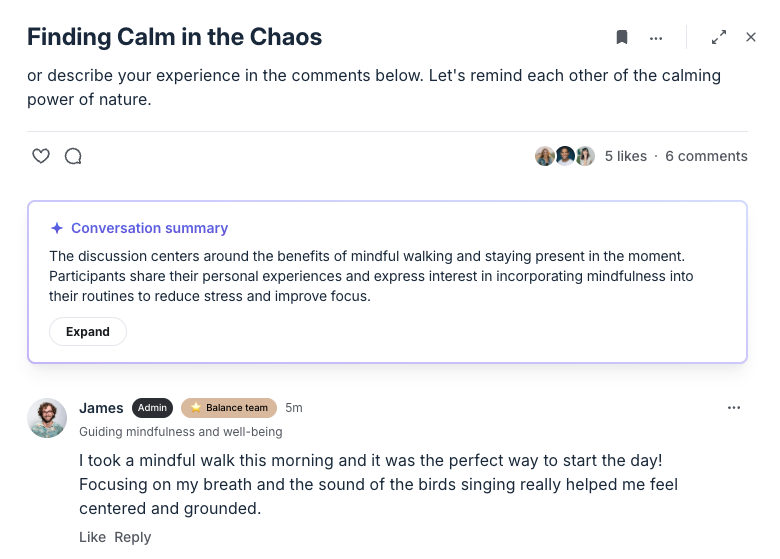
When a comment thread meets the eligibility threshold (at least five comments), a Conversation summary appears at the top of the comments section. Members can hover over the summary and click Expand to view it in full.
Space summaries
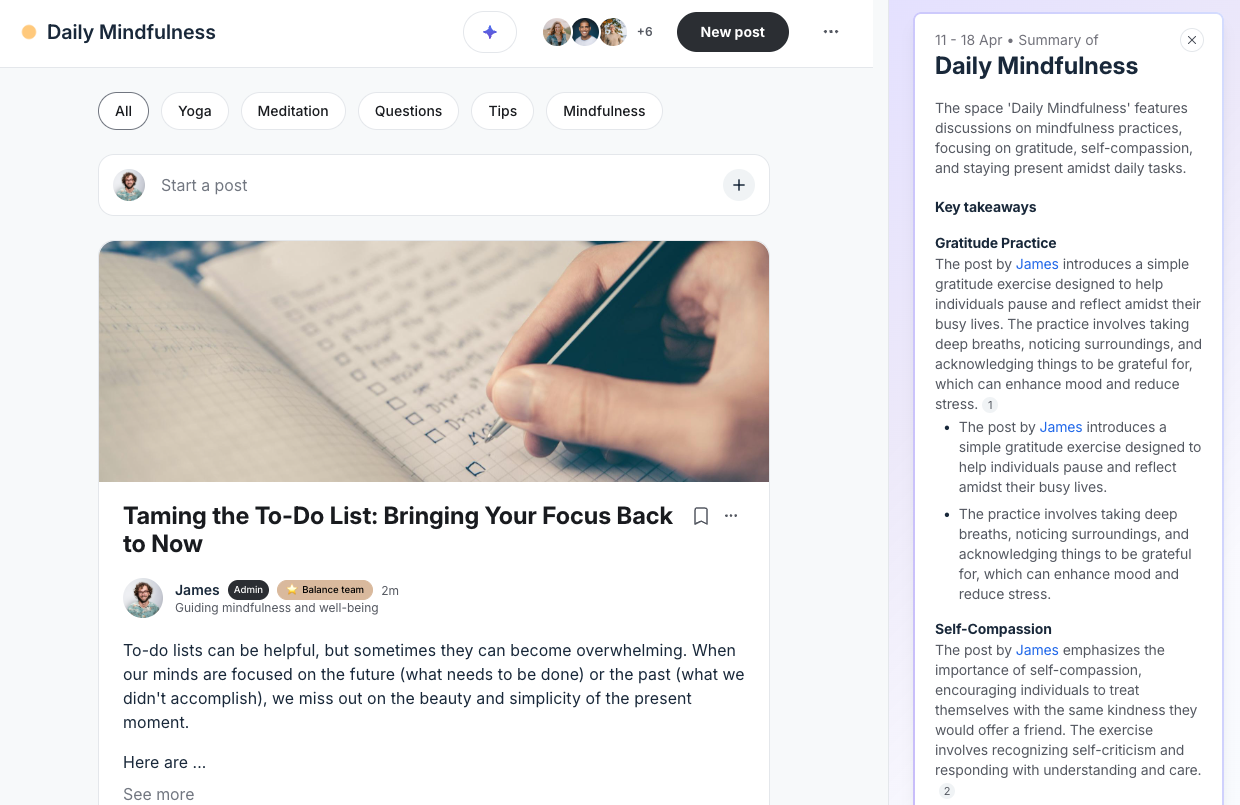
Summaries at a space level provide a quick, digestible overview, making it easier to stay engaged with your community’s content.
Key things to know about space summaries
-
Access to space summary:
You and your members can stay updated using AI Summaries in Feed and in the Post type spaces.
Members must be part of the space to access summaries. If they summarize the feed, they will only get a summary of the content that is visible to them in the feed.
Summary source: Space summaries pull information from the body of the posted content only, excluding comments.
Eligibility: At least one post must exist within the selected timeframe for a summary to be generated. Posts do not require a 3,000-character minimum to be included in space summaries.
💡 Tip: Space summaries for chat spaces are coming soon.
Here’s how to access it:
-
On the space’s or Feed’s top navigation bar, the Summarize icon is visible to all space members.
Click the icon and choose a timeframe: Last 7 days or Last month (last 30 days).
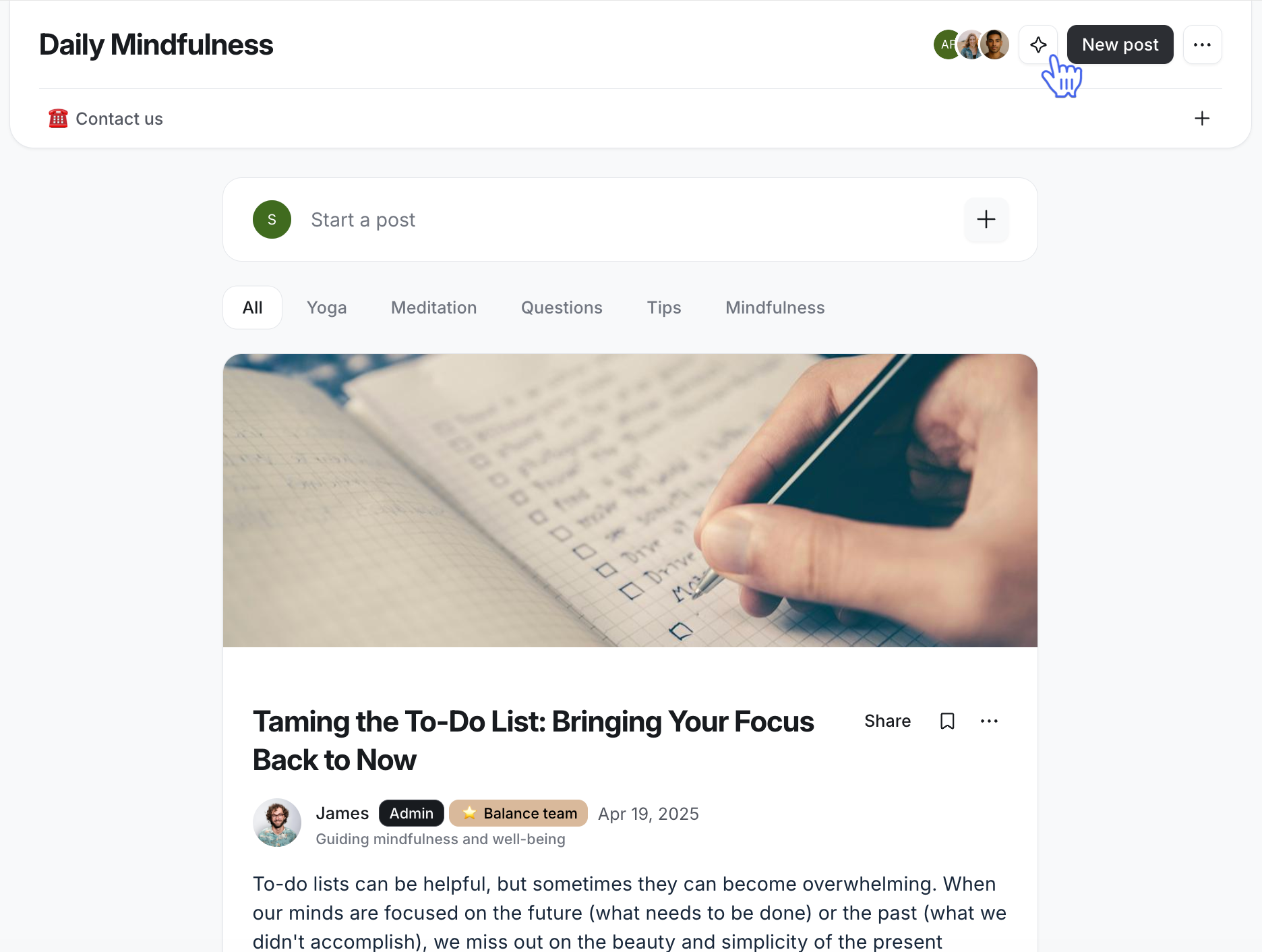
A concise summary is displayed on the right side of the screen, featuring the following sections:
Timeframe: Located at the top, indicating the time period covered by the summary.
Key takeaways: Highlights main insights from the space's content, including author attribution where relevant.
Sources: Lists linked sources (e.g., referenced posts) at the bottom. Click the sources badge to expand the list. You can click a source to open the full content in a new browser tab.