Deleting a space or space group
Last updated: September, 2026
Whether it's to streamline your content or to remove spaces that are no longer relevant, this article will provide you with step-by-step instructions on how to remove spaces and space groups from your community.
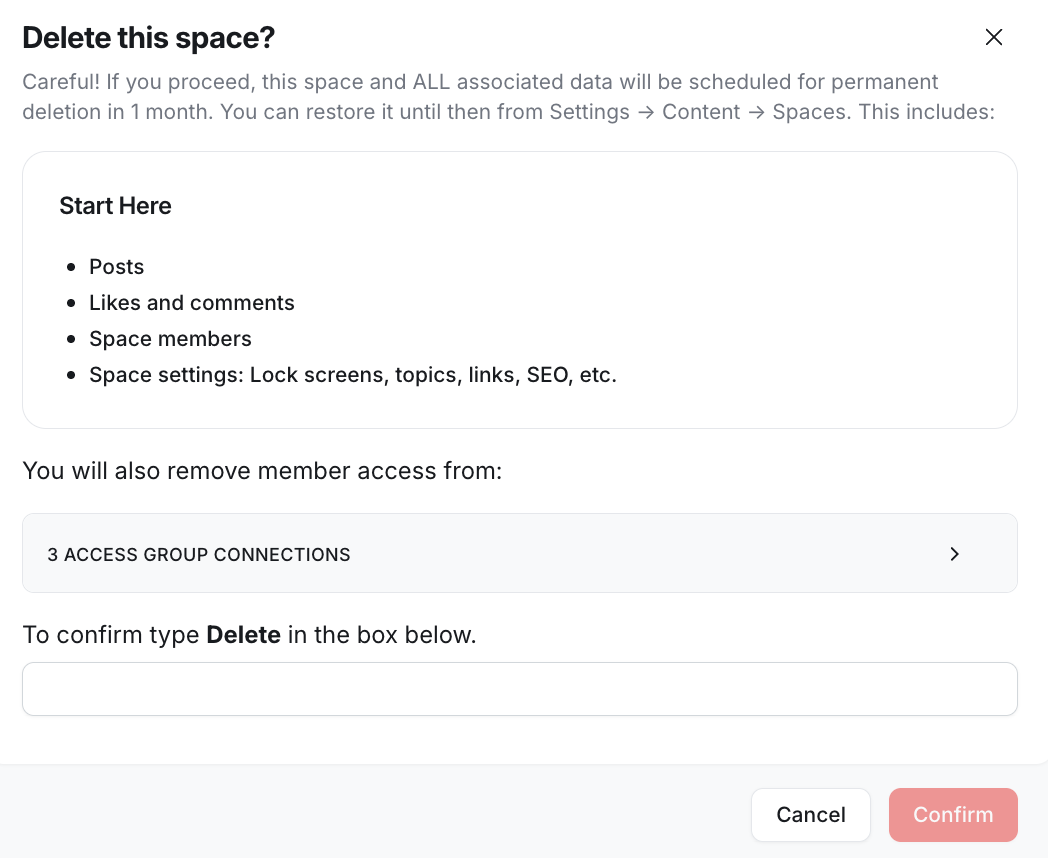
❗Important: When you delete a space or space group, it enters a soft-deleted state and isn’t permanently deleted right away. You can restore it within 30 days, along with its content and settings. After 30 days, the space or space group and all associated data are permanently deleted. If you need to recover a space after this time, please contact our support team.
📚 For a step-by-step guide on how to restore a deleted space, refer to our guide here.
Delete a space
Click Community in the left sidebar, then select Spaces.
Hover over the space you want to delete, click More actions (three dots) and select Delete space.
In the confirmation dialog, type the word Delete to proceed with this action.
-
Click Confirm.
Delete a space group
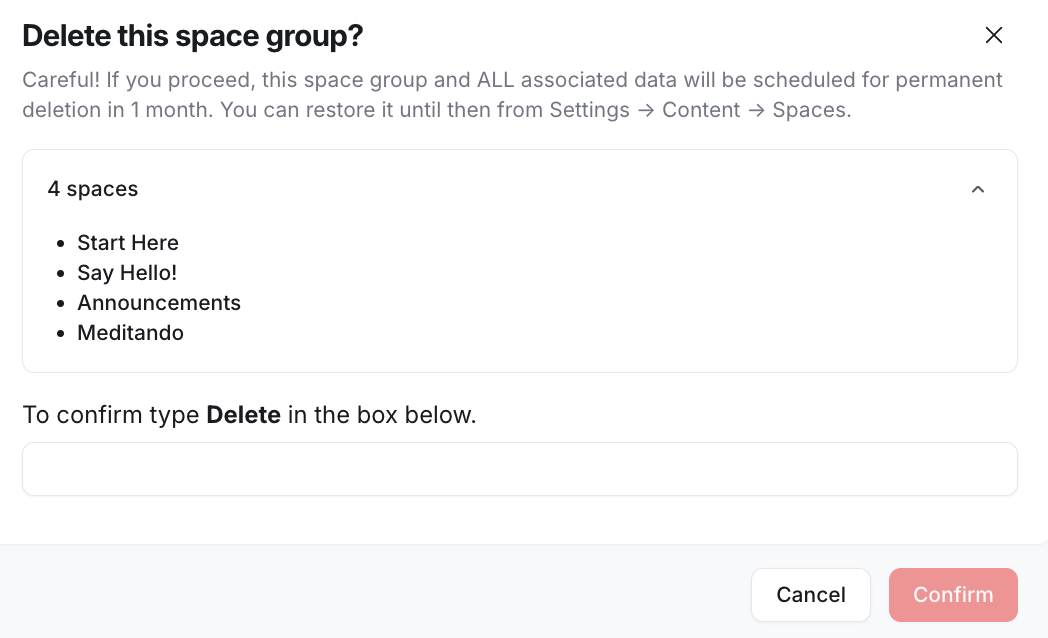
You can delete a space group to permanently remove all spaces and their content within the group.
Click the community name or logo (or the dropdown icon next to it) in the top-left corner and select Back to community.
In the sidebar, hover over the name of the space group you wish to delete.
Click More actions (three dots) and select Edit space group.
-
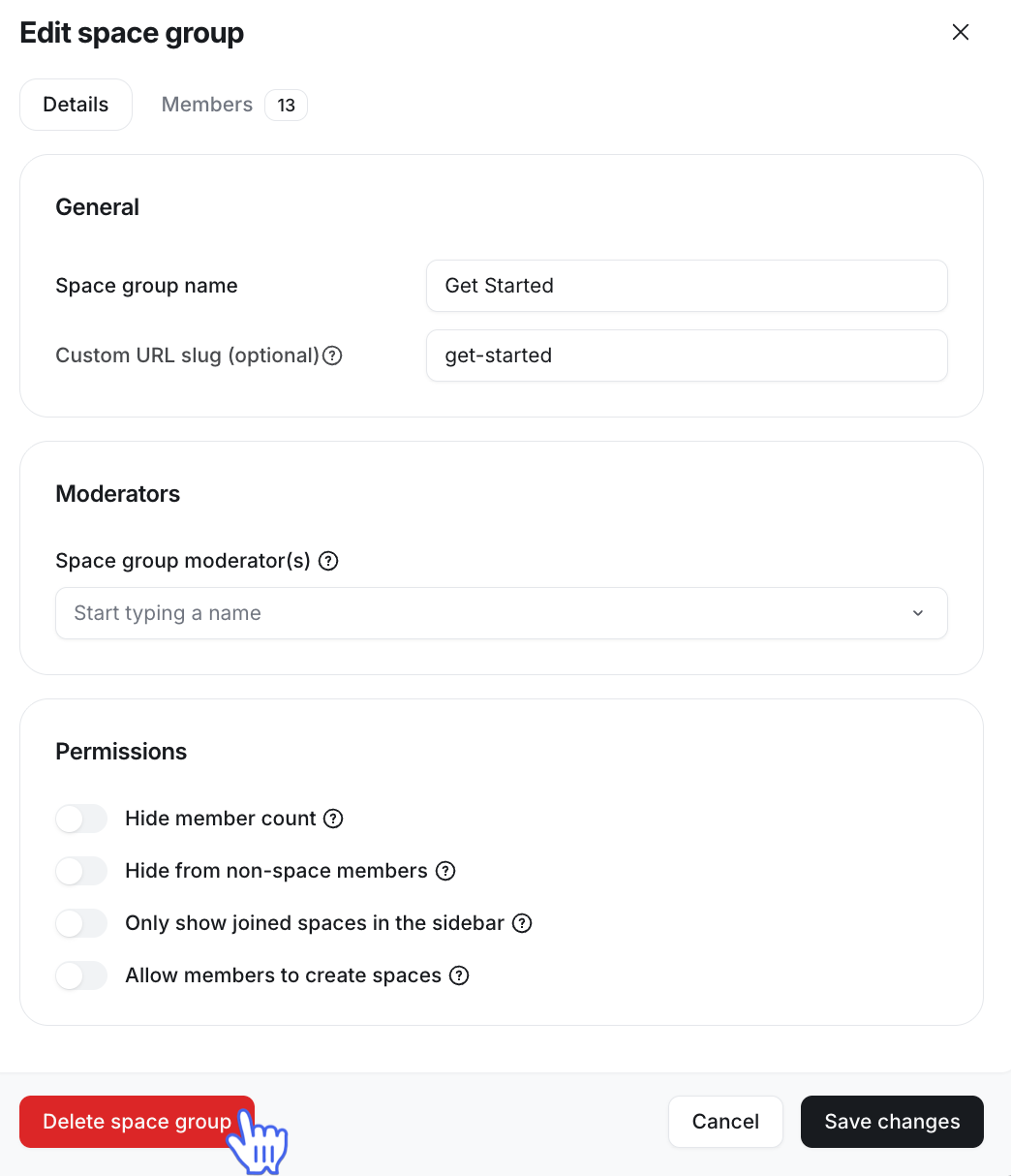
Inside the edit dialog, click Delete space group located in the bottom-left corner.In the confirmation dialog, type the word Delete to confirm your decision.
-
In the confirmation dialog, type the word Delete to confirm your decision.
Click Confirm.