Add links to the sidebar
Last updated: September, 2026
Make your community's essential resources and reference links easily accessible by utilizing the links section in the community sidebar. This article will guide you through adding and managing links in your sidebar.
Add links
The links section is designed to be positioned at the bottom of the sidebar below the space groups.
Community admins can add multiple links in this section. The section remains exclusively visible to community admins until at least one link is added. Once a link is added, it becomes visible to all members and visitors on all platforms, including desktop and mobile browsers and mobile apps.
The links section is particularly useful for sharing:
Crucial resource links hosted externally.
Links for downloading community apps.
References to your own websites.
Link to community help.
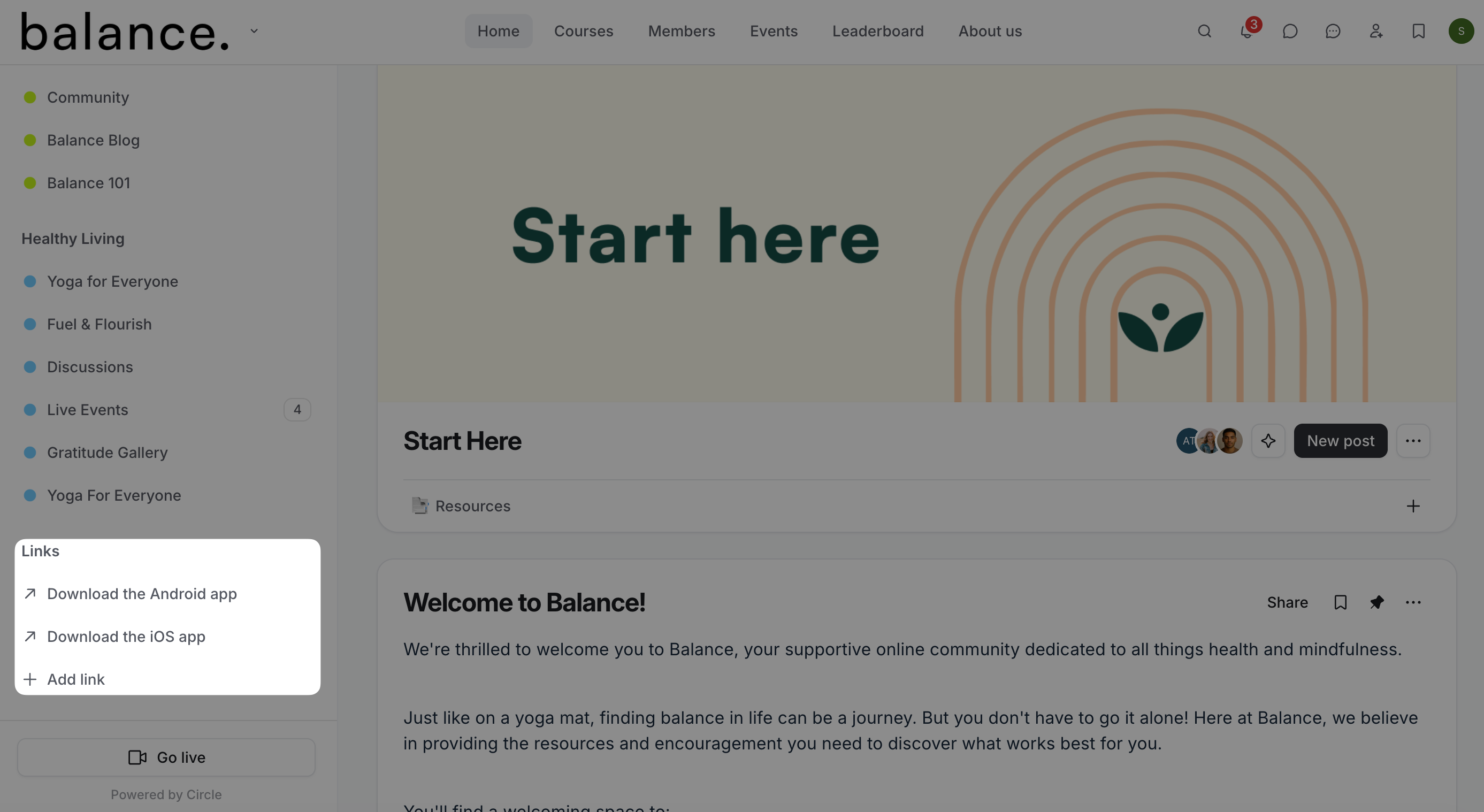
To add a link:
Click the community name or logo (or the dropdown icon next to it) in the top-left corner and select Back to community.
-
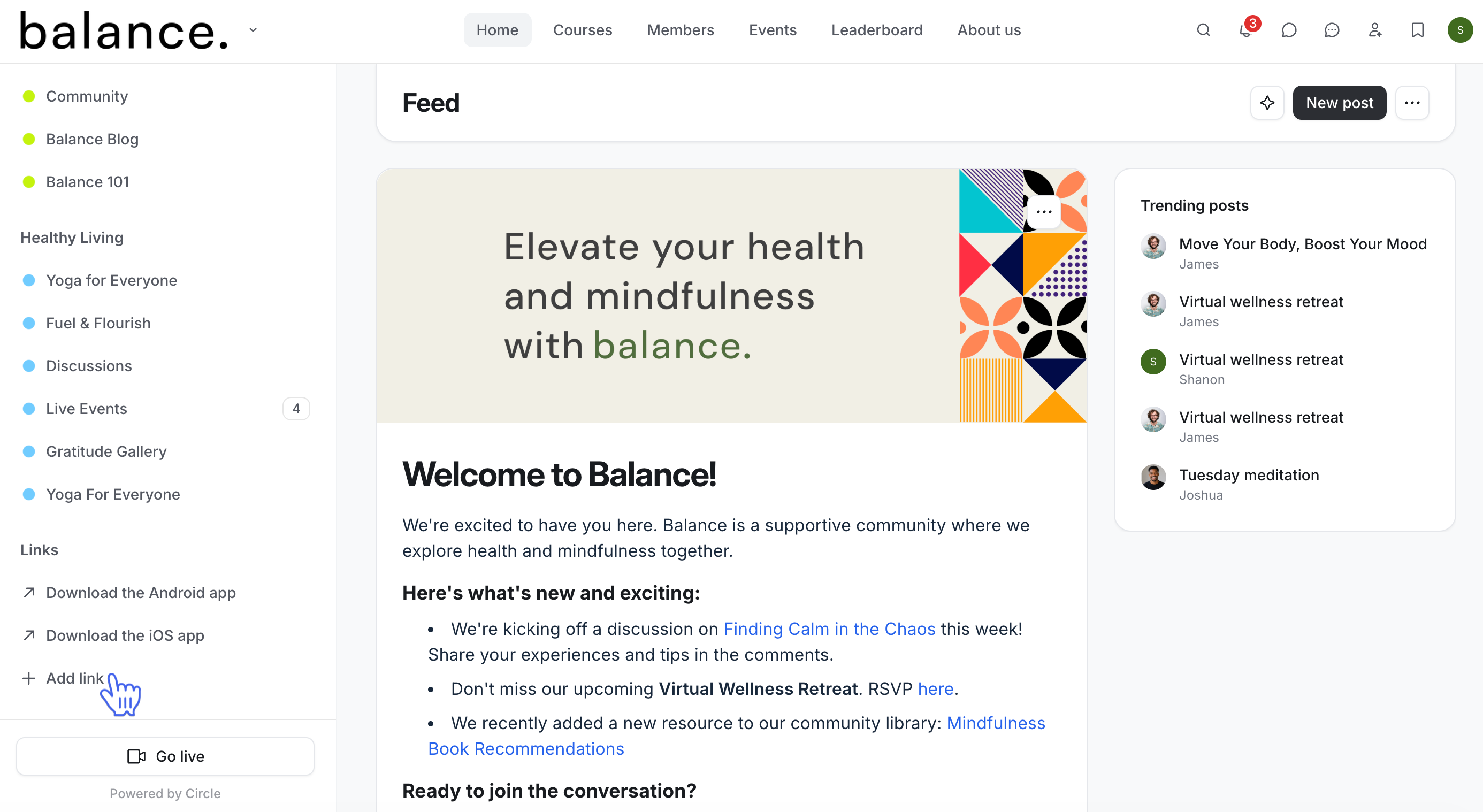
Navigate to the Links section in the sidebar and click the + Add link.
-
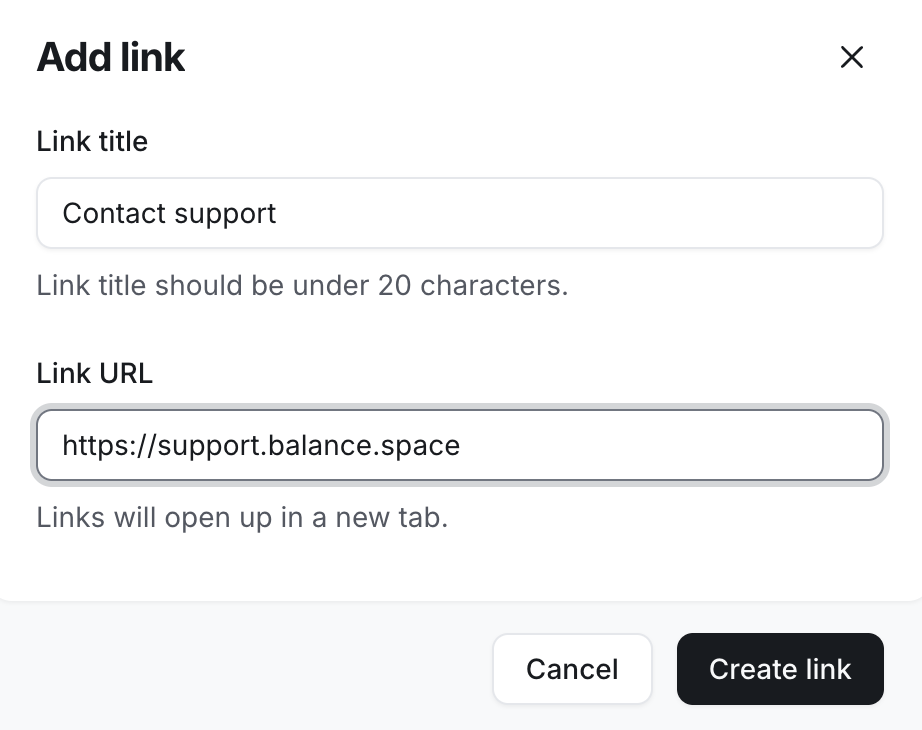
Add link title and URL. Remember to include https:// at the beginning of the URL if not already present.
Click Create link.
Manage links
You can modify the links section by editing, arranging, and deleting links. Any modifications you make to the links section will be reflected to everyone.
ℹ️ Note: Options to manage links are only available to admins on web browsers on desktop and mobile.
Edit links
To edit a link:
In the Links section, hover over the link, click the More actions (three dots) icon, and select Edit.
Once the changes are made, click the Update link.
Rearrange links
To reorder links within the section, click and hold the link, then drag and drop it to a preferred position.
ℹ️ Note: The links section is designed to be positioned at the bottom of the sidebar and cannot be relocated to any other position within the sidebar.
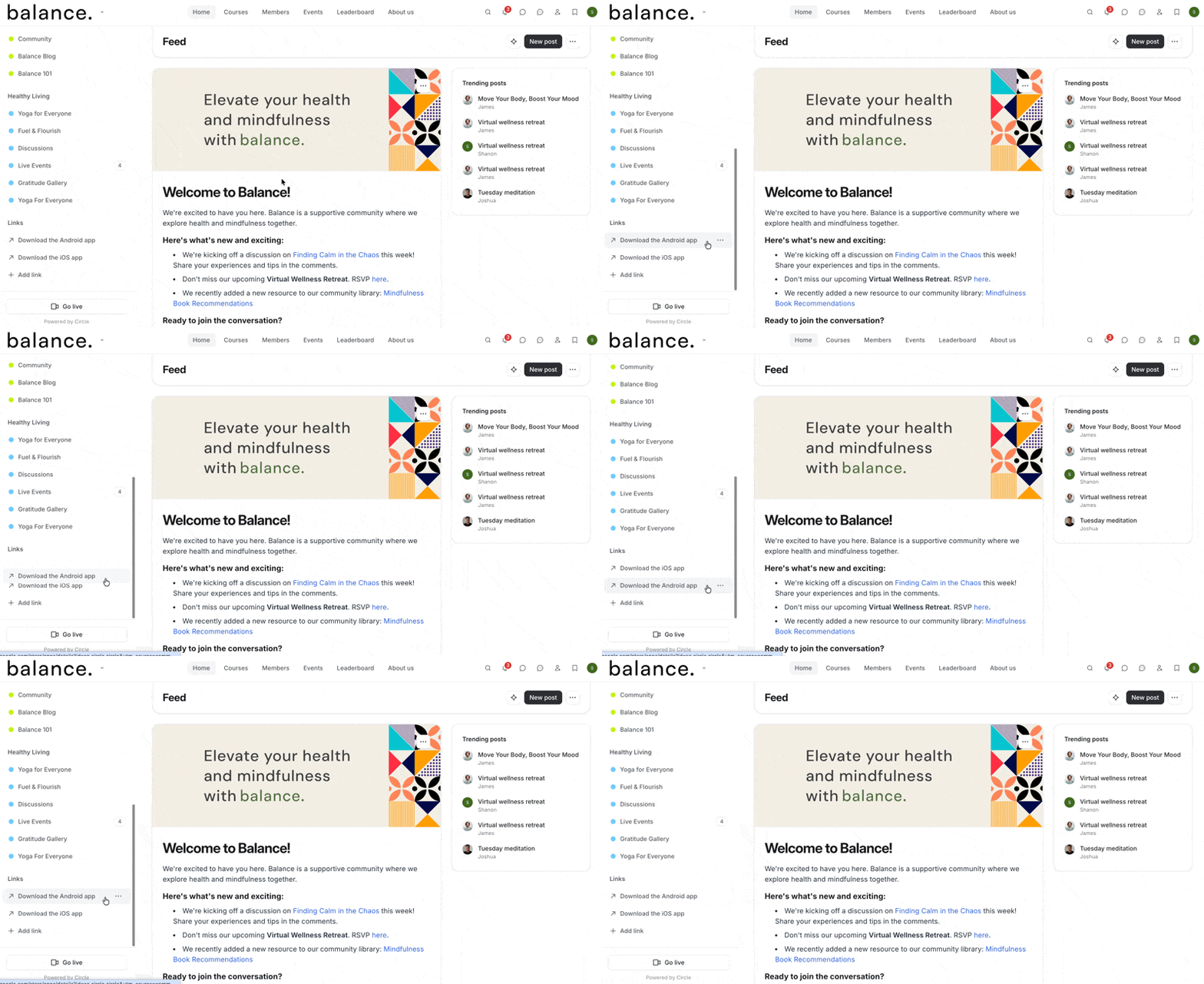
Delete links
You can permanently remove a link from the section. To delete a link, hover over the link, click More actions (three dots) and select Delete.
If you remove all links from this section, only admins will be able to see the links section going forward.