Add a cover image to spaces and Feed
Last updated: September, 2026
Adding a cover image to eligible spaces in your community helps create a visually engaging first impression for both visitors and members. A well-chosen image can highlight the theme of the content and make spaces stand out.
ℹ️ Note: This feature is only available for desktop browsers. To set a mobile-friendly version of the cover image, use the space thumbnail option specifically designed for mobile devices. For more details, see our guide here. Please note that the space thumbnail image is not supported for the Feed.
You can add cover images to the following areas in your community:
Post spaces
Image spaces
Event spaces
Feed
To add a cover image, follow these steps:
Click the community name or logo (or the dropdown icon next to it) in the top-left corner and select Back to community.
Navigate to the desired space or Feed from the left sidebar.
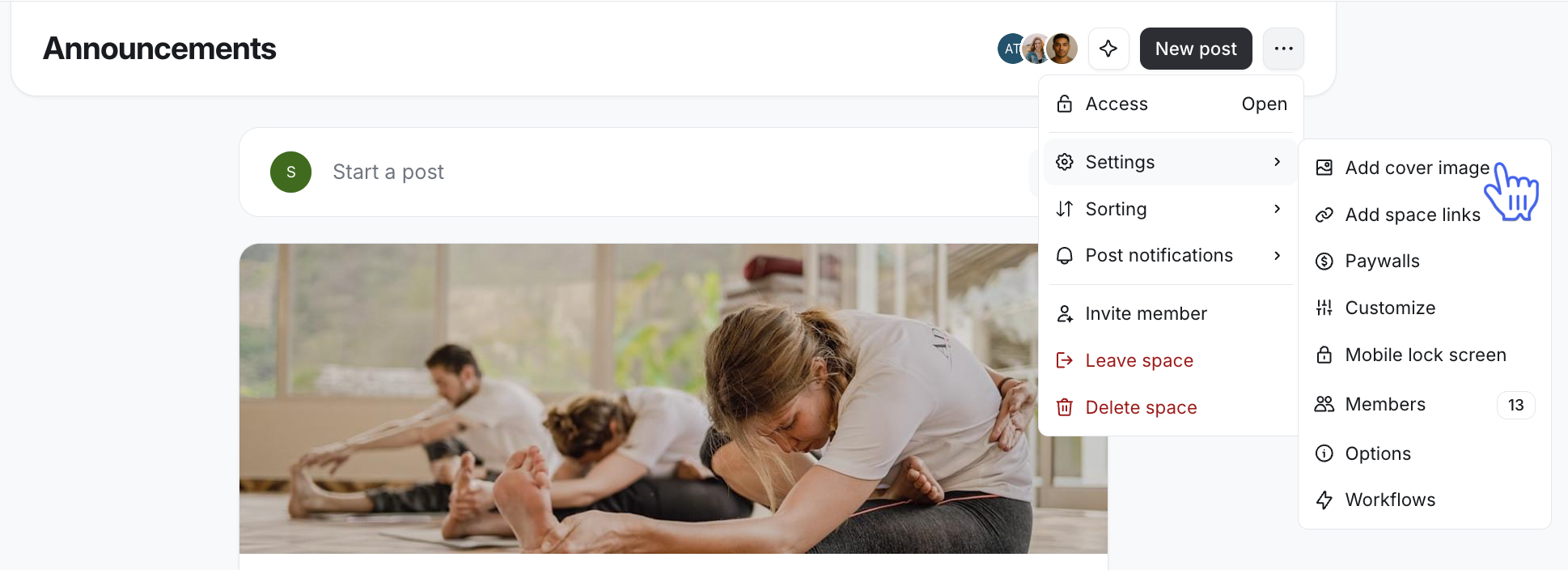
Click the More actions (three dots) at the top-right of the page and select Settings, then select Add cover image.
-
In the Choose cover image dialog, click one of the tabs to:
Choose an image from the Unsplash library
-
Upload the image from your desktop
📷 Recommended cover image size: 1600x500 px with 16:5 aspect ratio
Embed link
-
To adjust the image when adding it via any of the options, you can:
Click and drag the image to fit within the allowed dimension.
Use the slider at the bottom of the dialog to zoom in or out on the image.
Click Save changes.
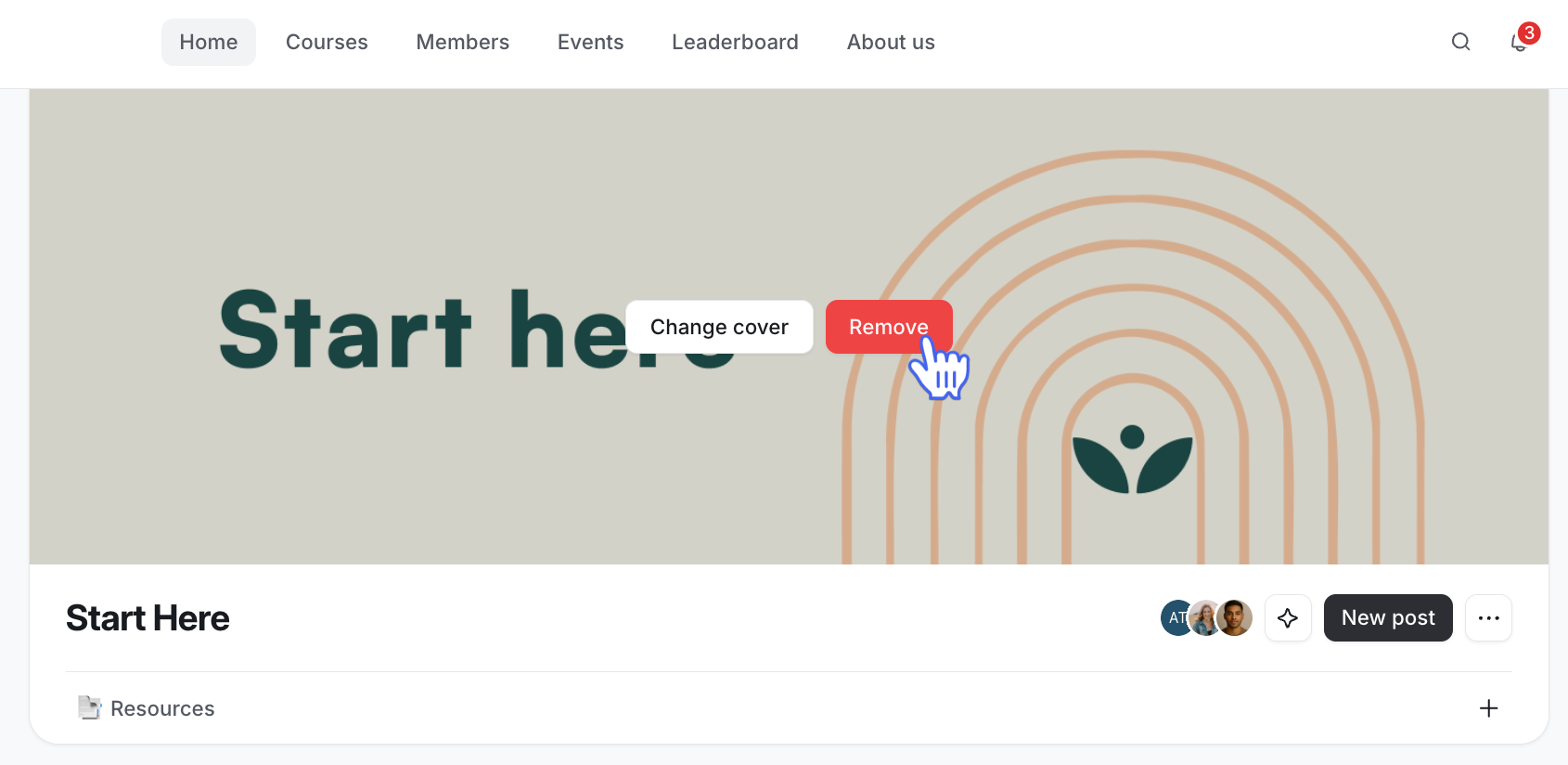
Once the cover image is added, you can update or remove it directly from the space or Feed. Simply hover over it and click Change cover or Remove.