Add and manage chapters in a video
Last updated: October, 2026
Adding chapters makes your videos easier to follow and more engaging. In this article, learn how to add and manage chapters in videos.
About chapters
Chapters let you divide a video into sections. They’re especially helpful for longer lessons, webinars, or recordings where viewers can quickly jump to the part they are most interested in or rewatch key moments.
-
Only admins can manage chapters for uploaded videos and live recordings.
💡 Tip: If you’ve embedded a video from another platform (such as YouTube or Vimeo), you’ll need to manage the settings directly on that platform.
You can add up to 100 chapters to a single uploaded video.
The video chapters are only visible on the desktop app, web, and mobile browsers.
How chapters appear to viewers
Once you add chapters, they become part of the video player experience for users.
Playback bar: Chapters appear as separate segments on the video’s timeline. Each segment represents one chapter, so viewers can see how the video is divided.
Hover preview: When hovering over the playback bar, viewers see a thumbnail, chapter name, and timestamp. This makes it easy to know exactly what part of the video they’ll land on.
Accessing video settings
You can add chapters through the video settings on the desktop app, web browser, or mobile browser.
As an admin, you can manage chapters from the video itself or from the media manager. See detailed steps for accessing video settings.
Saving changes
After adding or updating chapters or modifying any video settings, click Save in the bottom-right corner. The changes will not take effect until you save them.
Add a chapter
When you create a chapter, its start time is set based on the position of the playback bar. Each chapter then automatically ends when the next one begins.
To add a chapter:
-
Create a chapter: Follow the instructions for this point depending on whether you are creating a first or additional chapters:
-
First chapter: Click Add chapter below the player. The chapter will automatically begin at 00:00. We recommend keeping the first chapter at 00:00 so the video has a clear starting point.
-
Additional chapters: Play the video or drag the playback bar to the timestamp where you want the chapter to begin. In the Chapters section below the video player, click Add at (timestamp).
-
-
Add a title: Type a short, descriptive name (up to 50 characters) that helps viewers understand what this part of the video covers.
Click the Checkmark icon or press Enter to save.
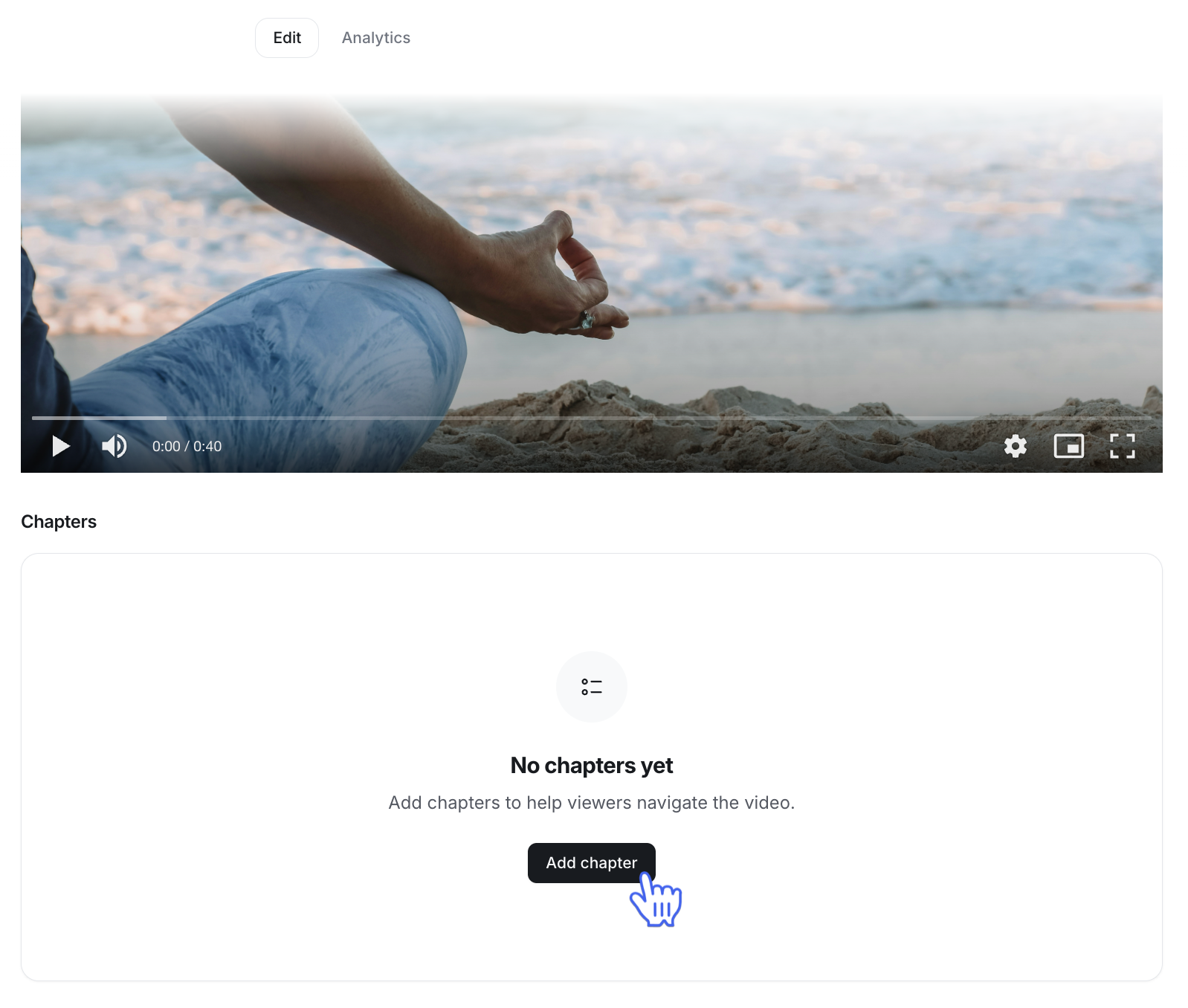
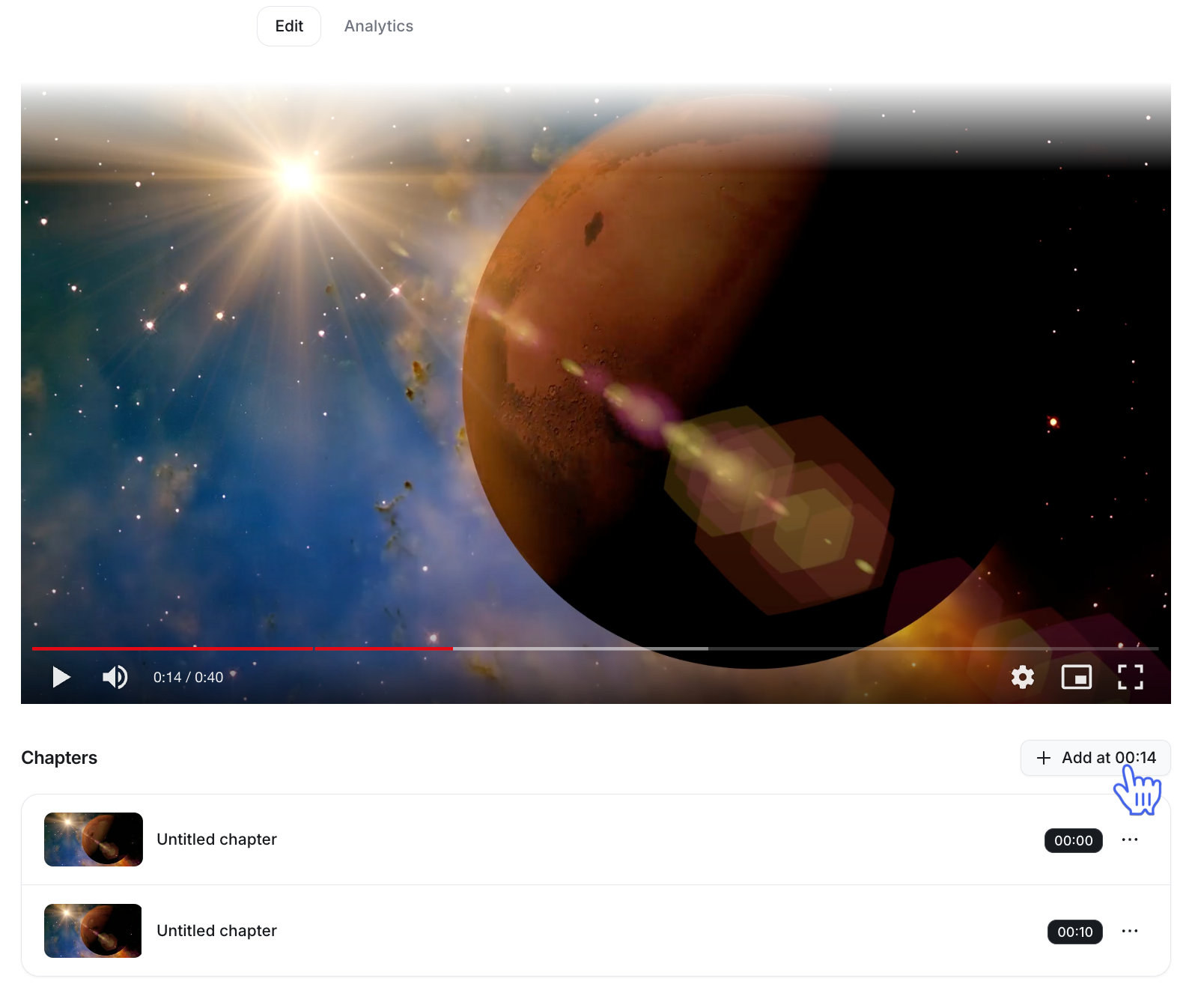

Once added, the chapter list below the video will also show a thumbnail taken from the exact moment the chapter starts. Ensure you click Save at the top right of the editor to save and apply your changes.
Rename a chapter
-
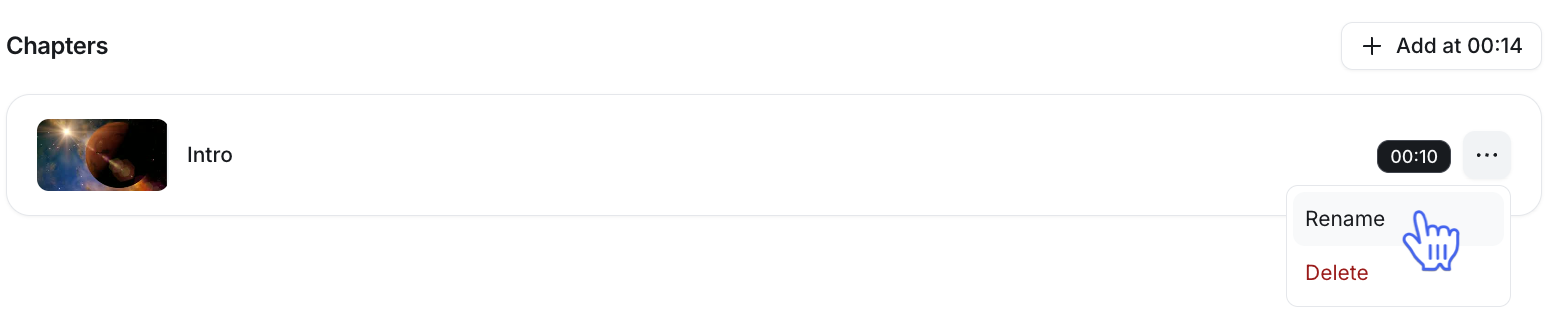
In the Chapters section, click the title. Alternatively, click More actions (three dots) next to a chapter and select Rename.
Edit the title, then click the Checkmark icon or press Enter to save.
Delete a chapter
In the Chapters section, click More actions (three dots) next to a chapter and select Delete.
When you delete a chapter, the previous chapter will extend until the start time of the next chapter.