Configure Feed settings
Last updated: August, 2026
As an admin, you can fine-tune the Feed to match the needs of your community. This article covers how to configure key Feed settings, including adjusting trending post thresholds, sorting posts, managing content visibility, and optimizing SEO.
Access Feed settings
To access the settings:
Hover over the community logo on the left sidebar and click Back to community.
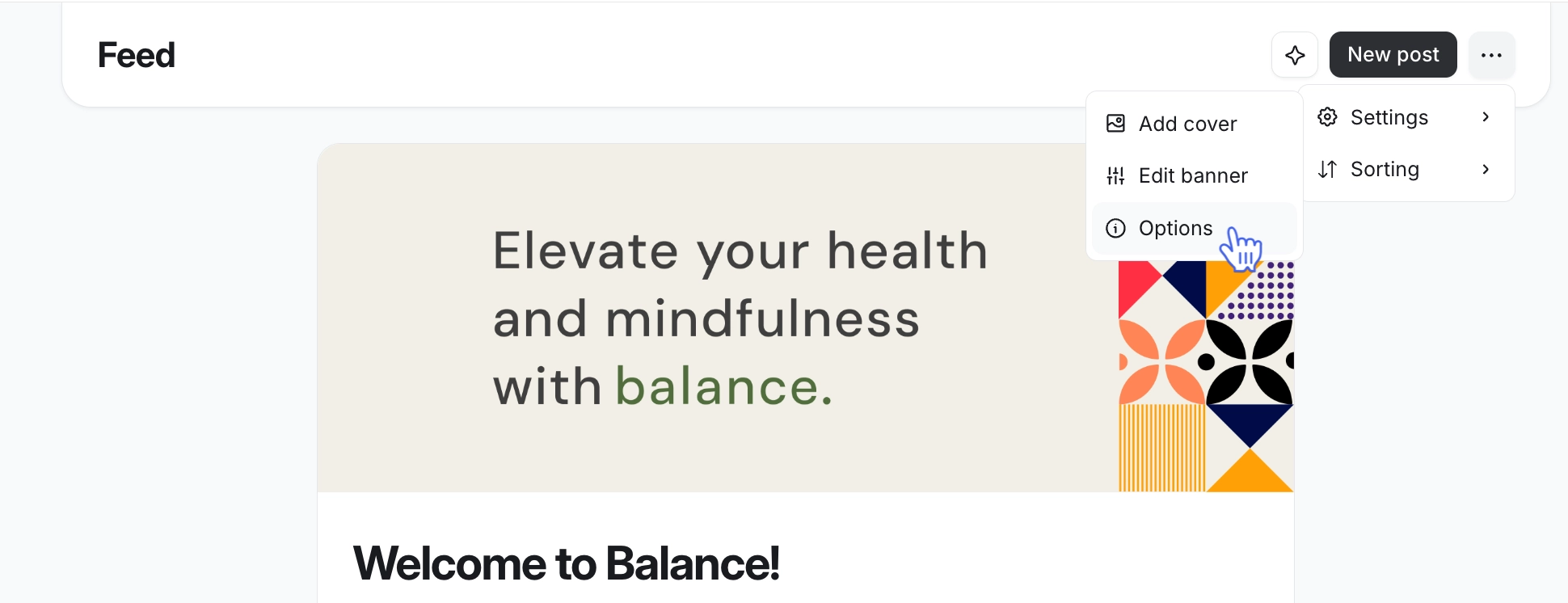
Click the More actions (three dots) icon at the top-right of the Feed page.
-
Select Settings and then select Options.
Add trending posts threshold
The Trending posts block on the right side of the feed showcases the most engaging and popular posts in your community. You can set a threshold to ensure only posts from a recent timeframe appear in this section. This helps keep the content fresh and relevant by automatically excluding trending posts older than a specific number of days from being displayed.
To define a threshold, enter the preferred number of days in the Trending posts threshold field.
Set default post sort
The order in which posts appear can significantly influence engagement. You can define how posts are sorted by default for logged in and logged out (for public community) users.
You can sort posts using one of the following options:
For you: Sorts posts based on a combination of publish time and member engagement. Newer posts are prioritized, while posts with more activity, such as likes and comments, are more likely to appear higher in the feed. This helps surface recent and actively discussed content while reducing noise.
Connections: Shows only posts made by your connections.
Alphabetical: Organizes posts alphabetically by title of the post for easy reference.
Latest: Showcases the newest posts at the top for up-to-date content.
Likes: Prioritizes posts with the ****most likes.
New activity: Brings posts with recent comments to the forefront.
Oldest: Displays the oldest posts first for historical context.
Popular: Highlights highly engaged posts based on the number of comments.
ℹ️ Note: When you set a default sort order for logged in users, it applies to new members who join the community. After signup, members can change their post sort preferences, and this will override the default sort you’ve set for their accounts. Once a member customizes their sort order, you cannot change it for them in the future.
To set a sort order, click the dropdown for each user type and select an option from the list.
Control post visibility from all public spaces
By default, your community feed displays posts from all public spaces (spaces with access set to open), even if a member hasn’t joined them. This ensures that users can discover content from across the community. However, you can control this to create a more personalized experience for your members.
You can adjust the settings to show posts only from the spaces a member has joined, such as event spaces or specific post spaces. This allows members to focus on more relevant content and fosters a tailored, streamlined Feed experience.
To manage this option, turn the Show posts from all public spaces on or off.
Add SEO information
You can add essential SEO elements like a meta title, meta description, and Open Graph information to enhance how your Feed appears in search results and when shared on social media platforms.
💡Tip: 📷 Recommended Open Graph image dimension: 1200 x 630 px with a 1.91:1 aspect ratio.
Once you are ready, click Save to apply your settings.