Get to know Feed
Last updated: August, 2026
The Feed offers a personalized and dynamic hub to stay up-to-date on the latest posts and events in your community.
About Feed
The Feed allows members to easily keep track of new posts, announcements, and event updates from the spaces they’re involved in. With features like trending posts, upcoming events, and a customizable welcome banner, the Feed helps everyone easily track what’s happening within your community.
Key features of the Feed
Posts and events in one place: The Feed pulls content from all event and post spaces within your community and presents it in one streamlined location.
Personalized feed: Each member’s Feed is customized based on the spaces they have joined and any spaces that are open within the community. This means members are only shown content that aligns with their specific interests and involvement.
For you sort option: A smart sort option that blends recency and engagement to highlight posts that are both new and active. It helps members see relevant, fresh conversations without switching between different sort types.
Trending posts: The Trending posts block on the right side of the feed highlights the top five posts with the most engagement. This allows members to discover popular discussions and stay informed about trends within their spaces. You can also define a threshold to exclude posts older than a specified number of days from the list.
Upcoming events: The Feed features an Upcoming Events block that displays up to five of the latest events from the event spaces members belong to. This ensures that no upcoming event goes unnoticed, helping members keep track of meetings, webinars, or special gatherings from their spaces.
Custom welcome banner: Admins can add a custom welcome banner at the top of the Feed. This banner can be tailored to deliver important announcements, special offers, or a personalized greeting. You can set up separate banners for visitors (public communities only) and members of your community.
Feed visibility for visitors: If your community is public, non-members can view the Feed when they visit on a web browser. However, they will only see content from spaces that are set to open access and the welcome banner if a logged-out banner has been configured.
ℹ️ Note: The Feed only displays content for members who are part of at least three spaces. If a member has joined fewer than three spaces, their Feed will appear blank until they join more spaces.
Availability
The Feed is available on all community plans. You can manage the availability of Feed in your community, enabling or disabling it at any time.
Enable Feed
Click Settings in the left sidebar.
Scroll down to the Website section and select Defaults.
-
Turn on the Enable Feed toggle.
Click Save Changes on the top-right corner.
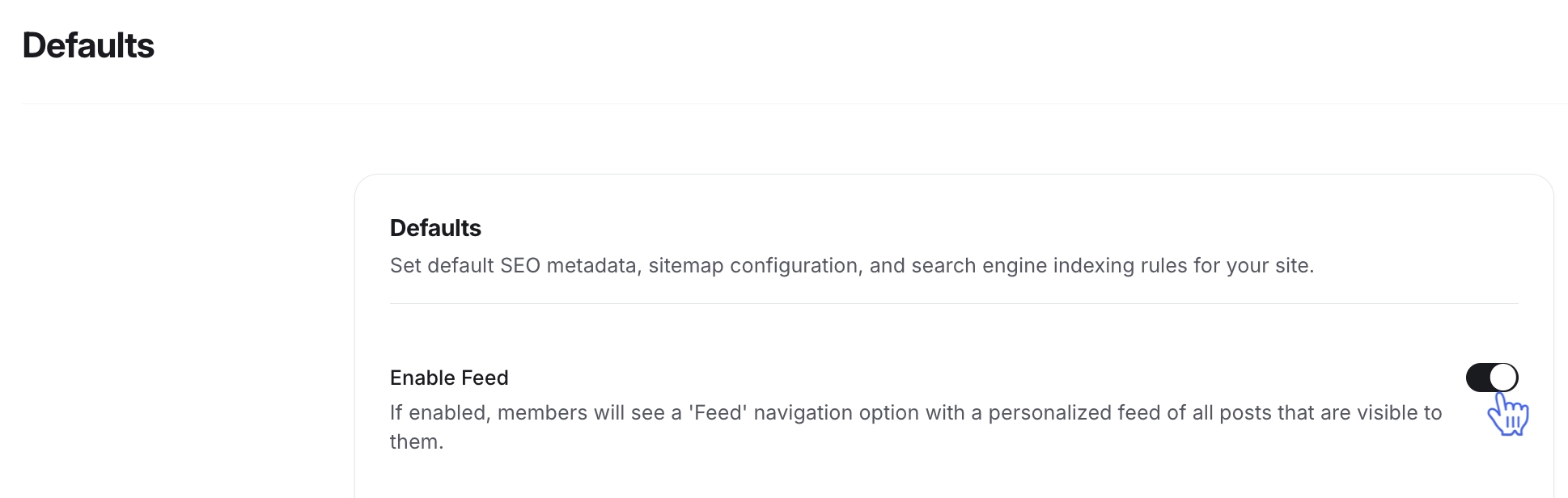
Once the Feed is enabled, all members and visitors, if your community is public, can access it directly from the sidebar.
ℹ️ Note: The left sidebar with Feed only appears when you’re on the Home tab. The Home tab, which serves as the main hub for your community spaces, is always accessible from the top navigation bar. Keep in mind that this tab may have a different name if the admin has customized it from the navigation settings.
Sort Posts in the Feed
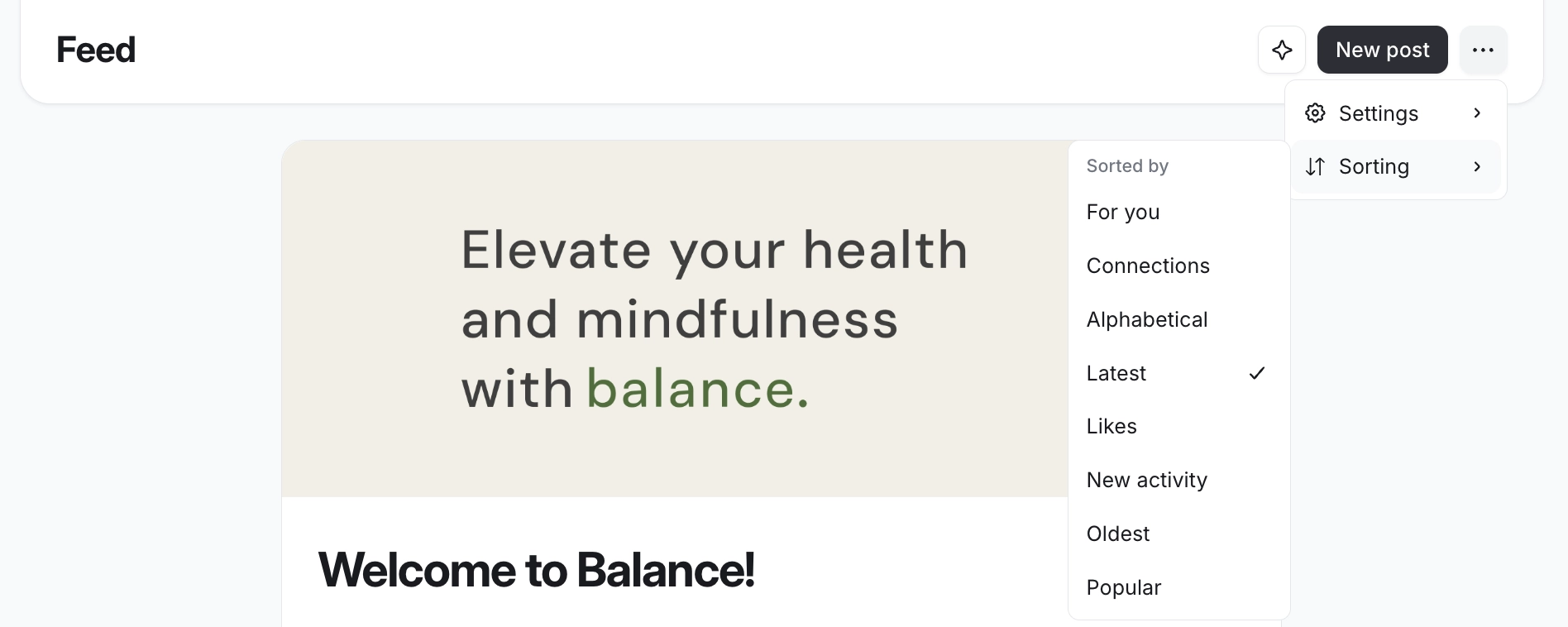
Members can sort posts in the Home Feed using a range of options, including For you, Connections, Alphabetical, Latest, Likes, New Activity, Oldest and Popular.
To sort feed:
Click More actions (three dots) in the top-right corner of the Feed.
Under Sorting, select your preferred option to sort the posts.