Get to know the Circle desktop app
Last updated: July 2026
The Circle desktop app seamlessly integrates into your daily routine, keeping your community within easy reach and never lost in a browser tab.
About the Circle desktop app
The Circle desktop app brings the full power of the web to your Mac and Windows desktop, delivering a seamless, distraction-free native experience with all the features you love on the web.
Whether you are an admin managing your community or a member participating in the community, the Circle desktop app provides a focused interface that integrates seamlessly into your desktop workflow.
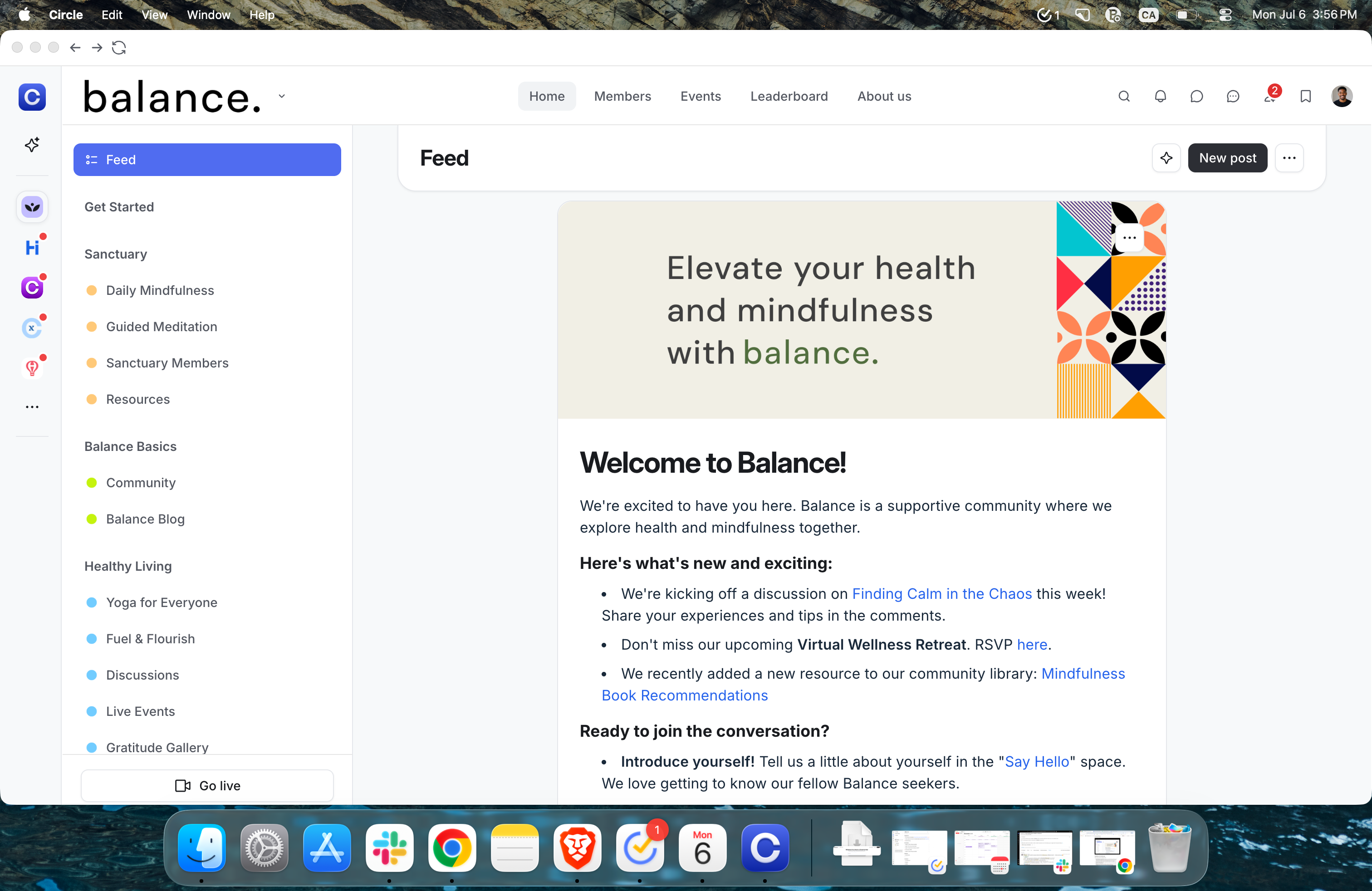
Capabilities of the desktop app
Here’s what you and your members can do:
Switch between communities: Everyone can use the familiar switcher bar to seamlessly navigate between different communities they are part of, just like on the web. Note that communities with desktop app access disabled by admins won’t appear.
Navigate between pages: Easily navigate backward ⬅️ or forward ➡️ using the navigation buttons in the top left corner.
Manage your community: As an admin, access and configure all community settings, manage audience, and customize features directly within the app.
-
Go live: Host instant Circle live sessions or live events, right from your desktop app.
ℹ️ Note: The screen sharing feature is not yet supported for Circle live stream and live room sessions in the desktop app. As a workaround, you can host Circle live sessions using a web browser, which allows you to share your screen.
AI Agents: Set up and interact with AI Agents, including accessing the AI Inbox as an admin. Members can also communicate with AI agents within the app.
Purchase paywalls: Existing members can buy paywall memberships directly in the app via lock screens or by clicking hyperlinked checkout URLs through areas such as posts.
App refresh: Refresh the app instantly by clicking the Refresh icon 🔄 in the top left corner or with a simple Cmd + R or Ctrl + R shortcut for a smooth experience. When the app is open, notification badges in the top navigation bar automatically update to reflect any new activity, including unread direct messages or in-app notifications. As you navigate through spaces or directories, content refreshes automatically, just like in a browser.
Language preference: Just like on the web, you can set your preferred language, English or Portuguese, directly from your profile settings. This ensures that the community interface displays in the language you’re most comfortable with, making navigation and communication smoother.
Notifications
The Circle desktop app delivers real-time native desktop notifications for in-app activities such as posts, replies, mentions, and direct messages (DMs), seamlessly integrated with your operating system’s notification system.
These alerts stay visible in your system’s notification center even when the app is minimized, and provide timely alerts to keep you engaged without interrupting your workflow.
Additionally, an unread badge on the Circle app icon in your toolbar offers instant visibility of new activity, ensuring you never miss important updates.
ℹ️ Note: The desktop app does not have separate notification settings. Notifications follow your existing in-app preferences for a consistent experience. If you prefer a quieter experience, you can easily turn off notifications for the Circle app at the operating system level. Here is a guide for Mac and Windows.
Current limitations
New member sign-ups: Similar to our Circle mobile apps, the desktop app is for existing members only. New members must sign up through a web browser before logging in to the app.
Deep linking: Deep linking is not supported for the desktop app at this time. If you click community links from emails or any external webpages, they will open in the web browser instead.
Availability
The Circle desktop app is available on Mac and Windows, for communities on all Circle plans.
Installing the app on your desktop
To get started, visit our desktop download page. Choose the version compatible with your system: Windows, Mac (Apple Silicon), or Intel-based Mac. The installer file will be downloaded to your device.
Mac installation
Locate the Circle installer file (.dmg) in your Downloads folder and double-click to open it.
Drag the Circle icon into the Applications folder to install it.
-
Launch the app and sign in to start engaging with your community.
💡 Tip: For quick access, right-click the Circle app in your Applications folder or Dock, select Options > Keep in Dock, and enjoy seamless community engagement every day.
Windows installation
Find the Circle installer file (.exe) in your Downloads folder and double-click to launch it.
Follow the on-screen instructions to complete the installation.
-
Once installed, open the Circle app and sign in to connect with your community.
💡 Tip: Pin Circle to your taskbar for effortless access. Right-click the app icon while it’s open, select Pin to taskbar, and keep your community at your fingertips.
ℹ️ Note: We are currently finalizing our Extended Validation (EV) certificate for Windows. During installation, you may see a “Publisher not verified” prompt. This is safe–simply click Run anyway to proceed with the installation.
Signing in to the app
The sign-in flow works similarly to our Circle mobile app. Once you have installed the app, sign in using the email address associated with your community account.
An OTP (One-time password) will be sent to your email address. Enter the code in the app to sign in securely.
Manage your community access to the desktop app
You have full control over whether your community is accessible via the Circle desktop app. To allow your community to be accessible on the desktop app, follow these steps:
Click your community name or logo on the top navigation bar, or the dropdown icon next to it, and select Settings.
From the sidebar menu, go to General.
In the Visibility section, switch the Accessible on Circle’s desktop app toggle on or off.
Click Save changes.