Generate a HAR file for troubleshooting
Last updated: June, 2026
When the Circle support team is troubleshooting a complex issue, they may ask you to record and share a HAR file from your browser. A HAR (HTTP Archive) file captures a log of network activity in your browser, which helps the team identify what's happening behind the scenes when something goes wrong.
This article will walk you through generating a HAR file in Chrome, Firefox, Safari, and Edge.
💡 Tip: the steps outlined in this article are the same for both macOS and Windows.
Generate a HAR file in Chrome
Open Google Chrome and navigate to the page where the issue occurs.
-
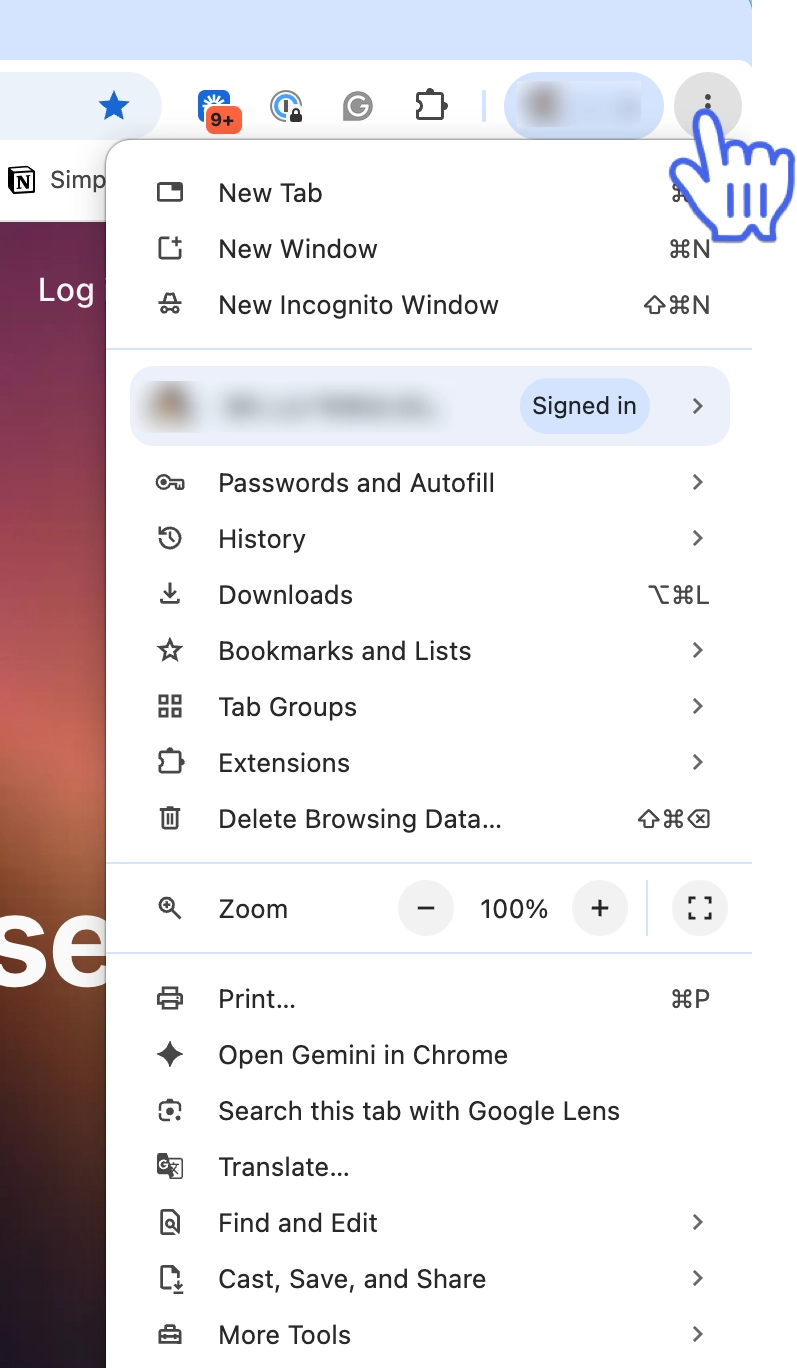
Click the Customize and control Google Chrome (⋮) icon in the top-right corner of the browser.
Hover over More Tools and select Developer Tools from slide out menu.
Click the Network tab on the developer tools panel.
-
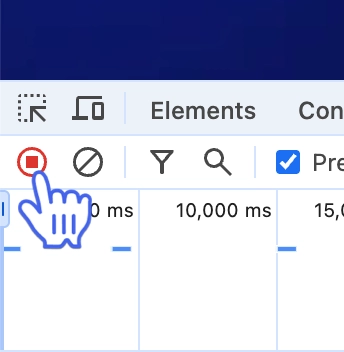
In the top-left corner of the Network tab, check that the Record button is red. If it appears grey, click it once to start recording.
-
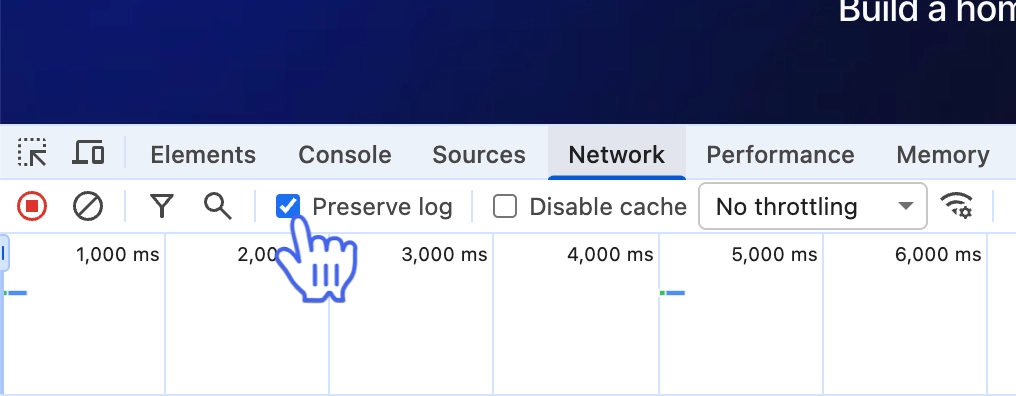
Select the Preserve log checkbox.
-
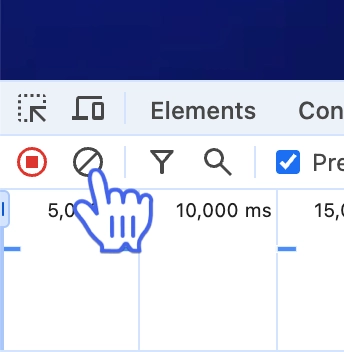
Click Clear to remove any existing entries from the Network tab.
Take the steps to reproduce the issue while the network requests are being recorded.
-
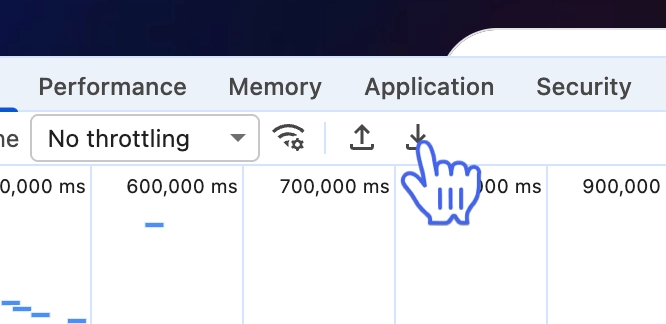
Once you've reproduced the issue, click the Export icon.
Save the HAR file to your device and attach it to your support ticket or email it to the support team.
Generate a HAR file in Firefox
Open Firefox and navigate to the page where the issue occurs.
-
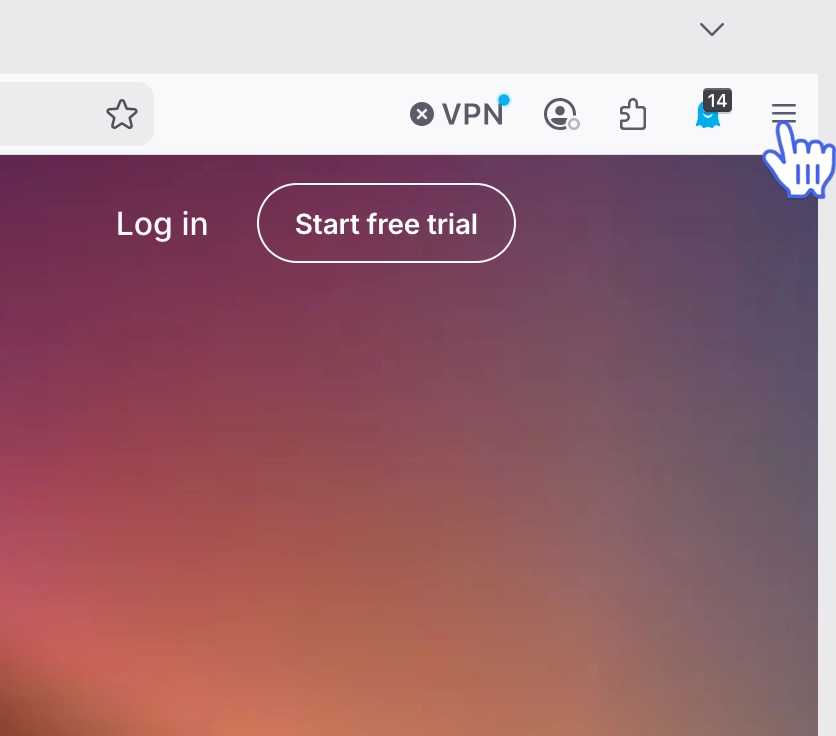
Click the Application menu (three horizontal lines) in the top-right corner of your browser.
Select More tools and then select Web developer tools.
Click the Network tab on the Developer tools panel.
-
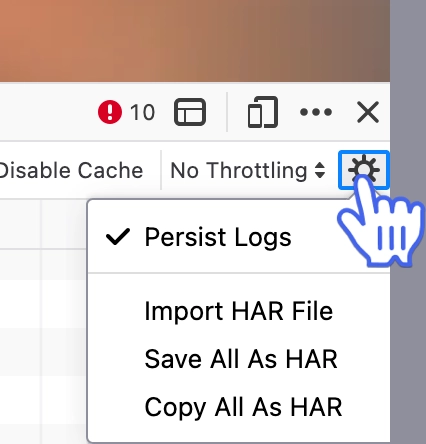
Click Settings in the top-right corner of the Developer tools panel and select Persist logs. This ensures that the request list isn’t cleared when you navigate to a new page.
-
Take the steps to reproduce the issue while the network requests are being recorded.
ℹ️ Note: Recording starts automatically when you begin performing actions in the browser.
Once you’re done, click Settings in the top-right corner of the Developer tools panel and select Save all as HAR.
Save the HAR file to your device and attach it to your support ticket or email it to the support team.
Generate a HAR file in Safari
Before getting started, check that the Develop menu is visible in the Safari menu bar. If it isn't, follow Apple's instructions for enabling the Develop menu.
Open Safari and navigate to the page where the issue occurs.
-
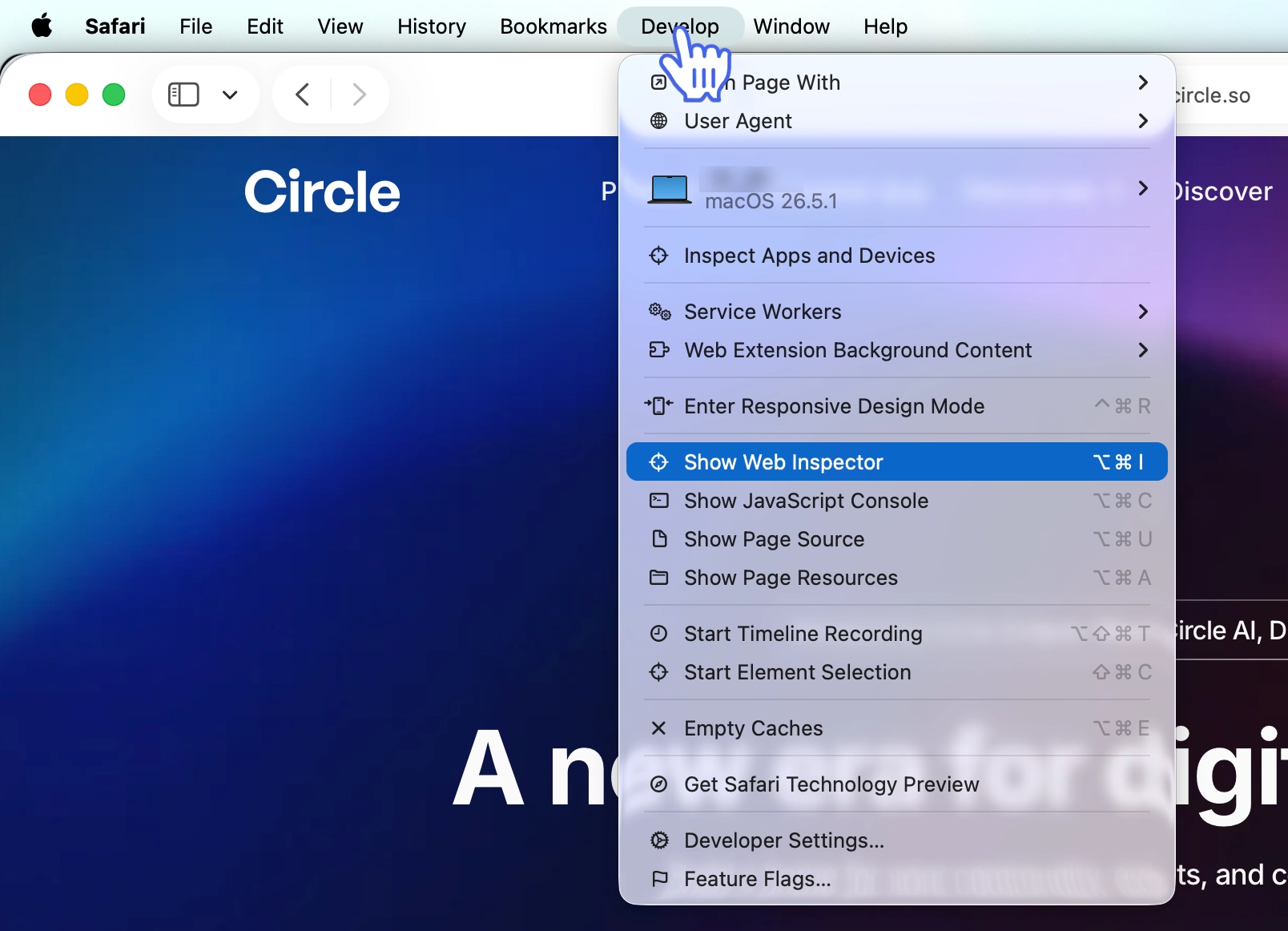
Click Develop on the menu bar and select Show Web Inspector.
-
Click the Network tab.
Take the steps to reproduce the issue while the network requests are being recorded.
-
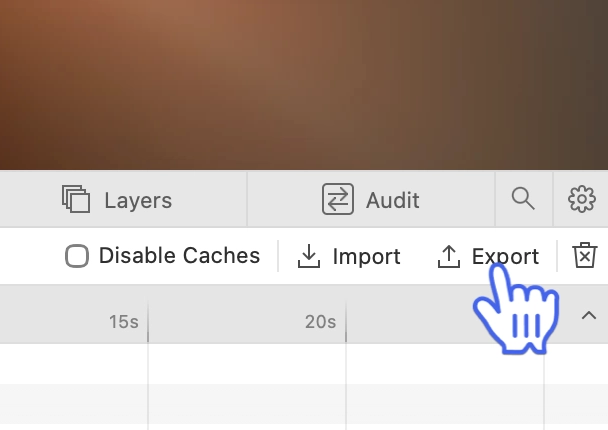
Once you’re done, click the Export icon on the top-right of the Web inspector panel.
Save the HAR file to your device and attach it to your support ticket or email it to the support team.

Generate a HAR file in Edge
To generate a HAR file in Microsoft Edge:
Open Microsoft Edge and navigate to the page where the issue occurs.
-
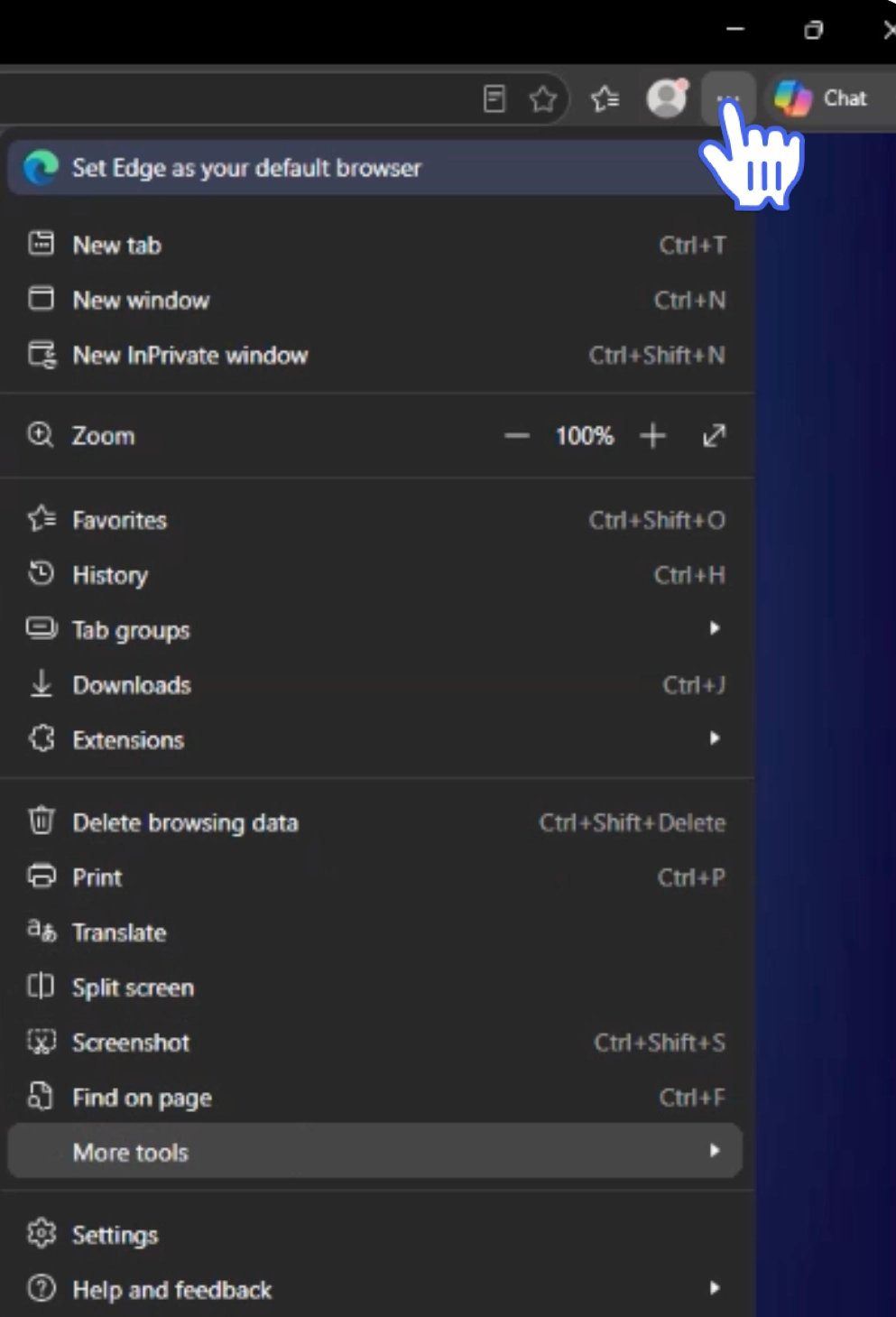
Click the Settings ( … ) icon in the top-right corner of the browser.
Hover over More Tools and select Developer Tools from slide out menu.
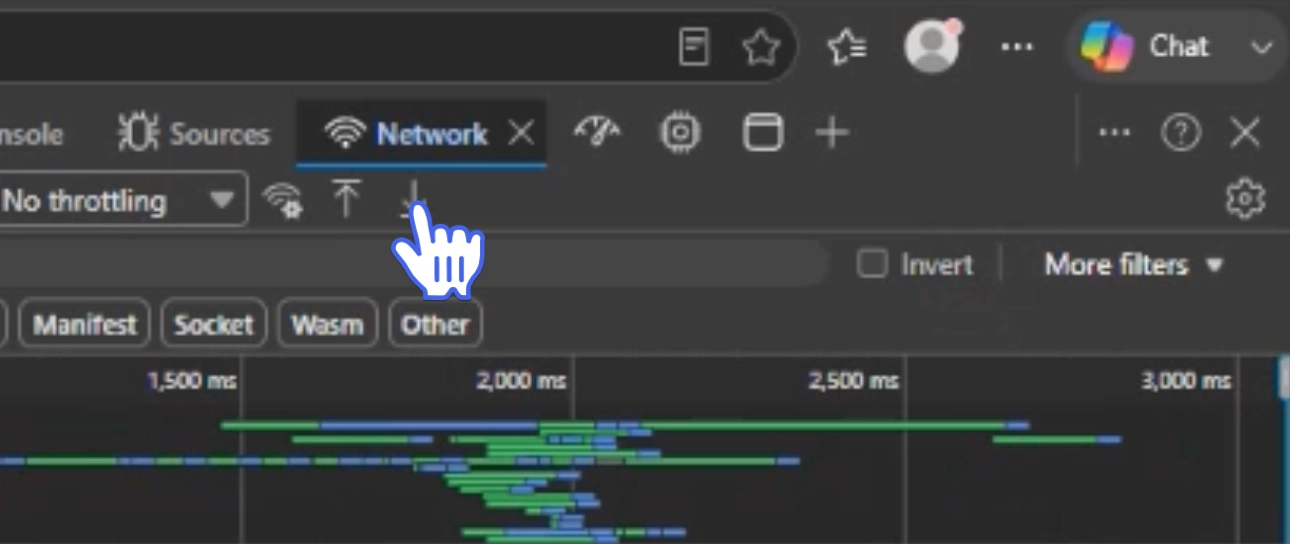
Click the Network tab on the developer tools panel.
Take the steps to reproduce the issue while the network requests are being recorded.
-
Once you’re done, click the Export icon on the top-right of the Web inspector panel.
Save the HAR file to your device and attach it to your support ticket or email it to the support team.