Switch community appearance between light and dark mode
Last updated: August, 2026
Whether you prefer a bright or a more subdued and easy-on-the-eyes interface, the option to switch between these modes provides a comfortable community viewing experience. In this article, we'll guide you through the simple steps to switch the community appearance between light and dark modes.
Desktop
In a desktop browser, you can switch your community appearance at any time. To switch modes, click your profile picture in the top-right corner and select Switch to light/dark mode.
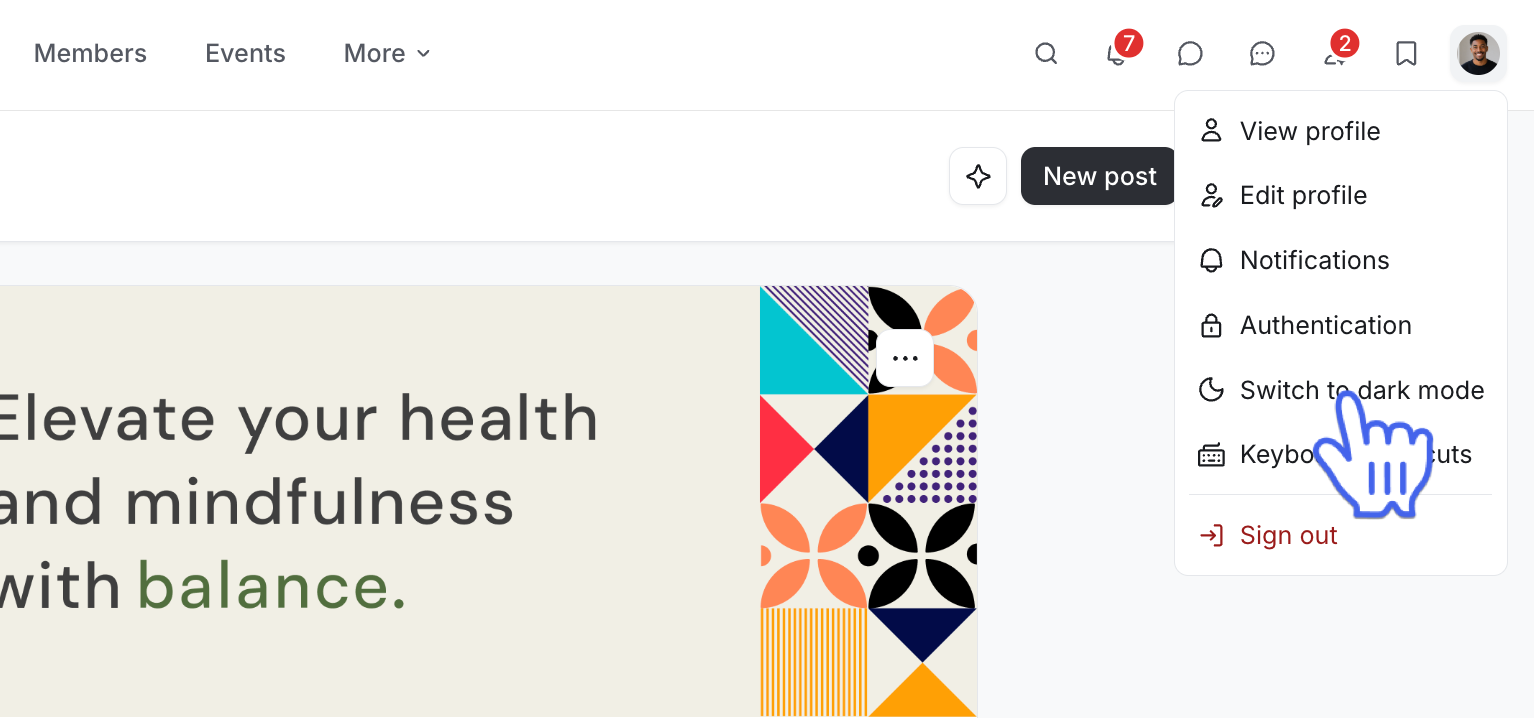
ℹ️ Note: You can follow the same steps to switch the community appearance on mobile browsers.
Circle mobile app
On Circle mobile apps, the light or dark mode is set based on the display mode set on your device’s operating system.
To switch between light and dark modes on your iOS device:
Go to Settings, then tap Display & Brightness.
Select Light or Dark mode in the Appearance section.
To switch between light and dark modes on your Android device:
Go to the Settings app, then tap Display.
-
Set Light or Dark mode.