Archive an access group
Last updated: August, 2026
Make your access groups inactive by archiving them when they're no longer needed. This article outlines the key considerations and steps to archive and unarchive access groups.
Before you archive
Archiving an access group affects both your entry points and group members. Review these important details:
Unlink entry points: You must remove the access group from all entry points before archiving, including onboarding settings, invitation links, and paywalls.
Impact on members: Members will immediately lose access to all spaces and space groups connected to the archived group, unless they belong to another access group with overlapping permissions to the same spaces or space groups.
Archive an access group
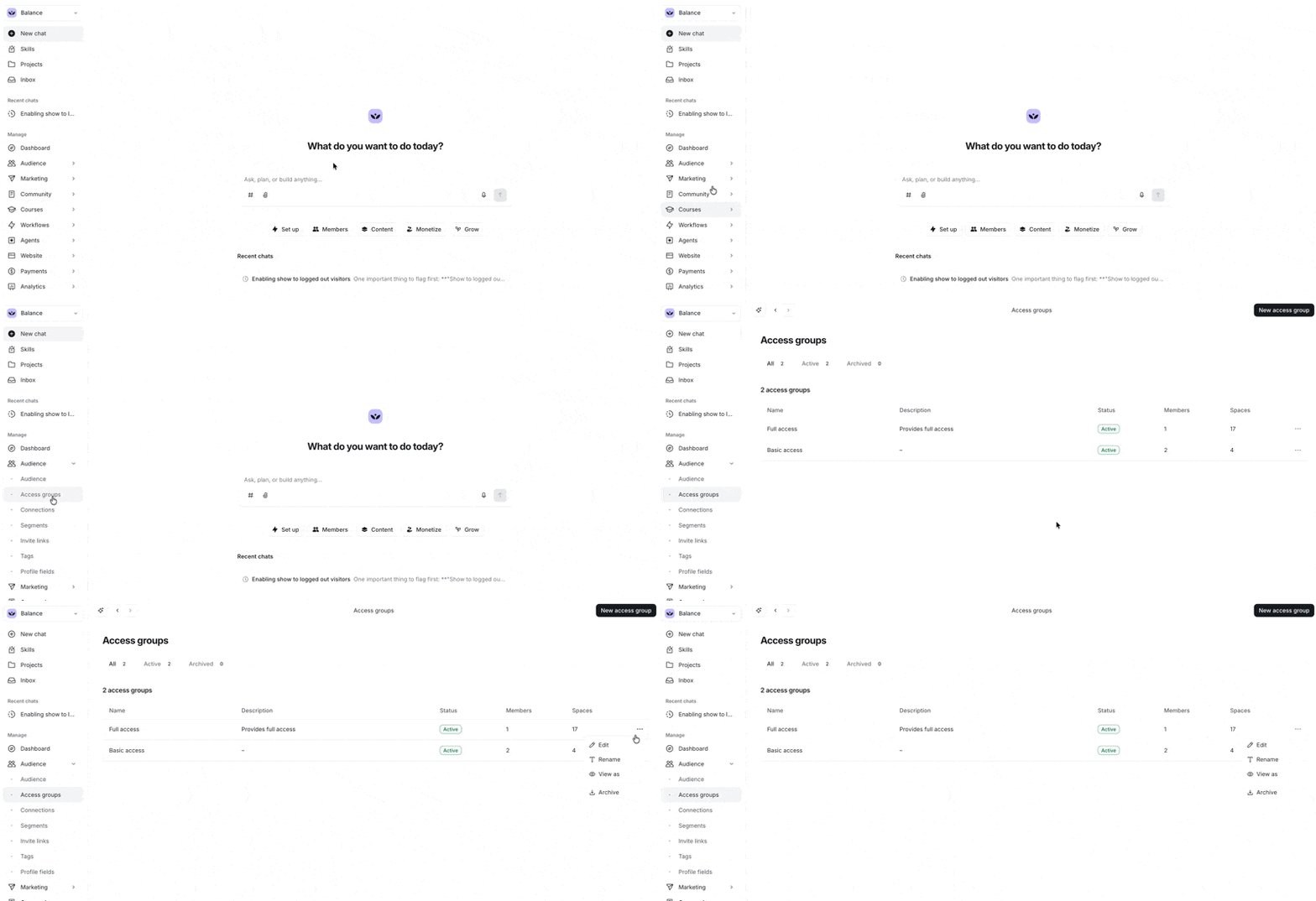
Click Audience on the left sidebar and select Access groups.
-
Hover over the access group, click More actions (three dots) icon, and select Archive.
-
Confirm the action by typing the keyword as indicated in the dialog.
If the group is linked to any entry points, you’ll see a prompt listing those entry points. Please remove the access group from those entry points first to proceed.
If the access group already has members assigned, you’ll be prompted to confirm the action to archive and revoke their access.
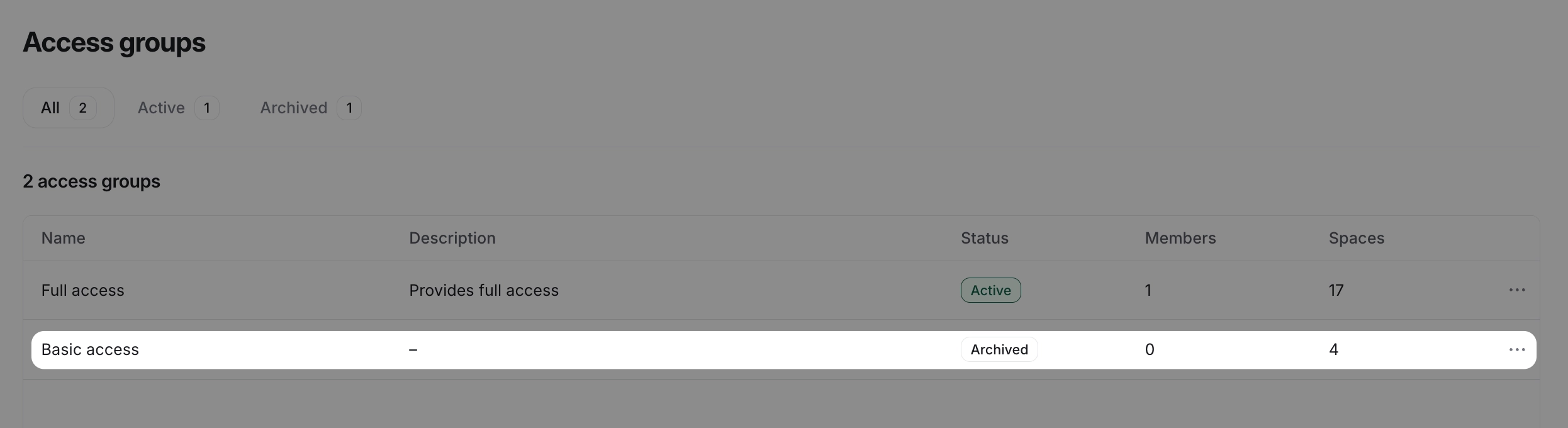
Once archived, the group will:
Display an "Archived" status.
Appear on the Archived tab on the Access groups page.
-
Become unavailable for editing until unarchived.
Unarchive an access group
To make an archived group active again, follow these steps:
Click Audience on the left sidebar and select Access groups.
Hover over the access group, click More actions (three dots) icon, and select Unarchive.
The group will return to active status, ready for access configurations and member management.