Create a listing on Discover
Last updated: June 2026
Once you’ve setup up your creator page, you can start building a listing for your community and courses on Discover.
In this article, we’ll take a look at how to set up a listing on Discover.
Create a listing
To create a new listing:
-
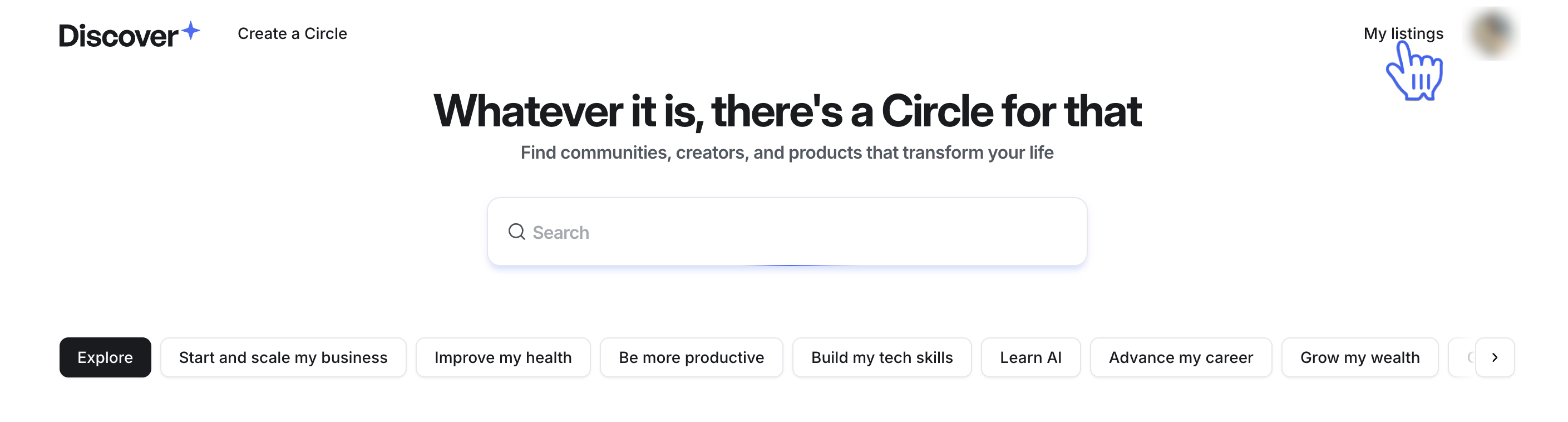
Click My listings in the top-right corner of the Discover home screen to open your listing management page.
Click New listing in the top-right corner of the page.
Enter a name for your listing and select the community you'd like to list from the dropdown menu.
Click Save and continue.
Configure listing details
Add a tag: Select the type of listing from the Tags field. Choose Community, Course, or both.
Select goals: Select the goals your listing helps members achieve. You can select up to three goals from the dropdown menu. Potential members can find your listing by filtering for a goal they want to achieve.
Add featured media: Upload or embed videos or images that best represent your product.
Add a listing thumbnail: Upload a thumbnail image to help your listing stand out in previews and search results. The recommended size is 1080x1080 px (1:1 aspect ratio).
Configure your join options: Give potential members a way to purchase or join your community through a paywall, subscription group, invitation link, or external URL for payments through a third-party provider.
Add descriptions: Write a short and long description for your listing.
Add outcomes: Describe up to ten outcomes that members will achieve by joining your community or course.
Describe what's included: Highlight up to five key features included with your product. For each feature, you can add an icon, a feature name, and a description.
Highlight your courses (optional): Feature up to five courses and their curriculums on your listing.
Describe who your product is for: Add up to five target audience groups to help the right people find your listing.
Add FAQs (optional): Add up to ten FAQs to give potential members a better understanding of your product before they join.
Click Save at the top of the page to save your progress.
Preview and submit your listing
Select the Preview tab in the top-left corner of the page to see how your listing will appear on Discover.
To make changes, select the Product tab to switch back to the editor.
When you're ready, click Submit for review in the top-right corner of the page.
ℹ️ Note: After submitting your listing, the Circle team will review it and notify you by email if any changes are needed. When approved, your listing will go live automatically, along with your creator page.