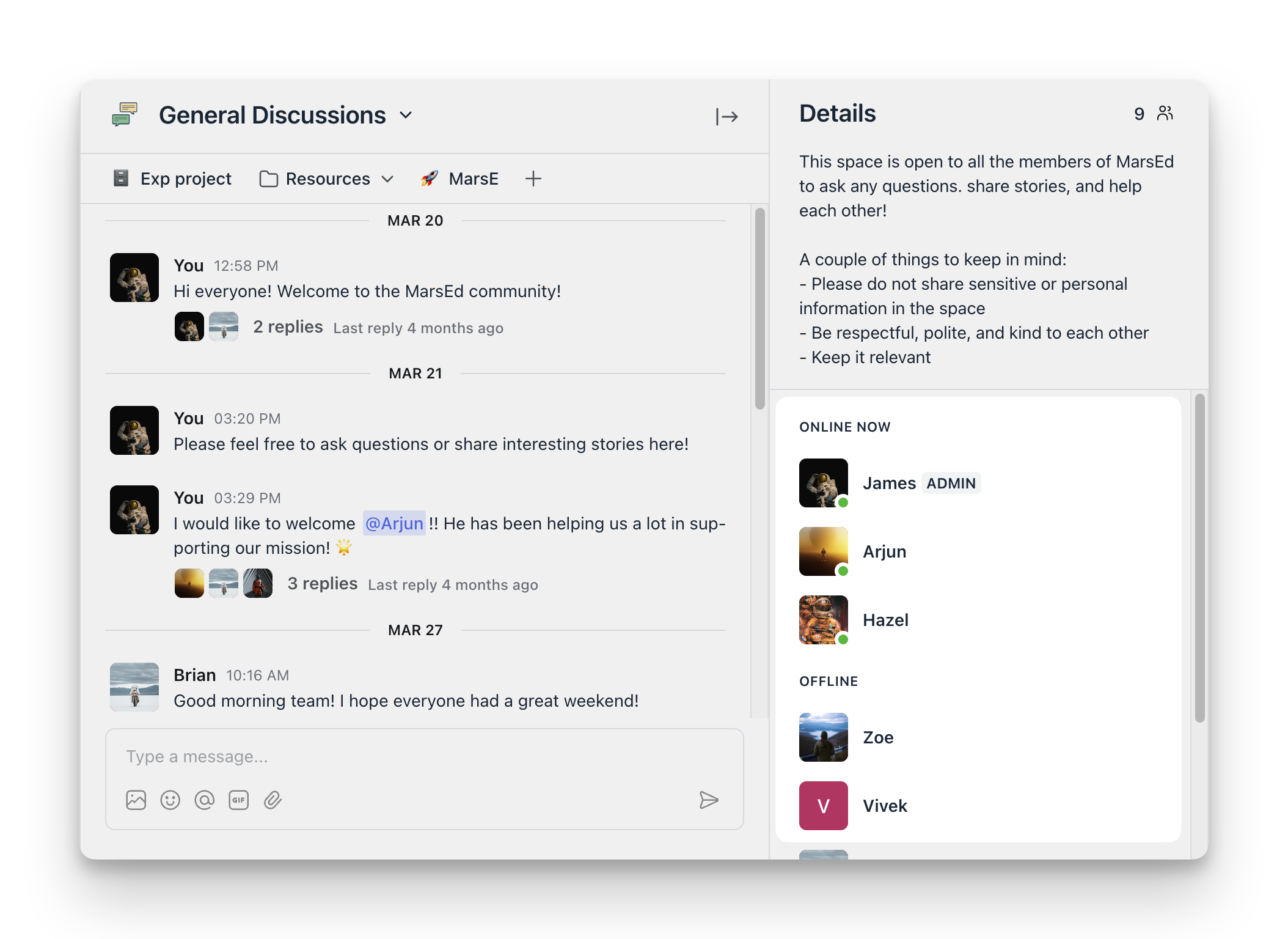
Understanding members' active status
Last updated: August 07, 2023
This article will help you understand the different active statuses that define members’ presence in your community.
Get to know the active status
The active status appears on the member’s profile and is automatically updated based on their presence in the community.
The following criteria determine a member’s active status:
Online: A member is considered online if they've been active on their Circle mobile app or have been navigating the community in an active browsing tab within the last 10 minutes.
Idle: If a member was last active more than 10 minutes ago but less than 60 minutes, they are marked as idle. This suggests they might have a community tab open in their browser but are not actively interacting within the tab.
Offline: A member is considered offline If they were last seen more than 60 minutes ago.
To help convey this effectively, the member profile displays two types of information: Visual indicators and Last seen timestamps.
Visual indicator
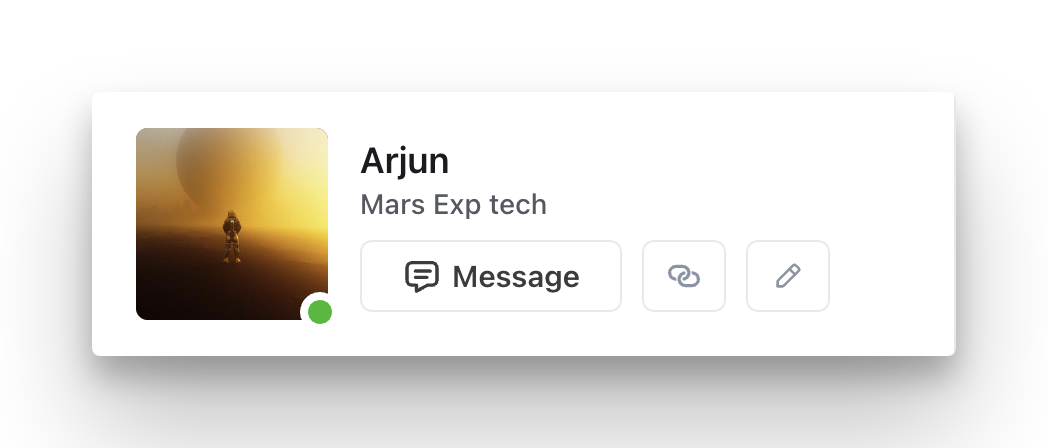
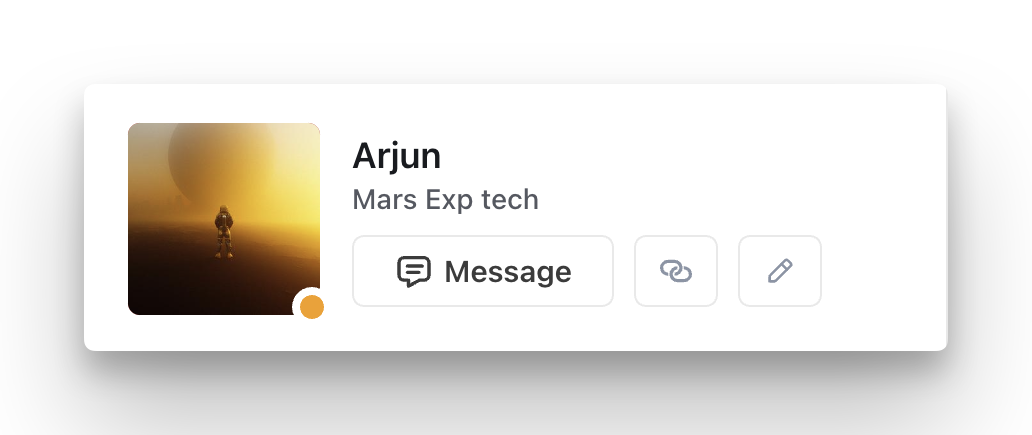
The visual indicator on a member’s profile photo indicates their presence in the community.
-
Online: When the member is online and active, you’ll see a Green dot 🟢 on the profile photo.
Idle: When the member is inactive, you’ll see an Orange dot 🟠 on the profile photo.
Offline: If a member is offline, there won't be any indicator visible.
Last seen timestamp
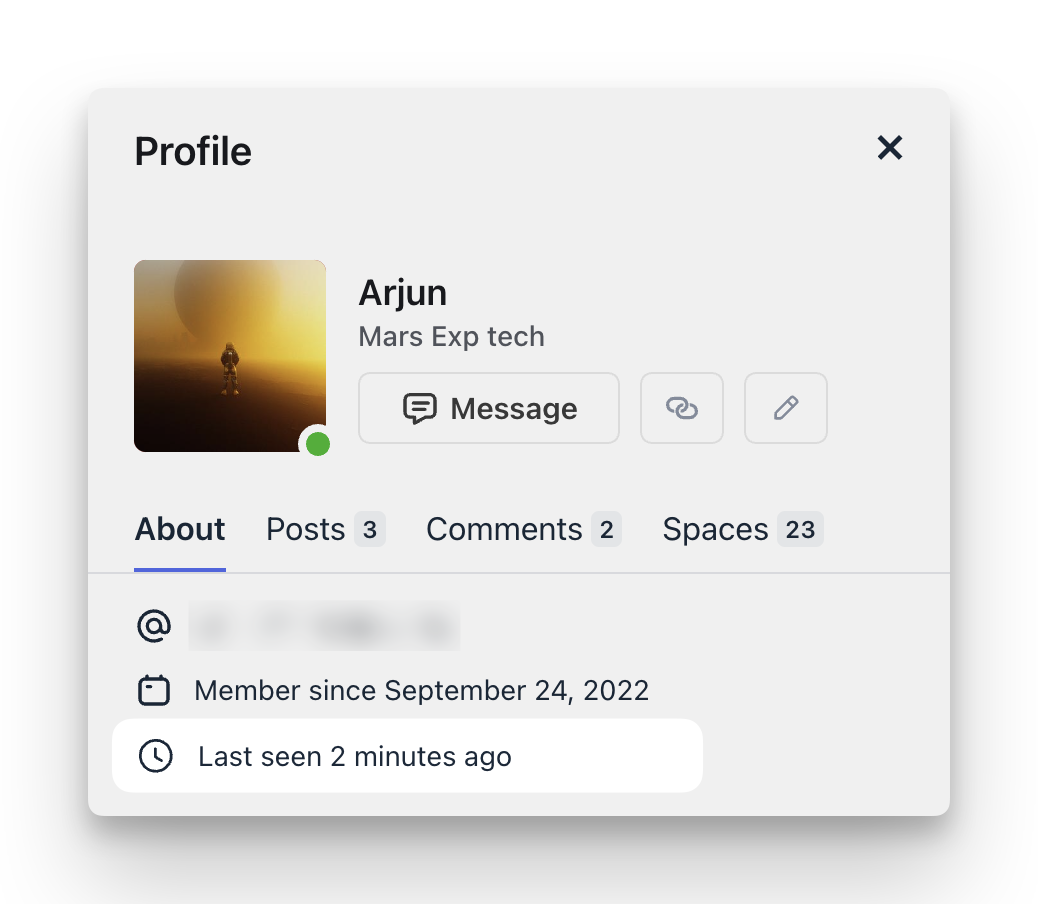
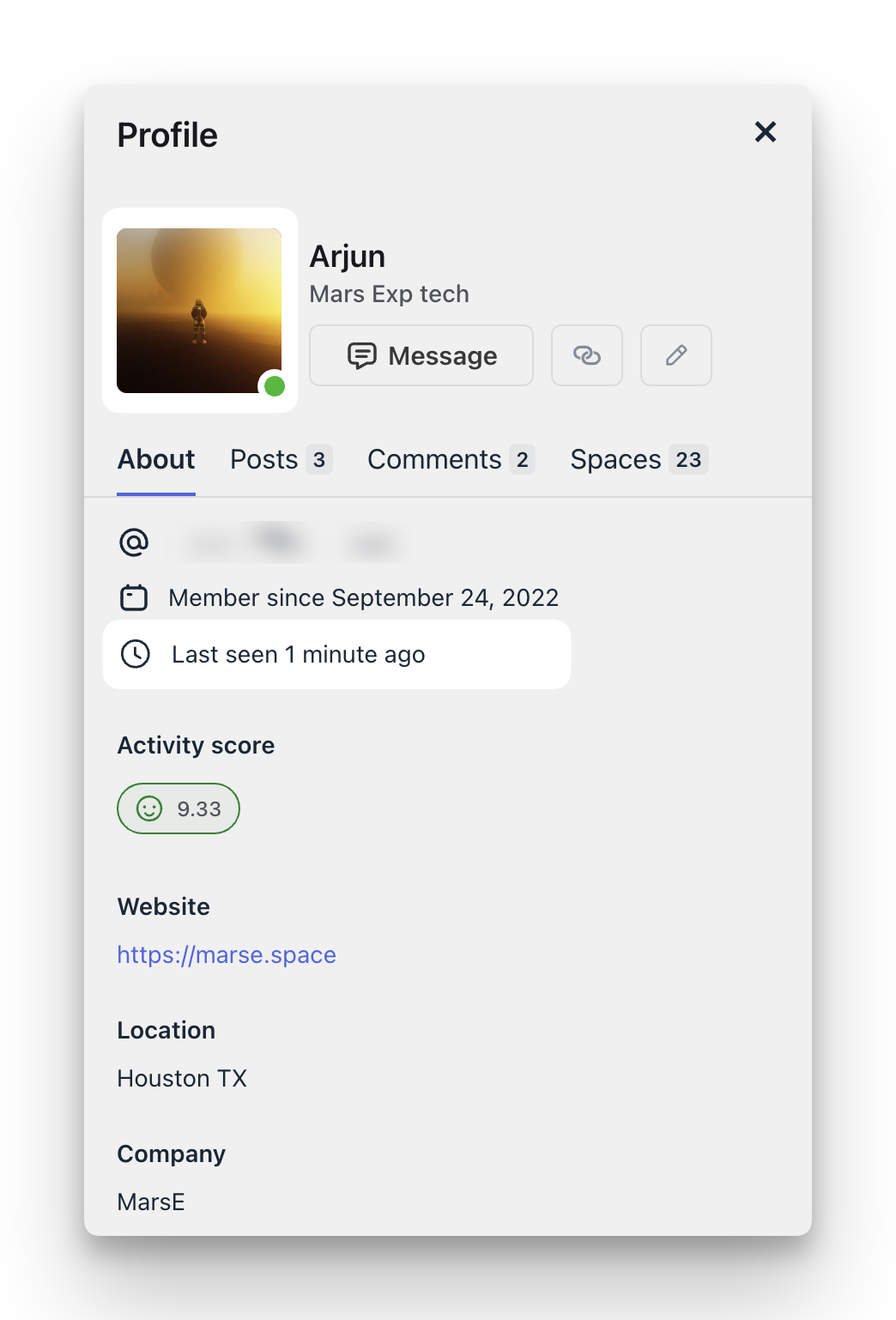
Besides the visual indicator, the About tab on the member profile displays a last seen timestamp, indicating when they were last seen active in the community.
View member’s active status
Let's explore the community areas where you can see the active status of members.
💡 Tip: You can use the Status filter in the member directory, member space, manage members page, and bulk action workflows to filter members by their online or offline status.
Member profile
When viewing a member's profile, you can see both a visual indicator and last seen timestamp indicating their active status.
Direct messages
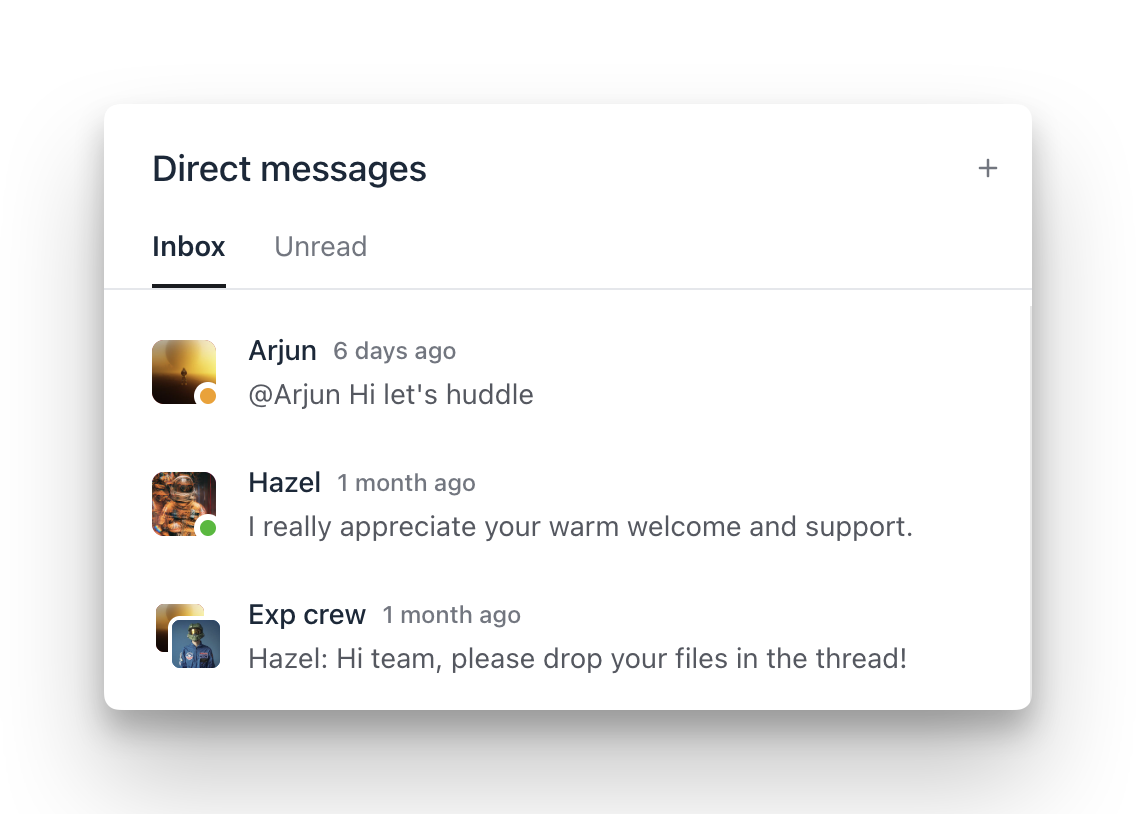
In the direct messages panel, you can see a visual indicator on a member's profile photo showing whether they are online or idle.
Chat spaces
When viewing your chat space or group messages, you can see members grouped into online and offline categories in the right sidebar, with visual indicators showing up on their profile photos.