Manage segments
Last updated: May 26, 2025
Segments allow you to group your community audience based on specific criteria. In this article, we'll explore how to update existing segments and create new ones by duplicating them.
Accessing segments
You can easily see which filters are applied to a segment by hovering over the segment pill on the Audience management page.

To view and manage your segments, navigate to the Segments page:
On the top navigation bar, click your community name or logo—or the dropdown icon next to it–and select Audience.
From the sidebar menu, go to Segments.
Let’s take a look at these options in detail.
View segment usage
Before updating a segment, it’s important to check where it's used to understand its potential impact on your workflows and broadcasts.
There are two ways to view a segment’s usage:
Hover over the segment.
Click the More actions (three dots icon) and select View usage.
Or, click the name of the segment and select View usage on the top right.
This action opens a drawer showing you which workflow or bulk action currently uses the segment.

Updating segments
Once you're on the Segments page, you can easily update your existing segments to better suit your needs.
Renaming a segment
If you want to change the name of a segment:
Hover over the segment you wish to rename.
Click the More actions (three dots icon) and select Rename.
Enter the new name for your segment and save the changes.
Adjusting segment filters
To modify the filters that define a segment:
Click on the name of the segment you want to edit.
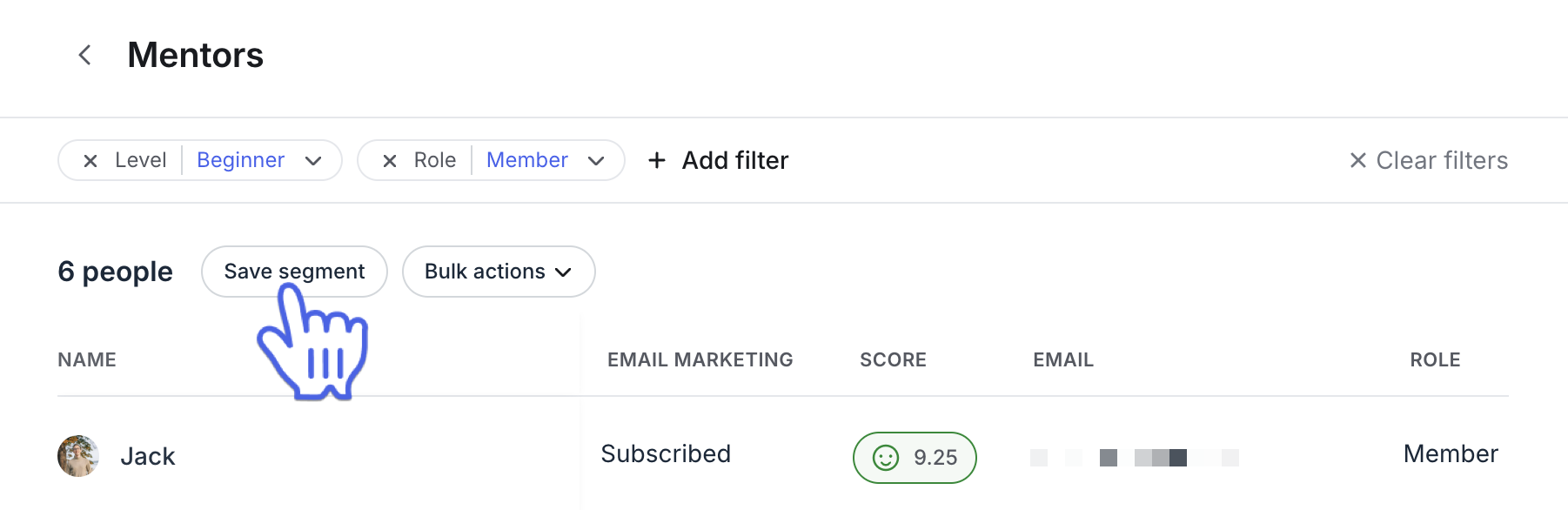
On the segment details page, you'll see the current members and the filter bar displaying all applied filters.
-
Remove existing filters or add new ones to update your segmentation criteria.
After making your desired changes, click Save segment below the filter bar.
Choose whether to save the changes to the same segment or create a new segment with the updated filters.
Duplicating segments
Duplicating segments is a convenient way to create new segments based on existing ones, saving you time and effort.
To duplicate a segment:
Hover over the segment you want to duplicate.
-
Click the More actions (three dots icon) and select Duplicate.
Name the segment and click Duplicate segment.
A new segment will be created with the same filters as the original one.
You can then adjust its filters as needed.

Deleting segments
You can delete a segment as long as it is not being used by a broadcast or workflow.
To delete a segment:
Hover over the segment you want to delete.
Click the More actions (three dots icon) and select Delete.