View leaderboard
Last updated: October, 2026
The leaderboard is an integral part of the gamification feature. It is designed to showcase the most active members within your community who received the most appreciation and whose content resonates with the most.
Accessing the leaderboard
The leaderboard provides an engaging and competitive way for you to track your progress alongside the most active members at the community level.
To access the leaderboard on a desktop browser:
Click the community name or logo (or the dropdown icon next to it) in the top-left corner and select Back to community.
Click the Leaderboard tab on the top navigation bar. If you don't see the Leaderboard tab when viewing the community in a smaller browser window, click More on the navigation bar to access it from the dropdown.
💡 Tip: If admins have customized the name of the leaderboard link, the updated name will appear on the navigation bar instead.
On Circle mobile apps, the leaderboard is accessible by tapping Leaderboard on the top navigation bar.
Viewing your profile on the leaderboard
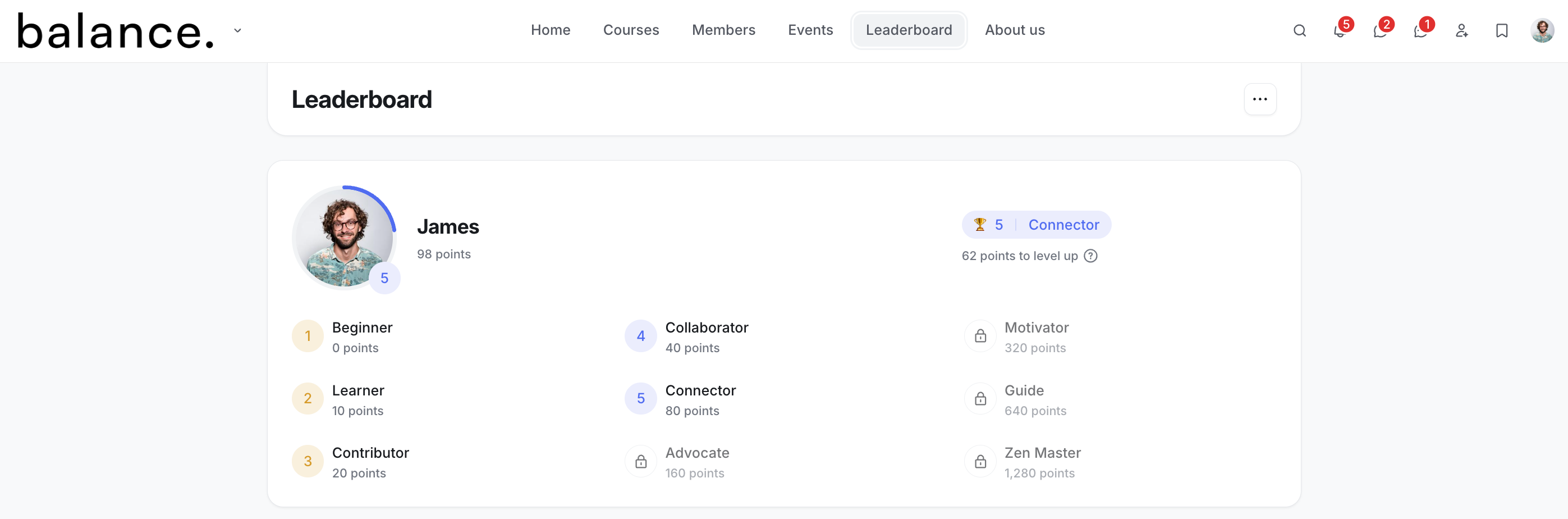
When you open the leaderboard, your member profile card will be the first thing you see. This card provides a comprehensive overview of your current standing, including:
Current Level: Check your current level displayed on the top-right corner of the card. On your avatar, you'll also see a level badge and progress bar indicating your progress within the current level.
Past levels achieved: View a history of the levels you’ve already unlocked so far. This serves as a record of your meaningful contributions and accomplishments within the community.
Next level: See the exact number of points you need to reach the next level, which provides clear motivation to continue engaging.
Locked Levels: View all the levels that are still locked, along with the points needed to unlock them, that help you set clear goals for advancement.
Viewing the leaderboard in different timeframes
Below your profile card, you can see three tabs, each showcasing up to 10 most active members based on points earned within distinct timeframes:
7 Days: Ranks members by points gained over the past seven days, calculated from when you view the leaderboard. The number next to each name reflects new points earned in this period.
30 Days: Highlights the top members based on points accumulated over the last 30 days, also calculated from when you access the leaderboard. Next to their name, you can see how many points each member has gained over that timeframe.
All Time: Displays the all-time top members, celebrating those with sustained high engagement by receiving the most points. The number beside each name indicates the total points they have earned.
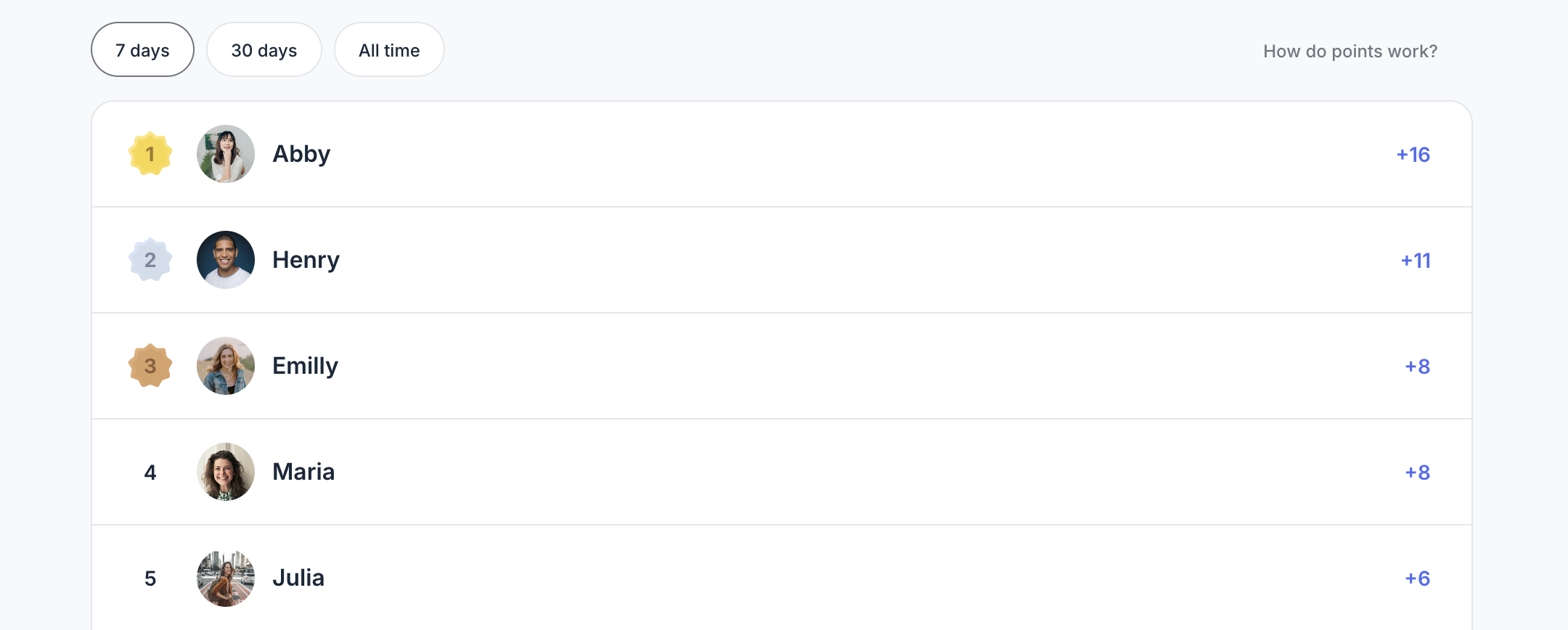
In each timeframe, the top three members are prominently ranked and awarded coloured badges that provide special recognition for their achievements. If two or more members tie in points within the top three, they will share the same rank and receive identical badges.
ℹ️ Note: These timeframes are updated every time you access the leaderboard, ensuring that the rankings reflect the most recent data.
Get to know the points and levels
Points and levels are fundamental to the gamification feature. You can earn points in two ways:
-
Likes: You earn 1 point for every like you receive on the content you post in the community. This includes:
Regular posts
Image posts
Events
Comments within post, image, and event spaces.
Reward points: Admins can occasionally award points for specific activities or achievements. You can view a log of these points on the Rewards tab in your profile.
There are nine levels to achieve, each representing a significant milestone in your engagement within the community. As you accumulate points, you advance through these levels, with each level requiring more points than the last to encourage ongoing participation and high-quality contributions.
Frequently asked questions
Can I hide my member profile from the leaderboard?
Yes, you can choose to prevent your member profile from appearing on the leaderboard rankings.
To do this, click your profile icon in the community header and select Edit profile. In the Permissions section, turn off the Show my profile in the member directory toggle and save the changes. This will hide your member profile from the member directory, search, and leaderboard.
What happens if a like is removed from my content?
If a like is removed from your content, the point you've gained will not be removed. However, if the same person who removed the like decides to like your content again, you will not receive an additional point.
What happens if I remove my content?
When you delete your post, event, or comment, any points you earned from likes on that content will remain unaffected.
Does deactivating a member account remove the points?
If your account is deactivated, your information will be removed from the leaderboard. However, your points will not be lost. If your account is reactivated in the future, your points and levels will be restored.