Customizing point requirements for gamification levels
Last updated: January 16, 2025
Gamification points are a powerful tool to engage your community members and reward their participation. This guide explains how to customize the points system to align with your community's goals and engagement strategy.
About the point requirement for gamification levels
The gamification system features nine levels, each with specific point requirements. Members advance through these levels by earning points, which they accumulate through activities such as receiving likes or completing tasks you reward via workflows.
When you enable gamification, default point values are pre-set for each level. You can either use these defaults or customize them anytime to better suit your community’s needs.
Key things to consider before customizing points
Before modifying point requirements, review the following points to ensure a seamless experience:
-
Point values:
The point requirement for level 1 is fixed and cannot be changed. This ensures a consistent starting point for all members.
Each subsequent level must require more points than the one before. If you adjust the point requirement for a level, you may need to modify the requirements for the following levels to maintain a logical progression.
We recommend planning your points ladder in advance to avoid frequent changes. A well-thought-out structure ensures a balanced and rewarding leveling experience for your community.
-
Member level updates:
Modifying point requirements will automatically update member levels. Members may move up or down depending on their current points and the revised thresholds.
For example, if a member currently at level 4 no longer meets the new points requirement for that level, they will move down to a level they qualify for based on the updated structure.
For large communities, this update process may take several minutes to complete.
-
Workflow impact:
We suggest being mindful of any active workflows you have set up with Leveled up or Leveled down triggers, as they could be impacted when you change the point requirement or restore it to defaults.
When your updates result in member’s level changes, any workflows you have set that trigger based on leveled up or leveled down will trigger for each level member move up or down. For instance, let’s say James achieves level 4 directly from level 2 due to a change in point requirements. If you have Leveled up trigger in automation workflows set for levels 3 and 4, both those workflows will activate and perform actions for James.
To avoid unintended workflow activations, consider temporarily disabling or updating these workflows before changing point requirements.
Modify points required for gamification levels
On the top navigation bar, click your community name or logo—or the dropdown icon next to it–and select Audience.
From the sidebar menu, navigate to Gamification.
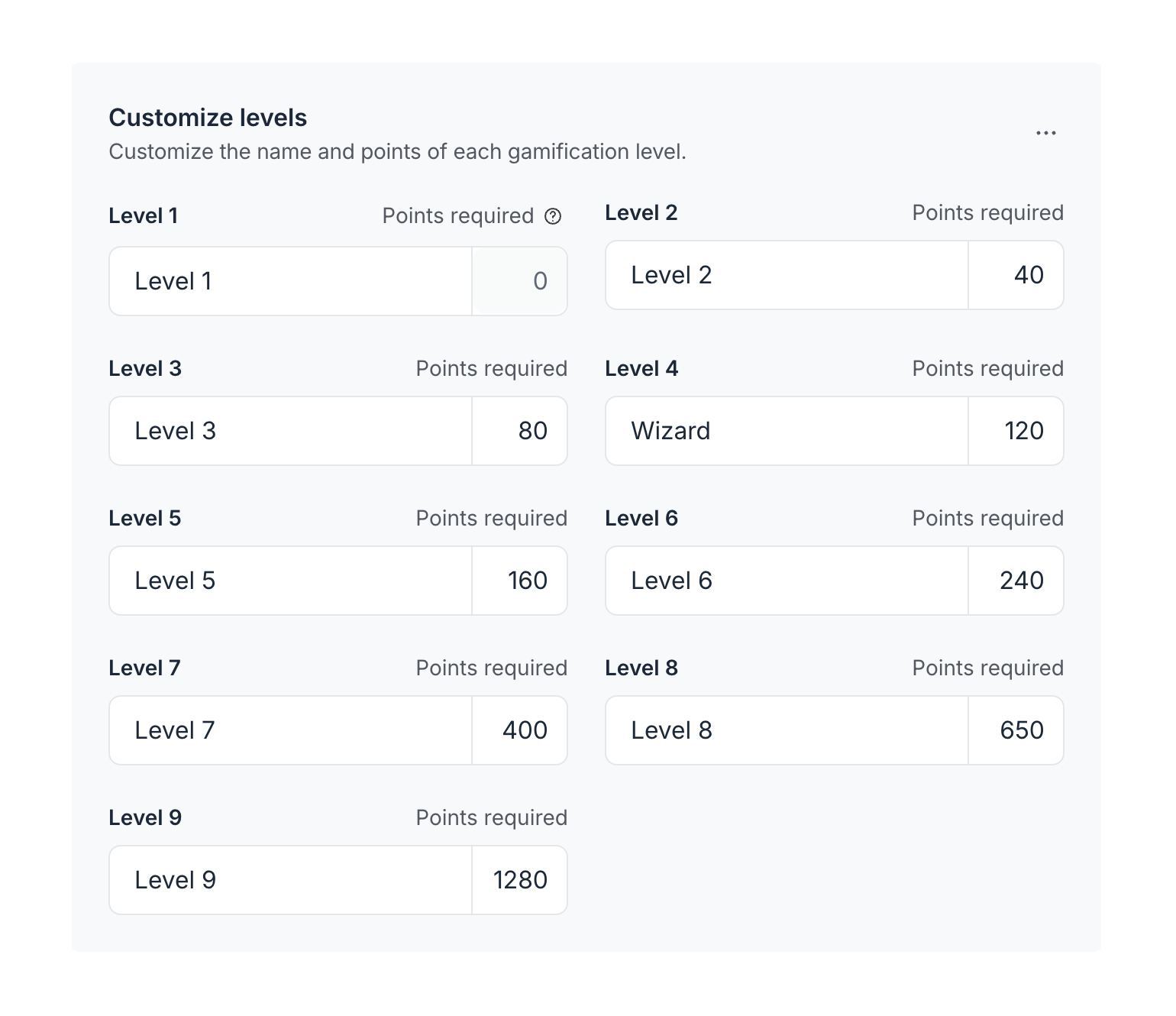
Go to the Customize levels section.
-
Enter the new point value in the field, next to a level name.
Ensure each level's point requirement is greater than the previous level to maintain a logical progression.
-
Adjust subsequent levels if needed to keep the point ladder consistent.
After reviewing your changes, click Save changes, then confirm the action.
Reset points to the default
You can reset the points for all levels to the default values at any time from the gamification settings.
To reset the points, follow these steps:
-
In the top right corner of the Customize levels section, click the More actions (three dots) icon, and select Reset points to default.
Click Save changes and then confirm the action.

This action will restore the default point values for all levels. Here’s the breakdown of default points for each level:
Level 1: 0 to 9
Level 2: 10 to 19
Level 3: 20 to 39
Level 4: 40 to 79
Level 5: 80 to 159
Level 6: 160 to 319
Level 7: 320 to 639
Level 8: 640 to 1279
Level 9: 1280+