Embed Circle on my website
Last updated: October, 2026
You can embed your Circle community on your website in several ways. This article will explore the available options.
To access the embed codes:
Click the community name or logo (or the dropdown icon next to it) in the top-left corner and select Settings.
Scroll down to the Community section and select Embed.
Embed a space on a page
If you would like to embed a specific space, copy the code provided in the Space widget section and paste it into the <body> section of your website. You will simply need to insert the space slug in the code where it says [space_slug_goes_here] and remove the brackets.
To find the space slug:
Click Community in the left sidebar, then select Spaces.
Hover over the space and click More actions (three dots) and select Edit space.
Navigate to Options tab.
-
Under the SEO section, you can find the Custom URL slug for the space.

Embed post comments on a page
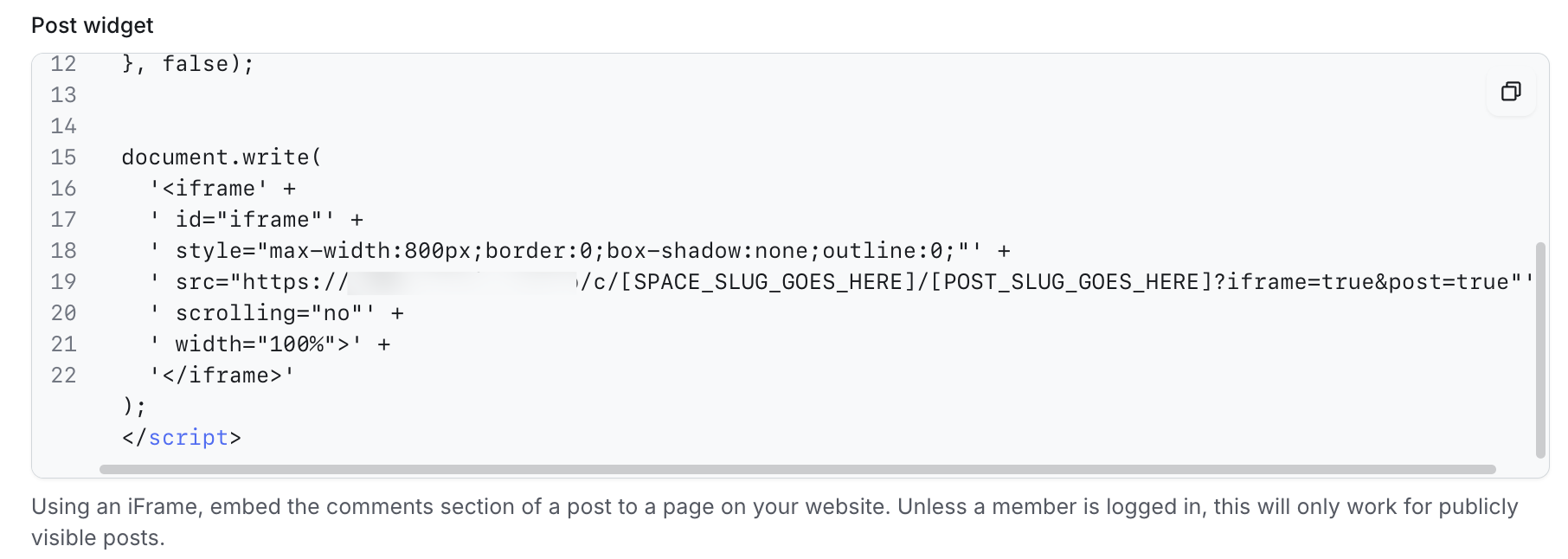
To embed a specific comment, copy the code from the Post widget section. You can paste this code into your website's <head> or <body> section based on your requirements. Simply insert your space slug and the post slug where it says [space_slug_goes_here]/[post_slug_goes_here] within the code, and remove the brackets.
To find the slugs for spaces or posts, follow these steps:
For Space slug:
Click Community in the left sidebar, then select Spaces.
Hover over the space and click More actions (three dots) and select Edit space.
Navigate to Options tab.
Under the SEO section, you can find the Custom URL slug for the space.
For Post slug:
Click Community in the left sidebar, then select Posts.
Hover over the post and click More actions (three dots) and select Edit post.
Click Settings (⚙) in the dialog header.
-
In the Settings dialog, you can find and update the Custom URL slug for the post.
You can use the JFiddle tool to test how embeds will appear on your site!
Embed the community on a page
If you'd like to embed your entire community (including the header and sidebar) on a page, navigate to the Community widget section and copy the code. Paste this code into the <body> section of your website.
Now, modify the code by replacing the URL where it says [insert community URL] in the code with your community URL and adjust the width and height values as needed.
If you'd like your widget to fit any browser window, use the modified code below:
<center><iframe style="border: 0; box-shadow: none; width: 100%; height: 150vh;" src="[INSERT COMMUNITY URL]"></iframe></center>