Set up subscription groups
Last updated: August, 2026
Subscription groups allow you to bundle paywalls with subscription pricing, giving members the flexibility to easily upgrade or downgrade across different subscription options.
About subscription groups
Think of subscription groups as tiers—each representing a different level of access to your community’s content. These tiers allow members to move between different content offerings.
Additionally, grouping paywalls into a subscription group ensures that members can only subscribe to one paywall at a time, preventing them from holding subscriptions to multiple paywalls that are part of the same group.
Let’s assume:
Your community offers three different content categories, each organized into separate space groups.
You want to allow members to switch between these content tiers effortlessly—whether upgrading to a higher level or downgrading to a lower one—without the hassle of canceling and resubscribing.
To achieve this, you can create paywalls that grant access to different content levels:
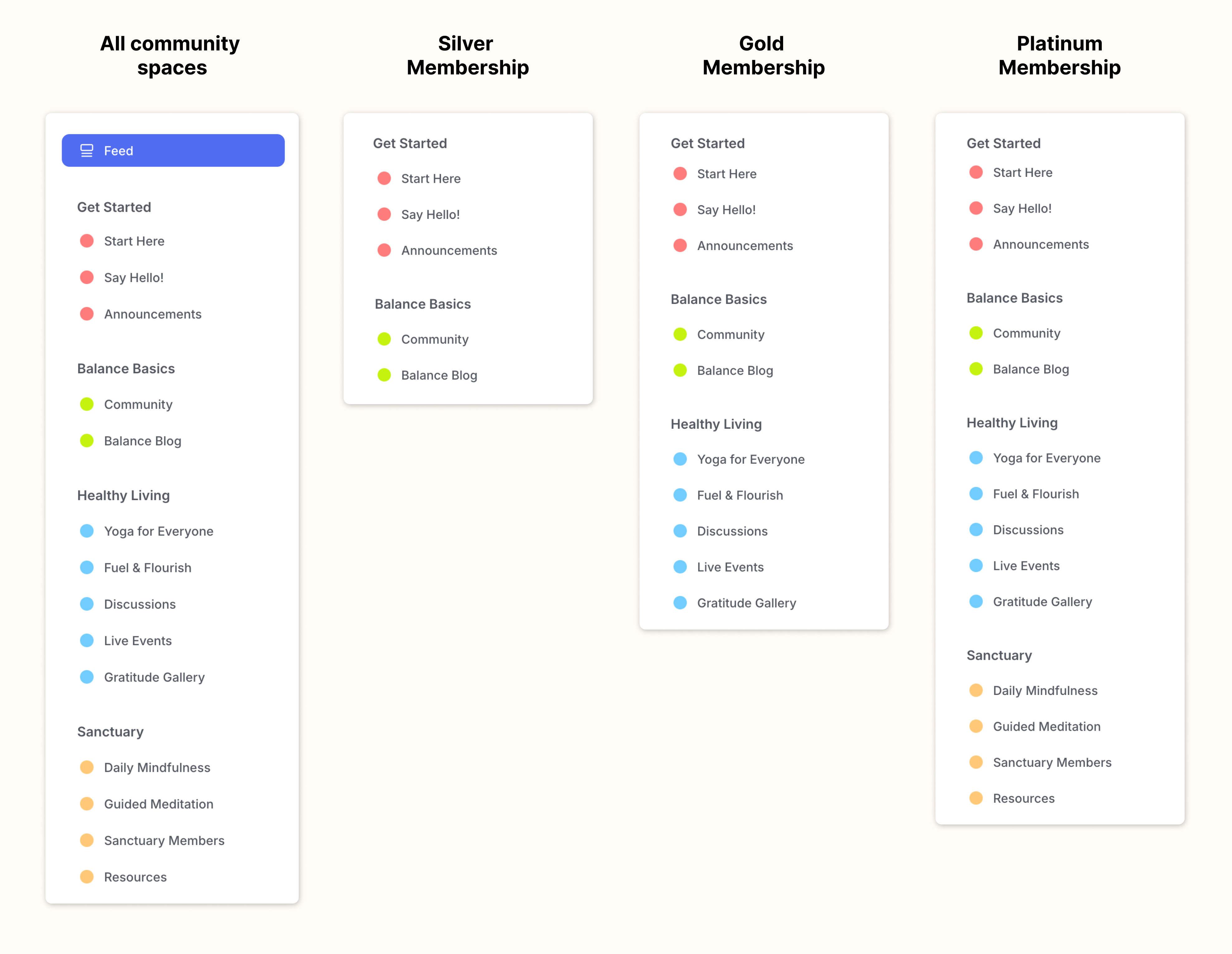
Silver Membership – Provides access to all spaces in the Get Started and Balance Basics space groups.
Gold Membership – Includes everything in Silver Membership, plus access to the Healthy Living space group.
Platinum Membership – Includes everything in Gold Membership, plus access to the Sanctuary space group.
Set up a new subscription group
You can create multiple subscription groups to organize tiers based on different content segments or themes within your community.
ℹ️ Note: Subscription groups are only available for paywalls that have subscription pricing.
Step 1: Create a subscription group
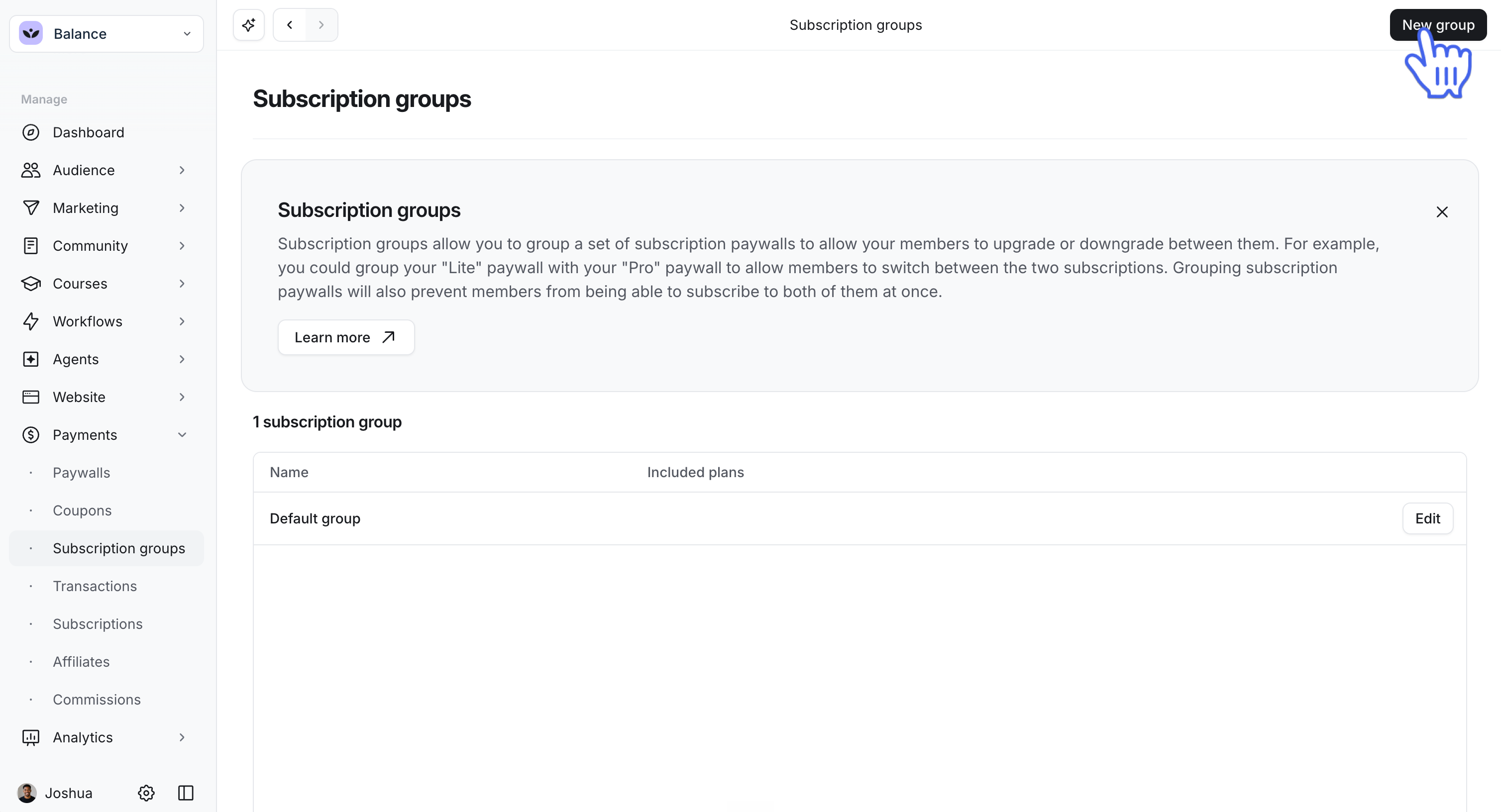
Click Payments in the left sidebar and then select Subscription groups.
-
Click New group in the top-right corner.
-
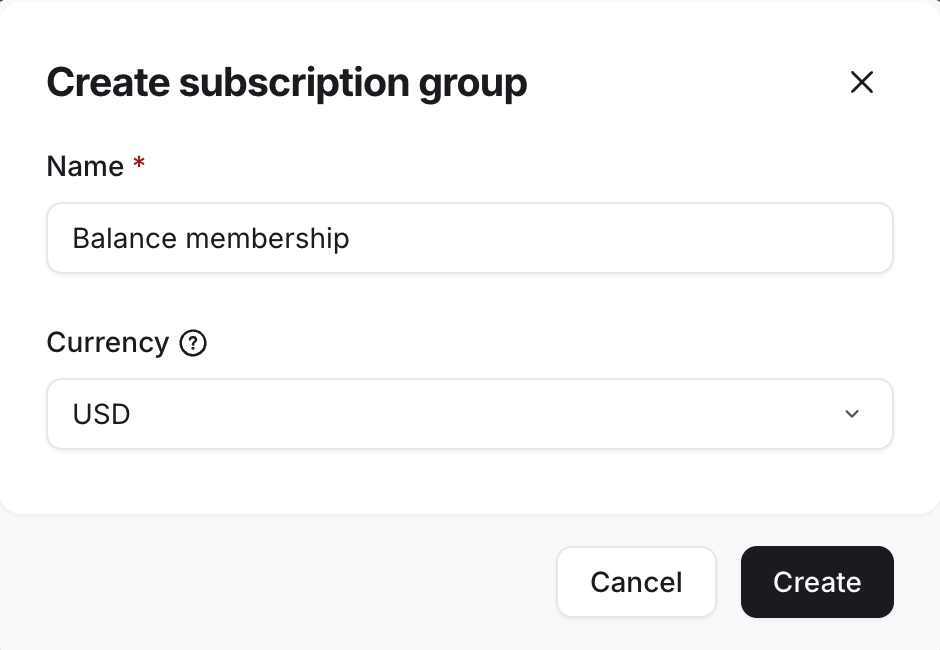
Add a group name and select the currency.
Click Create.
Step 2: Add a paywall to a subscription group
Things to know about adding paywalls to a subscription group:
Same currency requirement: Paywalls can only be added to a subscription group that uses the same currency. When selecting a subscription group for a paywall, only groups with a matching currency will appear in the dropdown menu.
-
Consistent access type: A subscription group can only include paywalls with the same access type—either Access groups or legacy Space access, but not both.
For example, if Subscription group A already has a paywall that uses the legacy Space access option to grant access to spaces, you can only add other paywalls that also use the Space access option. If you try to add a paywall that uses Access groups option to provide access to spaces, the Subscription group A won’t appear in the list of available groups. In this case, you can create a new subscription group and add paywalls that use the Access group options to grant access to spaces.
To add a paywall to the subscription group, follow these steps:
Click Payments in the left sidebar and then select Paywalls.
Click the More options (three dots) icon on the paywall you’d like to add, and select Edit.
Select the Product tab.
-
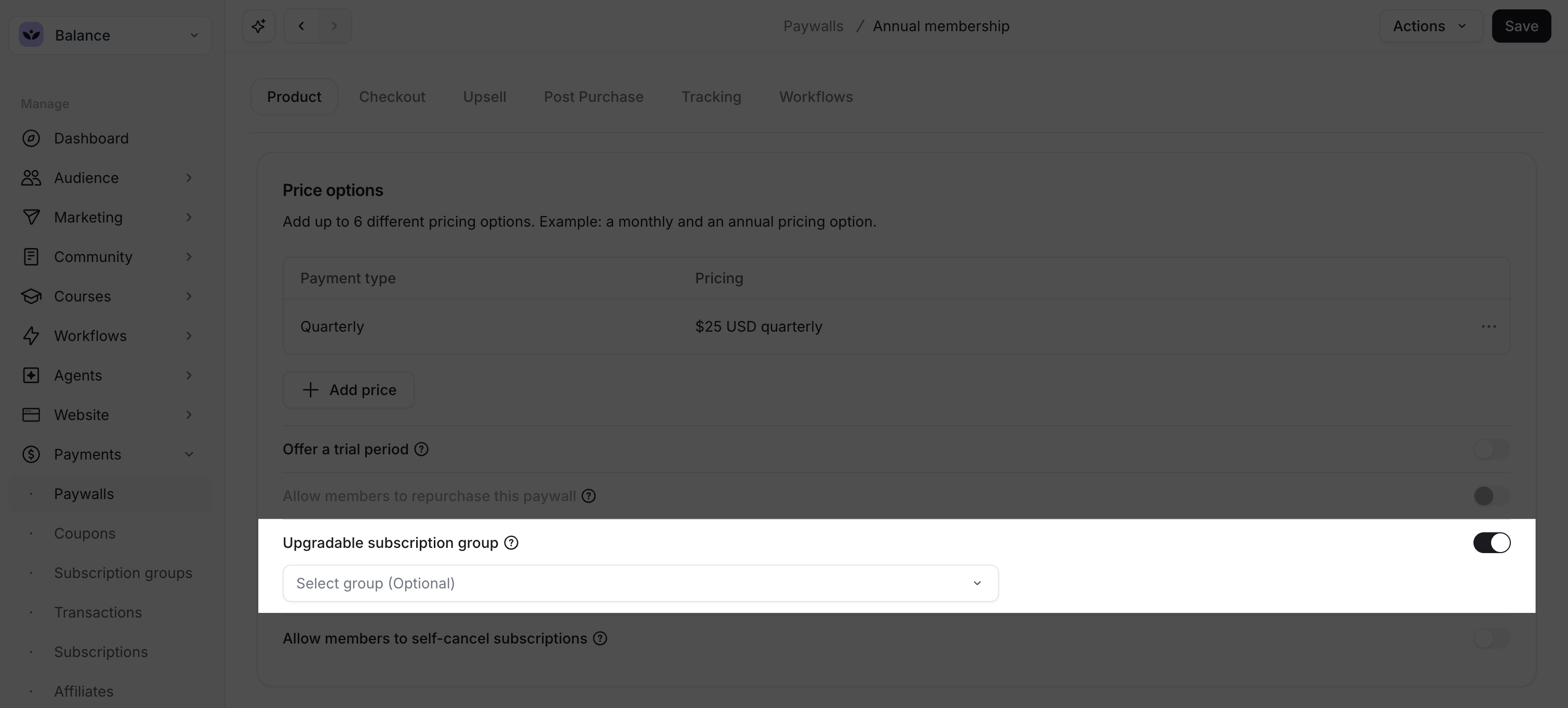
Turn on the Upgradable subscription group toggle in the Price options section.
-
Select the subscription group you want to associate with the paywall from the dropdown menu.
Note that you can link the paywall with only one subscription group at a time.
When members change their paywall plan to this paywall, they will be able to choose from all subscription pricing options available within the paywall.
Click Save.
Repeat these steps for any other paywalls you want to add to the same subscription group. Once added, the paywalls will be listed under the Included plans column on the Subscription groups page.
Edit a subscription group
Click Payments in the left sidebar and then select Subscription groups.
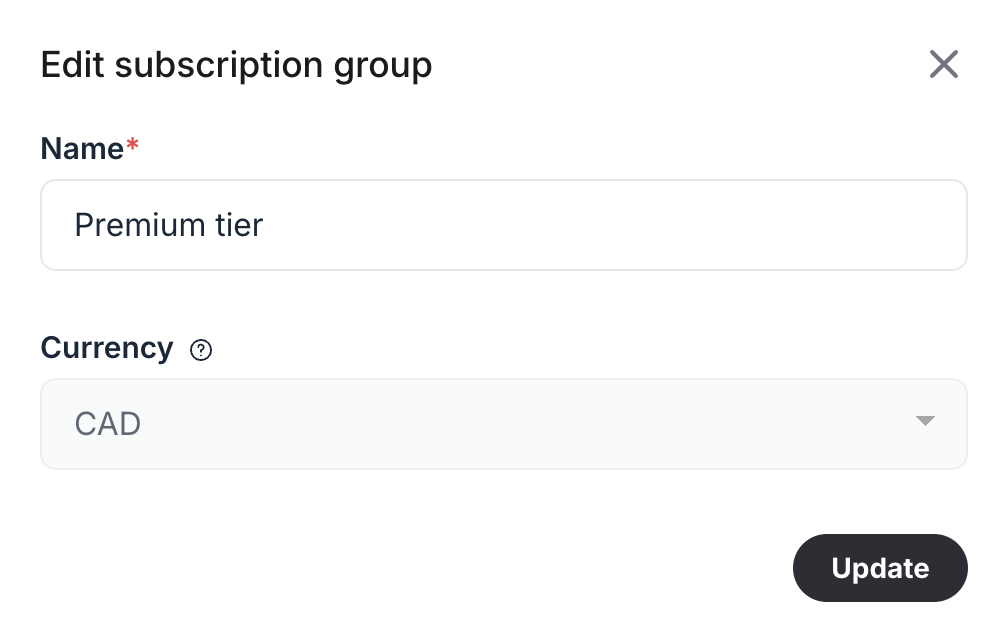
Click Edit next to the subscription group.
-
Make the updates as needed.
-
ℹ️ Note: The currency of a subscription group cannot be changed once at least one paywall has been added to the group. To update the currency, you must first remove all paywalls from the group.
-
Click Update to save changes.
How a subscription group helps members
When a member purchases a paywall membership with subscription pricing that is part of the subscription group, they can see the option to change the plan from the Billing page in their account settings.
ℹ️ Note: Members can only upgrade or downgrade between paywalls within the same subscription group.
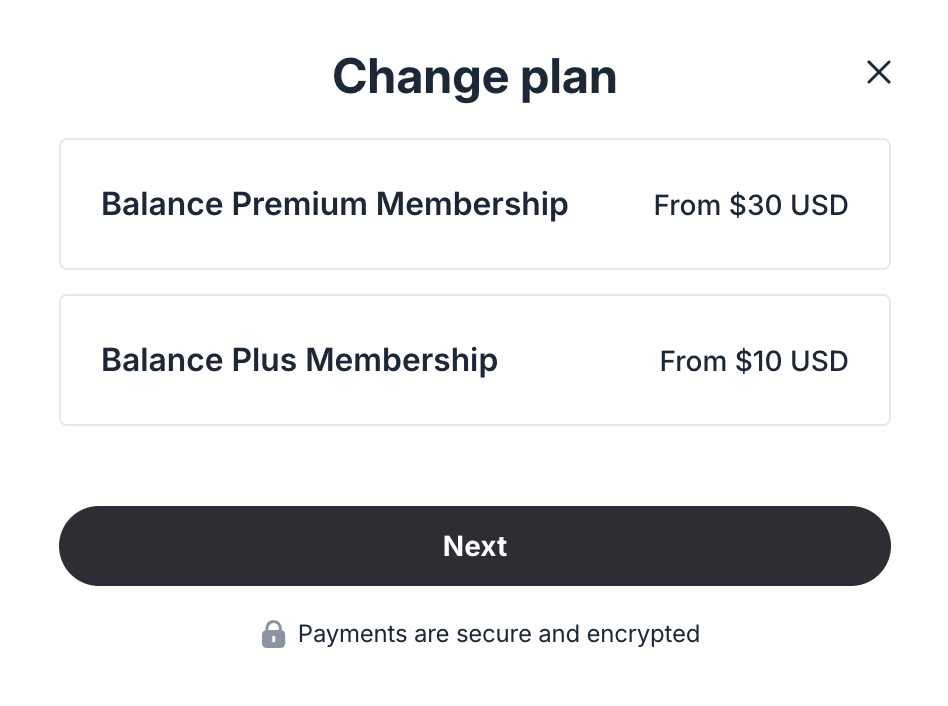
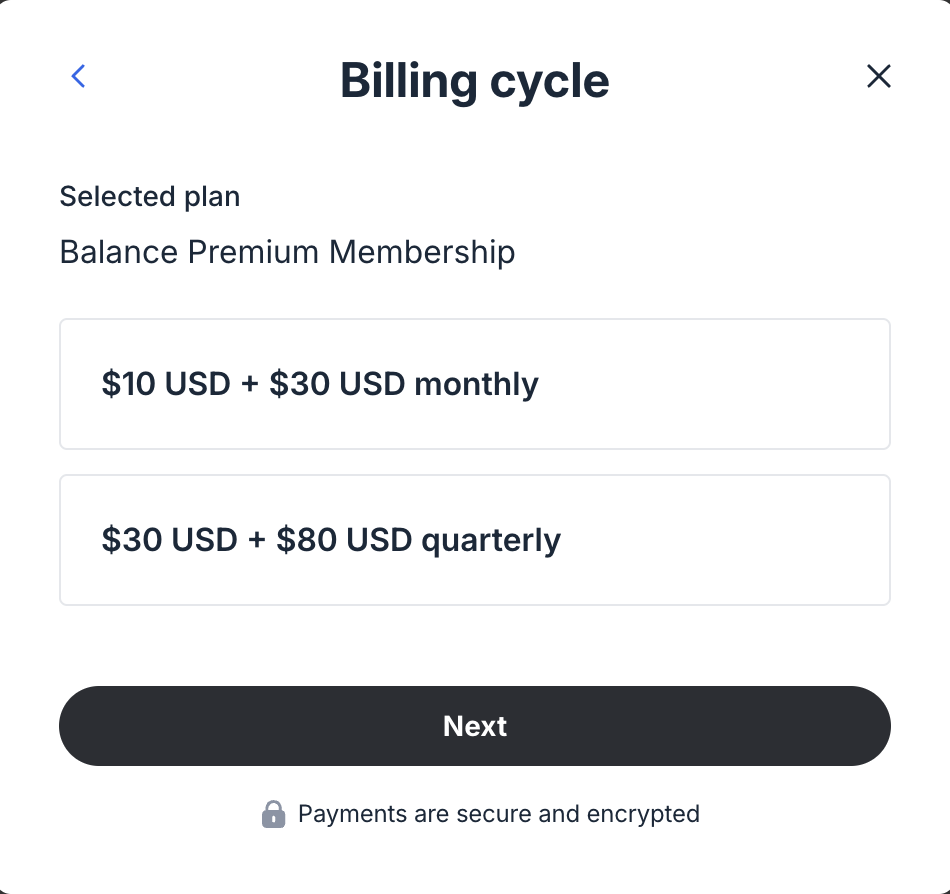
Suppose a member is subscribed to the Balance Basic Membership. When they choose to change their plan, they will:
-
See a list of available plans (paywalls) within the same subscription group.
-
Select their new plan and preferred billing cycle (pricing).
-
See information on proration and any amount due before confirming the change.
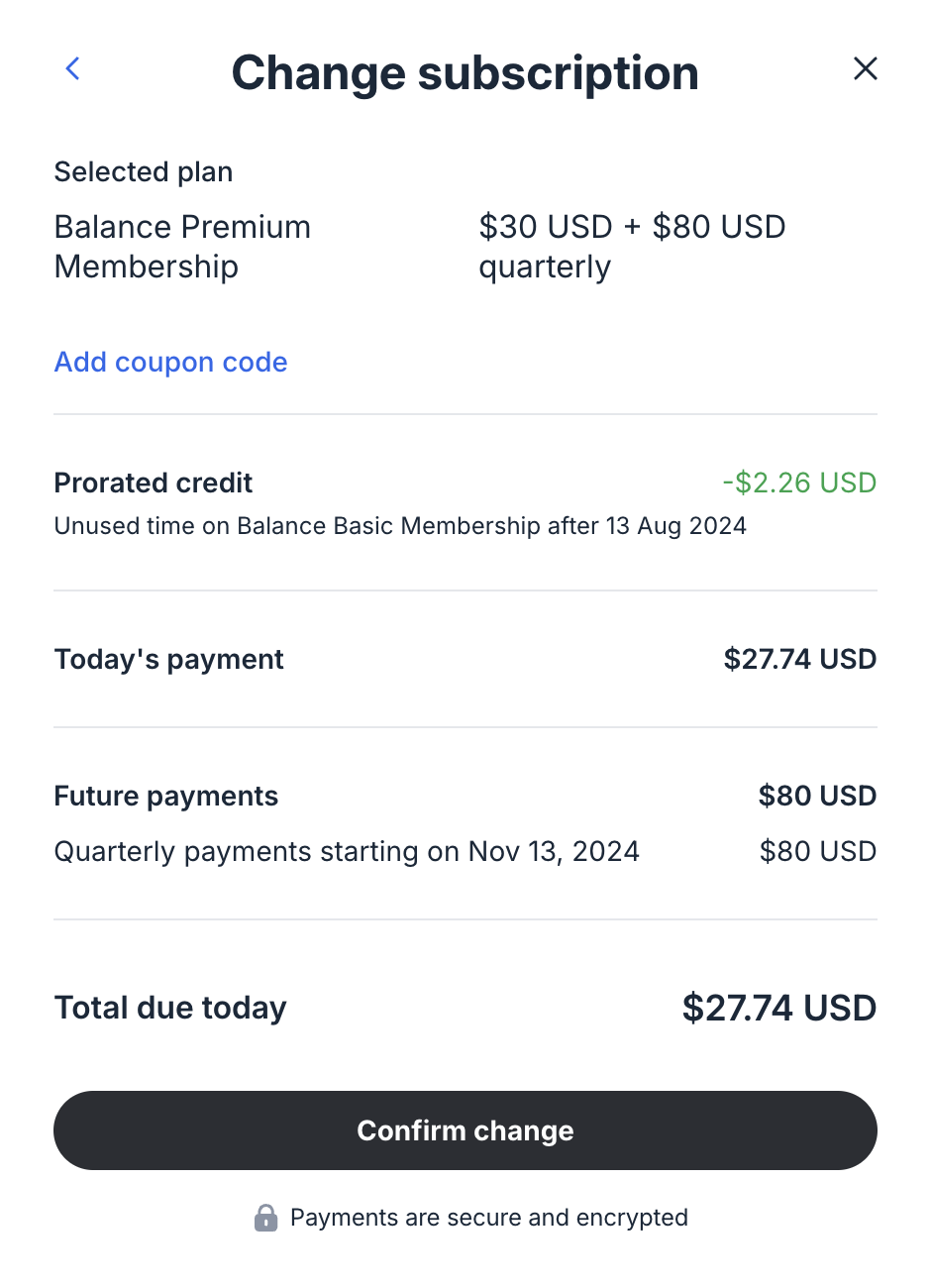
❗ Important: Members can change the billing cycle or plan whether or not the new option includes an upfront payment. If the new billing cycle or plan requires an upfront payment, they will be charged this amount in full (no proration applies to upfront payment) immediately once the change is confirmed.
Once a member confirms the change, Circle will update the plan right away, granting them access to content based on their new subscription. 🎉
💡 Tip: To learn more about how members can manage their subscriptions, see the following articles: