How search works in your community
Last updated: July, 2026
Search makes it easy to find your way around the community. You can quickly pull up posts, events, spaces, member profiles, or start a chat with AI agents, so you spend less time scrolling and more time engaging with what matters.
Who can search in your community
Before we dive into the search feature, let’s review who can search in the community and what kind of content they can search for.
The content that appears in search mainly depends on whether:
The person using the search feature is a community member.
Your community is public or private.
Your space is open or private.
Visitors in public communities
In a public community, visitors (non-members) can search for limited types of content from spaces that are visible to logged-out users. This includes:
Regular posts and image posts: Content from open spaces that are visible to logged-out visitors (spaces that have the Show to logged out visitors toggle turned on).
Comments: Comments on posts, image posts, and events in spaces that are open and visible to logged-out visitors.
Lessons: Titles and content from lessons in open course spaces. While lessons appear in search results, visitors can’t view the full lesson content unless they join the community and the course space.
Events: Events from open event spaces that are visible to logged-out visitors.
What visitors can’t search:
-
Members: If a visitor tries looking for a member’s name through the search feature, that profile won’t appear in quick search or full search results. Only logged-in members can search for other members (who have their Show my profile in the member directory permission enabled in their profile settings).
-
❗ Important: Visitors may still come across member profiles indirectly. For example:
If a visitor clicks on the profile photo or name of a post, comment, or event author, they’ll be able to view that author’s profile.
If the member directory space is open and visible to logged-out visitors, member profiles (that have the Show my profile in the member directory permission enabled) will appear there for visitors.
-
Chats: Messages from chat spaces and DMs do not appear in visitors’ search results.
💡 Tip: Visitors can’t search in a private community, since they need to log in as members to access any content.
Members in public and private communities
Members can use search in both public and private communities, but results depend on their space access:
-
Posts, courses, and events: Members can search for content from spaces that are set to open and spaces that they are part of. If a space is private, content from that space will only appear in search results if the member has access to it (i.e., they’ve been added to the space).
For courses specifically, lessons from open course space may appear in search results even if the member hasn’t joined the course. However, they won’t be able to view the full lesson until they join.
Chats and direct messages: Search only includes chat messages or DMs from conversations the member is part of.
-
Members: Logged-in members can search for other members.
Member profiles only appear in search results if their profile has the Show my profile in the member directory permission enabled in their profile settings.
Admins can find all members regardless of this setting.
AI Agents: Members can start a conversation with your AI agents through search when enabled as a touchpoint in your agent’s settings.
How to start a search
You can search for:
Members
Spaces
Regular posts
Image post captions
Comments
-
DMs and chat space messages
❗ Important: Search results include messages only from DMs and chat spaces you are a part of.
Events
Lessons
Chat with AI Agents (when enabled by the community)
To start a search on the desktop app or the web browser, follow these steps:
-
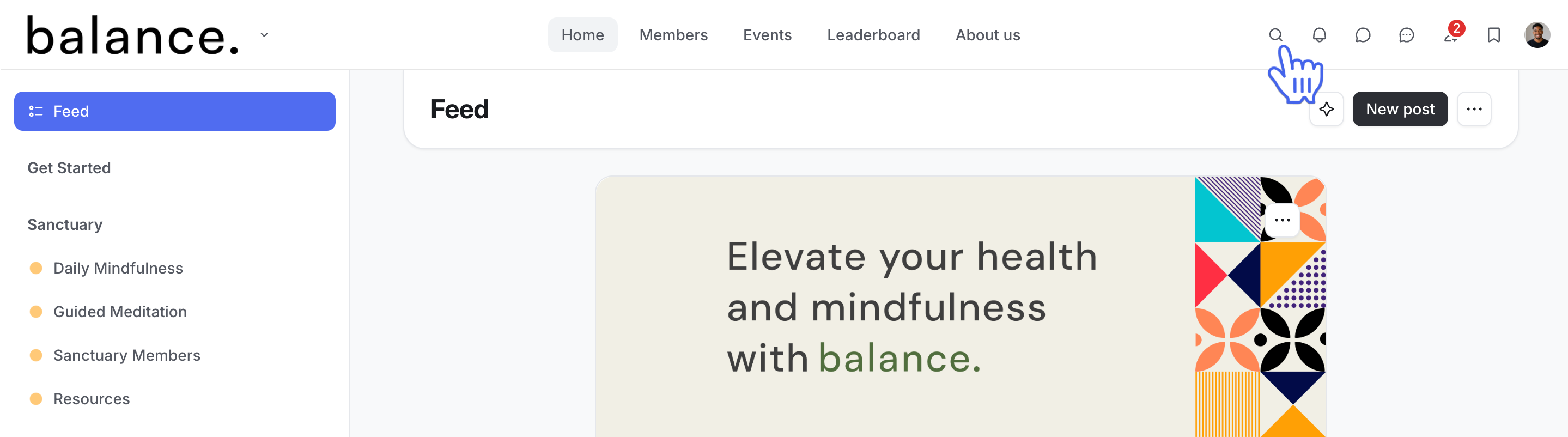
Click the search button located on the top navigation bar. Alternatively, you can use the keyboard shortcut (cmd/ctrl + K) to open the quick search bar.
-
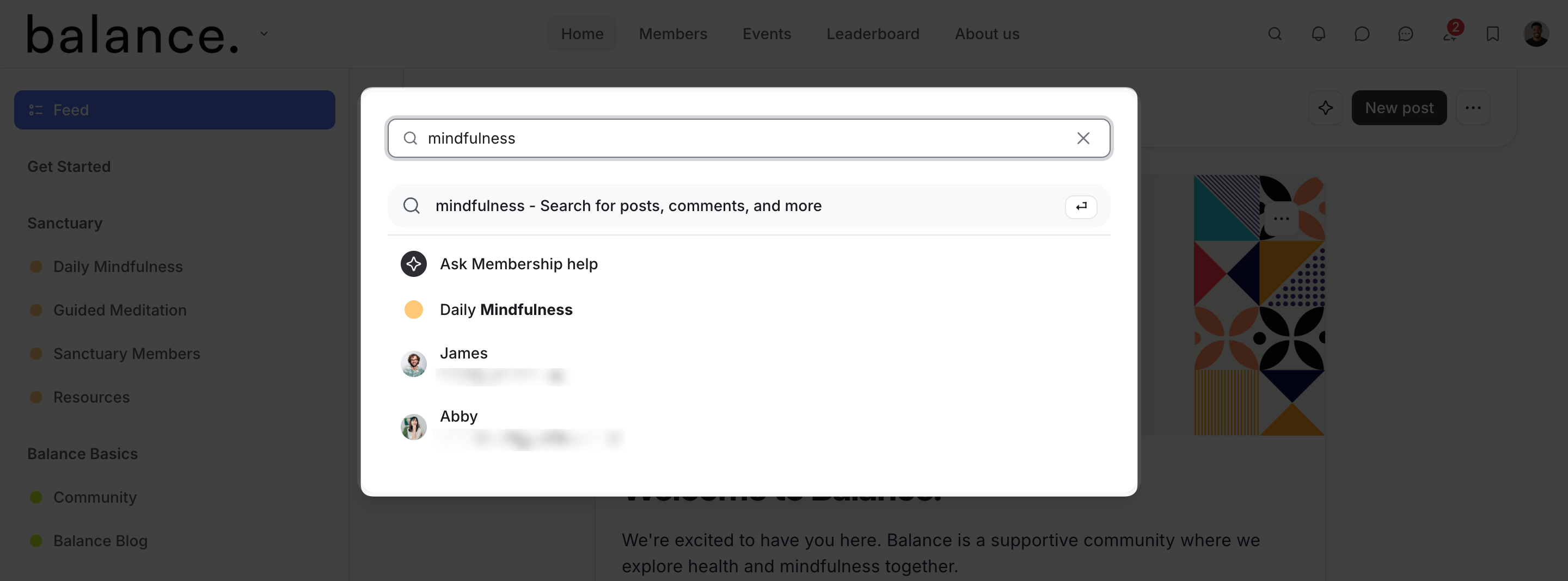
Type the keywords that best describe what you are looking for (or pick one from your recent searches). If your keyword matches a member or space, results appear instantly in the quick search bar, and you can navigate directly.
To search across posts, comments, lessons, and more, press Enter to run a full community-wide search.
Recent searches
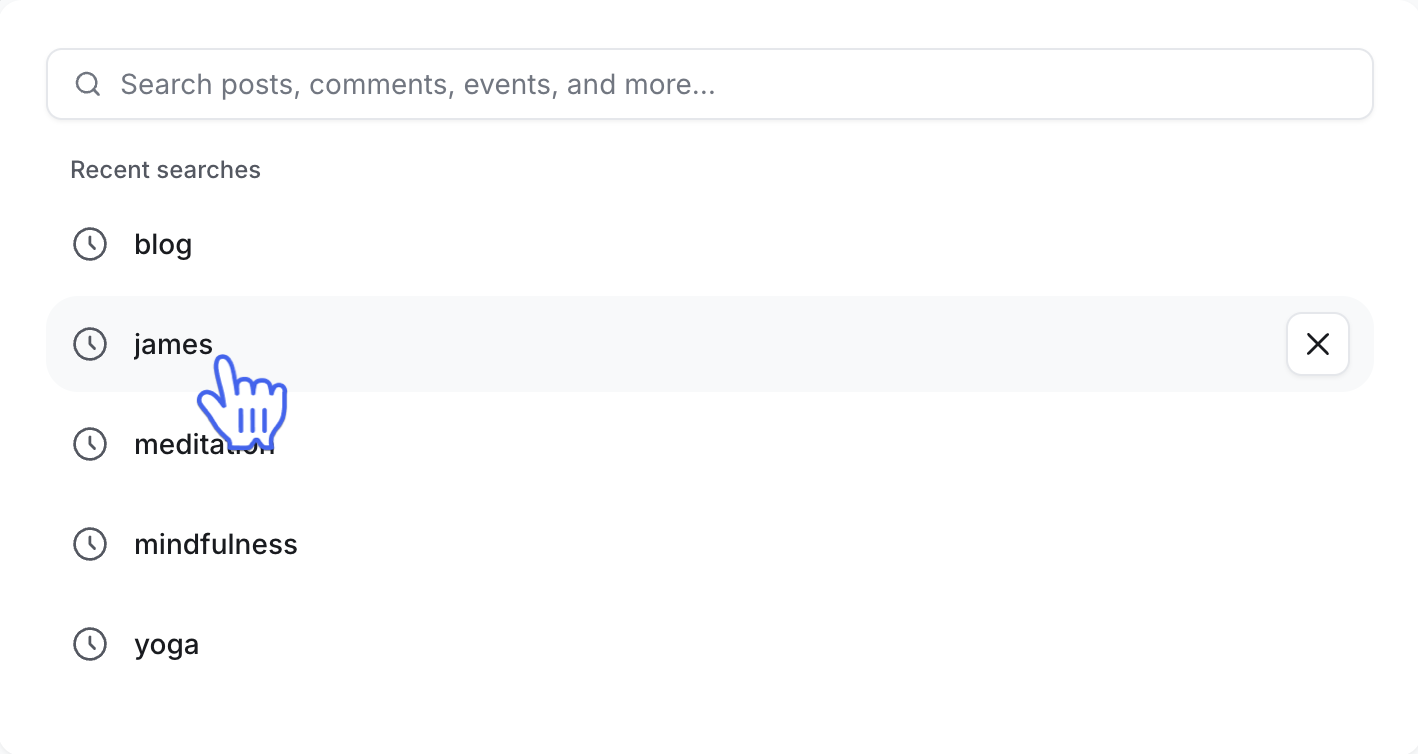
Your last five keyword searches are saved in the Recent searches section in the quick search bar. Click a keyword to run it again.
💡 Tip: If you would like to remove any of the recent search entries from the quick search bar, hover over the keyword and click X.
Using search on mobile apps
To search within your community using the Circle mobile app:
Tap the Search icon on the control bar at the bottom of the screen.
Type your keywords in the search bar. Results will appear as you type.
Tap a result to open it.
On the mobile apps, you can search for spaces, posts, comments, and members.
View search results
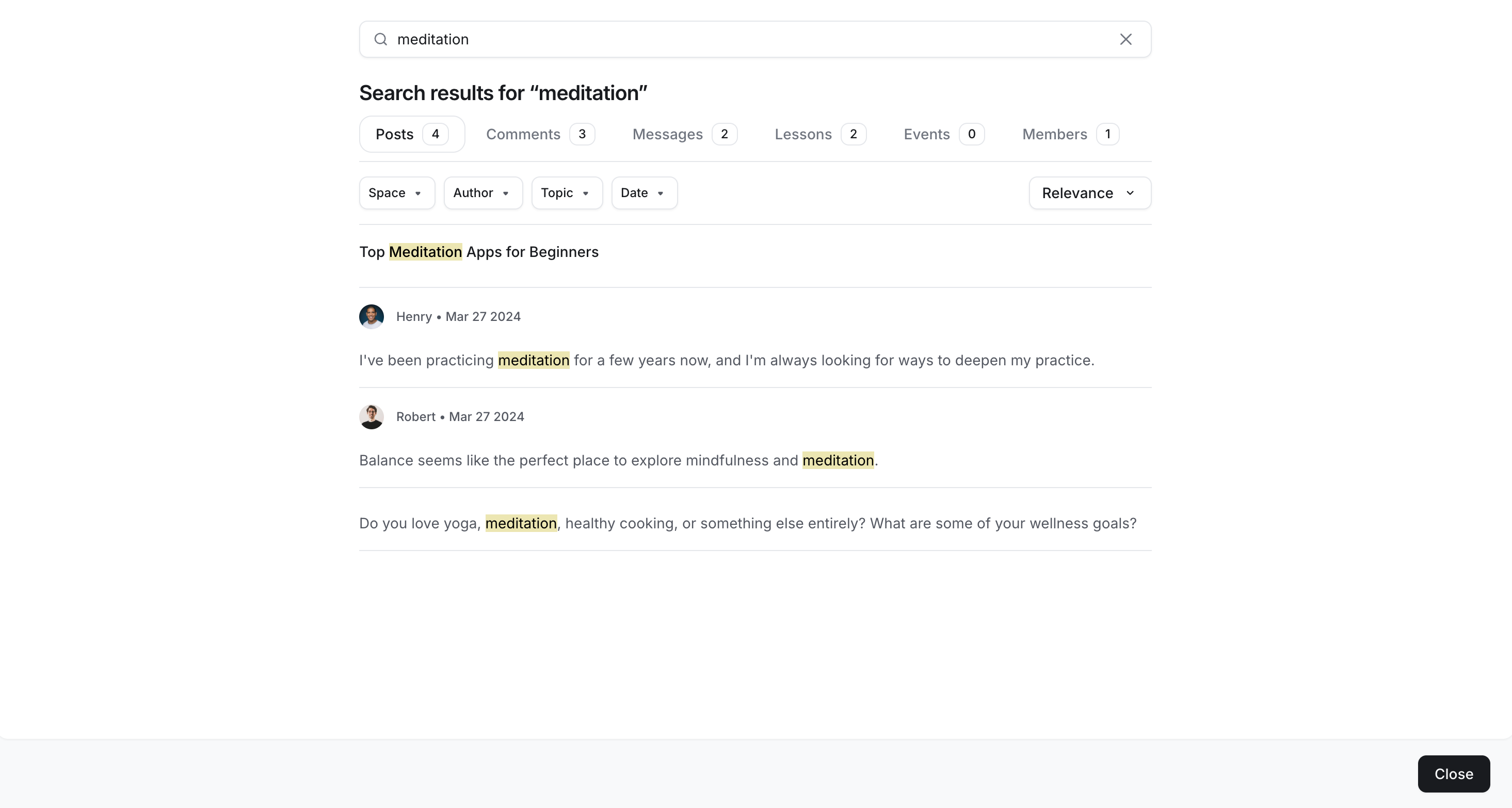
When you run a full search from the quick search bar, you’ll land on the search results page. Results are grouped into categories such as posts, comments, messages, lessons, events, and members.
This allows you to access narrowed-down results within each category, helping you find the information you are looking for with ease.
💡 Tip: To open a search result in a new tab, hold the cmd/ctrl key and click a result.
Sort results
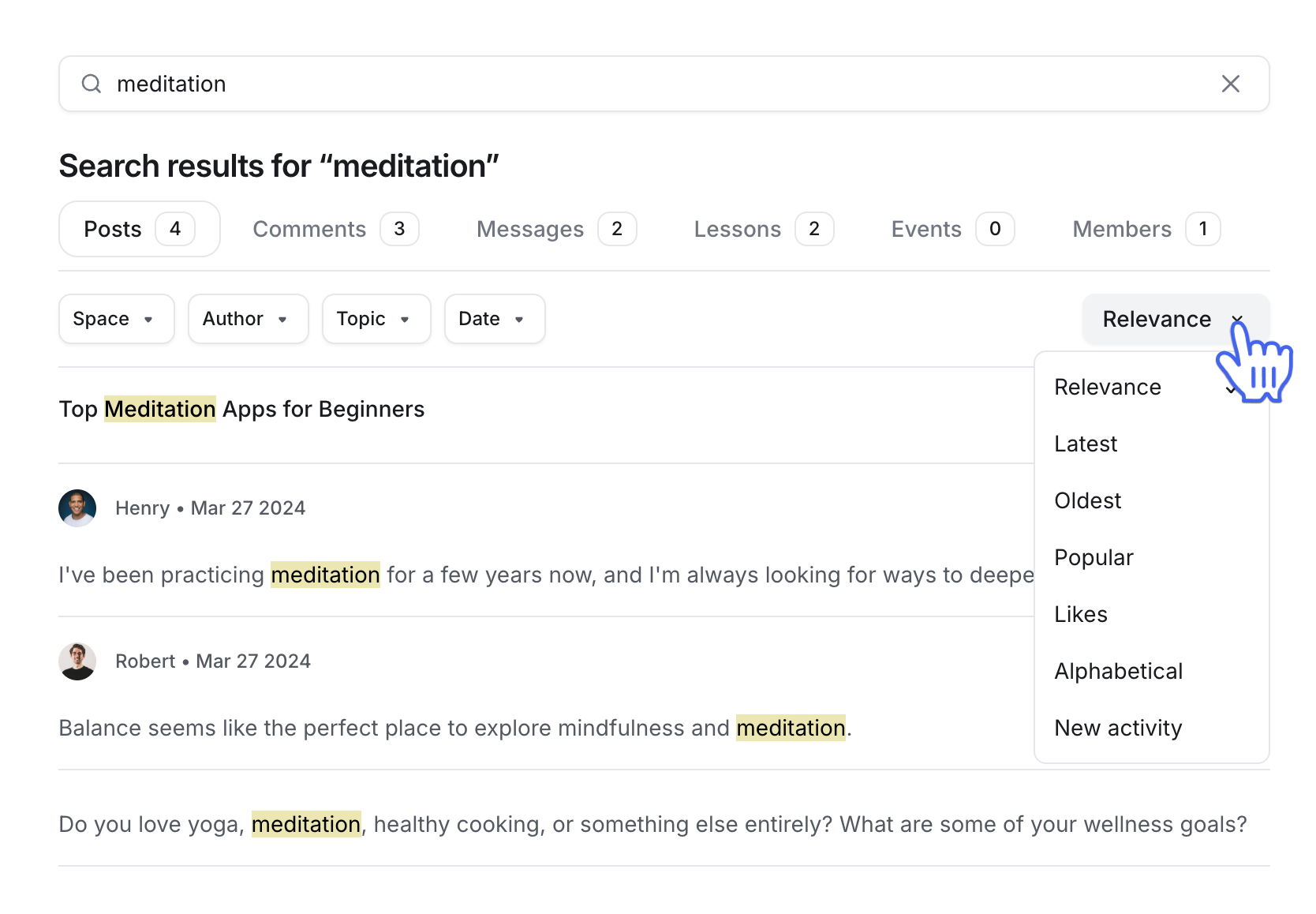
Sorting search results helps you find the most relevant content quickly. Depending on the type of content, you can sort search results using the following criteria:
Relevance
Latest
Oldest
Popular
Likes
Alphabetical
New activity
To sort the results within the tab, click the current sort option located in the top right corner of the tab and select your preferred sorting option from the list.
Filter results
Filtering search results allows you to narrow down the content to match your specific needs, making it easier to find what you're looking for.
Depending on the type of content within tabs, you can apply the various filters, including:
Space: Limit search results to specific post, event, or course type spaces. The space filter is available in the posts, events, and lessons tabs.
Author: Find content created by a particular author in the posts and comments tabs.
Tags: Narrow down search results in the members tab by member tags. This allows you to find members associated with particular tags within search results.
Status: Filter events based on their upcoming or past status in the events tab.
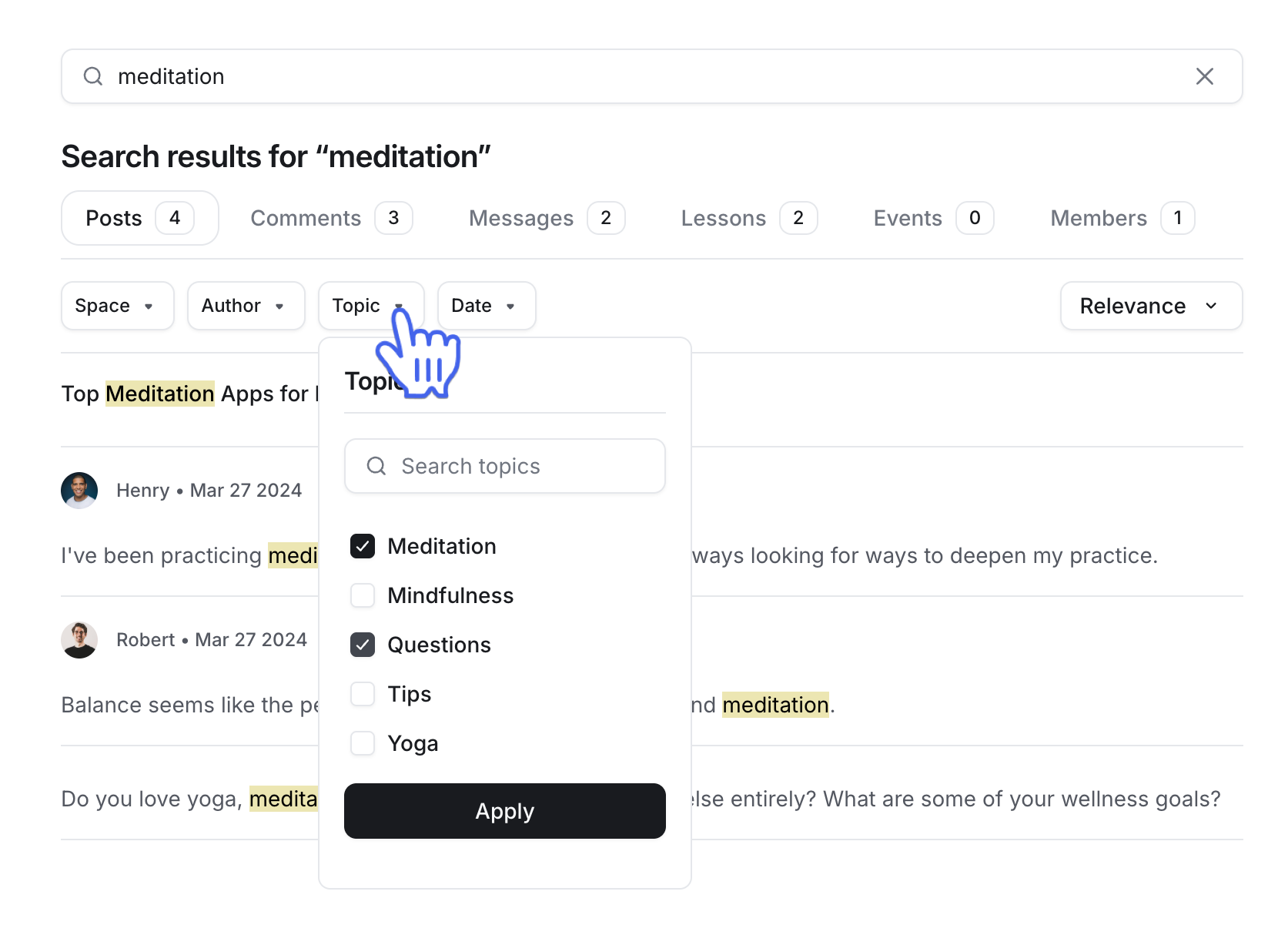
Topics: Select specific topics to refine your search results in the posts tab. This filter ensures you only see posts assigned with the topics you are interested in within search results.
From: Filter results in the messages tab by specifying the sender to locate messages sent by a specific individual.
In: Limit search results in the messages tab to a specific chat space.
Date: To narrow your search to a specific time frame, filter messages in the messages tab by the date they were sent.
To apply a filter, click the filter option at the top of the tab, choose your preferred option, or type the criteria and click Apply.
Set default search sorting for your community
As an admin, you can define the initial sorting, such as by relevance, oldest, latest, or alphabetical, that everyone sees when they perform a search within the community on desktop. By setting a default sort, you ensure a consistent and tailored search experience for members.
Every time you or your community members conduct a search, the results will automatically display according to the default sorting. However, you and your members can manually adjust the sorting preference from the search results if desired.
To set a default search sort for the desktop, follow these steps:
Click your community name or logo on the top navigation bar, or the dropdown icon next to it, and select Settings.
From the sidebar menu, go to General.
Go to the Defaults section and locate Default search sorting.
Click the dropdown menu and select your preferred sort option.
Click Save changes.